The section refers to Cisco and Poly devices NOT registered to MS Teams or Zoom. Instead they are using Webex (Cisco only) or a SIP service such as Pexip. When referring to 'Devices' in this section, we are not including MS Teams or Zoom devices.
This feature relies on the Morbit Hub being installed on a network as it uses the local API of both Cisco (via SSH) and Poly (via Telnet). Instructions for enabling the local API on Cisco Webex registered devices is here.
Clicking the Devices > Unified Comms Devices menu will load the full list of all UC devices within the service. Filter options are available to drill-down the viewed list of Devices. Additional options provided here are:
- Group Backup Task
You can choose to Backup all the Devices in the estate, or just a subset of Devices by using the filters to update what is shown.
To do choose your target Devices, load up the main Devices menu. Should you require it, using the filter views drill-down to the Device requirements that suits your needs. For example, use the ‘Networks’ filter or ‘Registration filter’ to narrow down the targets. Whatever is in the Devices view, when clicking  on the top menu will apply the task to.
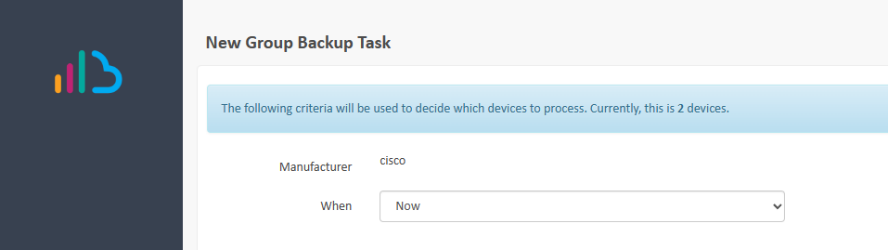
When: You can apply the task immediately using Now or else Schedule Once or Schedule Recurring.
 Running on a recurring basis for all Devices allows you to set this up and know that all devices will be backed up according to your recurring schedule. Set it and forget it!
- Group Upgrade Task – further information on this is detailed here
- Group Restart Task – this will initiate a task to schedule a restart command to all the Devices in the current view. It applies to all Devices that are online with API access working at the time of the task running.
- Export List – export the current viewed Devices to a CSV file
Summary Icons
Provided next to the Name of the of Devices is a quick summary view of the status of the Device. These statuses are detailed as:
| Icon | Description |
|---|---|
 | Device is online |
 | Device is offline |
 | Web/API credentials are correct |
 | Web/API credentials are incorrect |
 | Device is registered to a video service |
 | Device is not registered to a video service |
 | Registration status is unknown due to credentials issue |
 | There are no diagnostic or health errors reported |
 | There are warning diagnostic errors reported |
 | There are error diagnostic errors reported |
 | Diagnostic statuses are unknown due to credentials issue |
 | Device is currently in an alert state and emails have been sent to configurated contacts |
 | The Device is not in an alert state (or not configured to alert) |
Device Details
Selecting any SIP-based Device from the list will load the Device Details screen. The top menu provides for the following features:
- Release from Device Management – this will remove the device from the Device list, and it will only show in the Network > All Devices page. You would select this if you no longer wanted to manage the Device.
- Schedule > Schedule Backup – further information on this is detailed here
- Schedule > Schedule Upgrade – further information on this is detailed here
- Schedule > Schedule Restart – this will initiate a task to schedule a restart command to this Device
Selecting a SIP-based Device will provide the following menu options:
Web/API credentials working | Web/API credentials not working |
|---|---|
| General | General (includes Username/Password box to resolve Web/API access credentials issue) |
| Remote Connections (if enabled) | Call Activity |
| Real Time | Analysis |
| Configuration* | Alerts |
| Call Activity | Utilities |
| Analysis | |
| Alerts | |
| Backups | |
| Upgrade* | |
| Raw Data | |
| Utilities |
* = Not available on Cisco Webex registered Devices as these should be configured via a Webex Control Hub. This restriction is displayed in the General screen.
General
Provided here are Summary information items of the Device and some system control options.
The option to rename the Device to something other than the detected System Name (or initial manually added name) is provided by updating the Description box.
In this summary page, along with the Devices hardware details you can view the registrations details, current call status, and quick Device management controls.
To remotely restart a Device, simply click the Restart Device button, and confirm in the prompt window.
Information on Call Control is detailed later in this guide.
Remote Connections (if enabled)
Note: this feature is only listed if the device is on a network with the Remote Connections feature enabled on a Hub.
Depending on the device type, you can select the following connection protocols:
- Remote Desktop Protocol (RDP)
- HTTP or HTTPS
- SSH
- Telnet
- Custom TCP Port
Real Time
When a call is in progress you can view the live statistics directly from the Device.
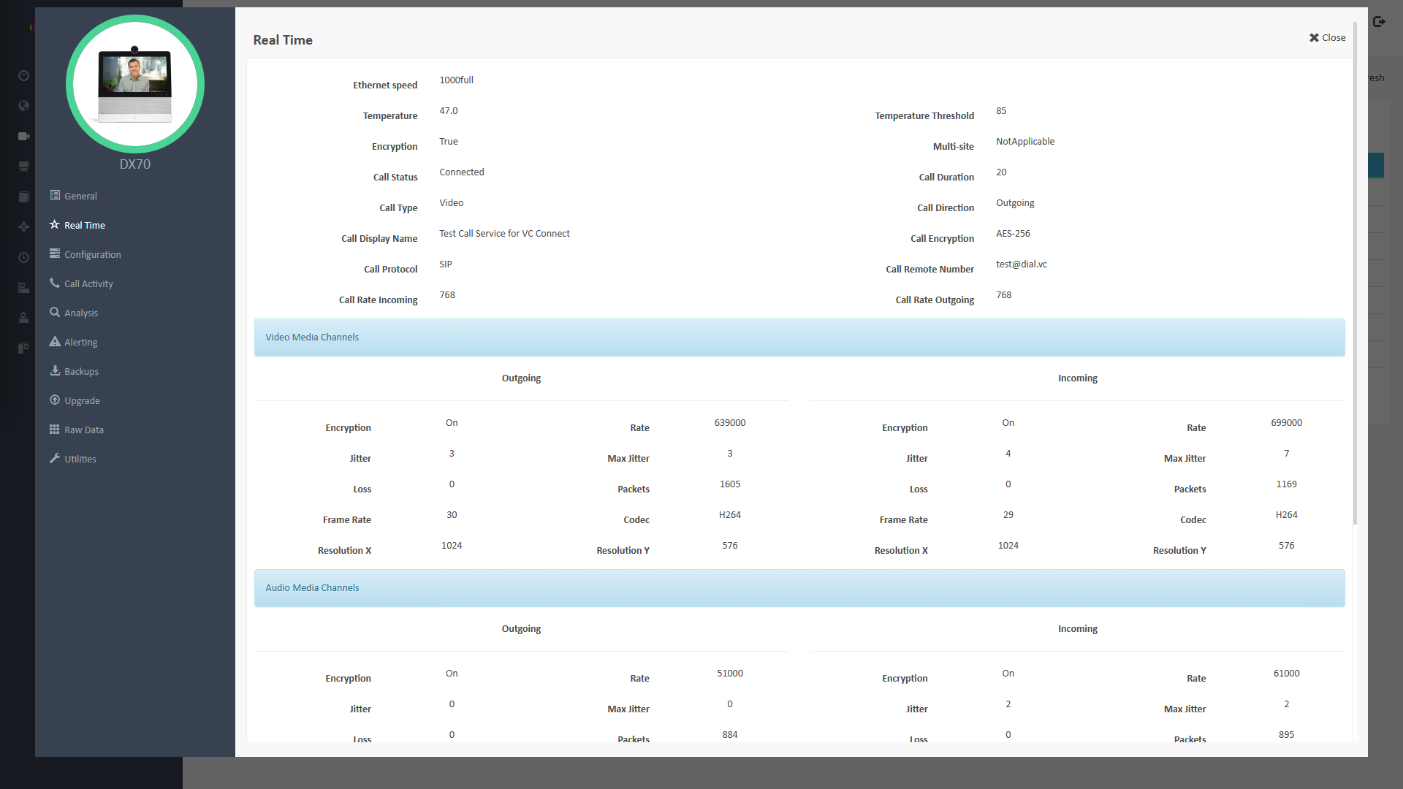
This information includes the following metrics:
- Call rate (inbound/outbound)
- Call duration
- Video resolution (inbound/outbound/presentation)
- Jitter (inbound/outbound)
- Packet loss (inbound/outbound)
- Remote call address
- Codecs (audio/video/presentation)
- Encryption level
- Hardware information:
- Ethernet Speed
- Temperature
- Temperature threshold
Configuration
For assistance in simplifying the management of Devices, in this screen you can configure the settings of the Device – regardless of Cisco or Poly as the manufacturer – as a unified experience where the most pertinent features required are available.
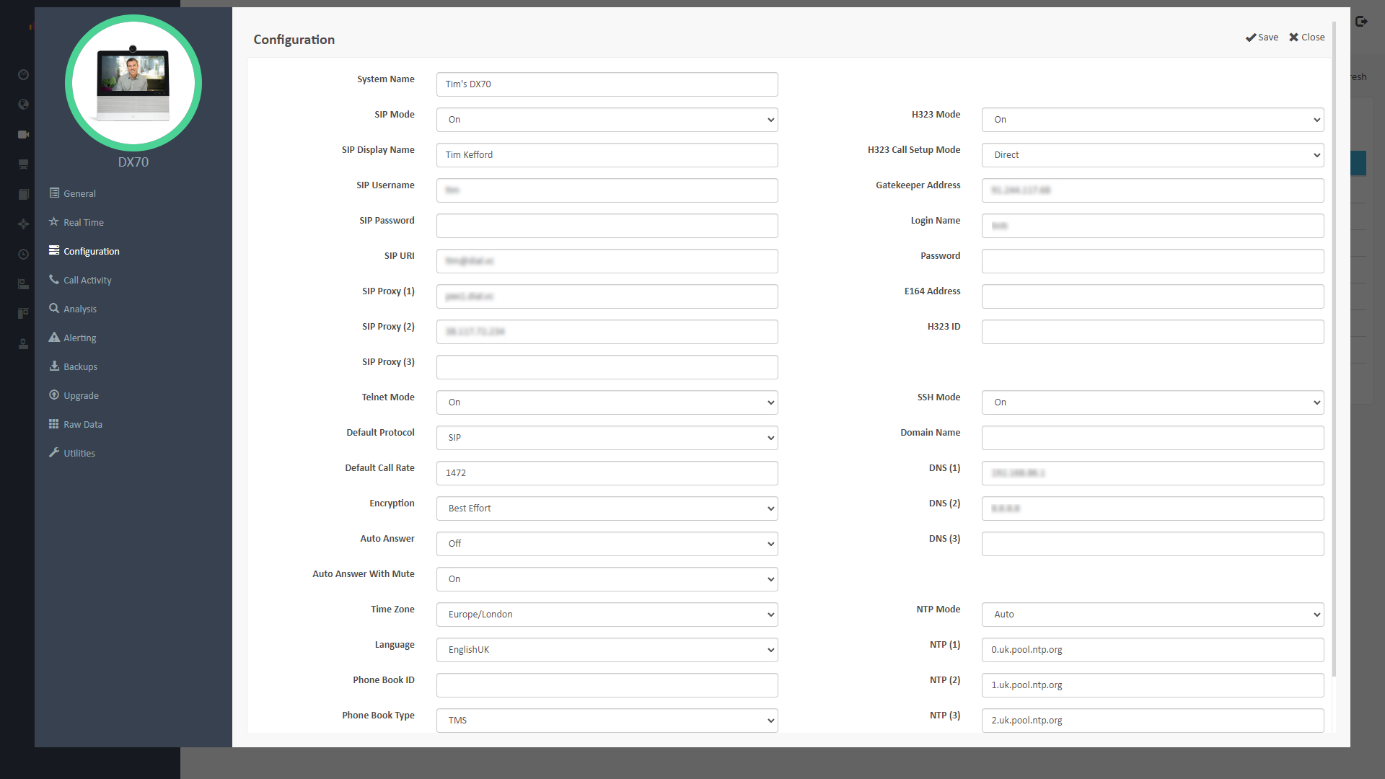
Configurable items available in this screen are:
| Configuration Items | |||
|---|---|---|---|
| System Name | Time Zone | Phone Book ID | H.323 Mode |
| SIP Mode | Language | Phone Book Type | H.323 Call Setup Mode |
| SIP Display Name | Default Protocol | Phone Book URL | H.323 Gatekeeper Address |
| SIP User Name | Default Call Rate | Select Phone Book | H.323 Login Name |
| SIP Password | Encryption | Domain Name | H.323 Password |
| SIP URI | Auto Answer | DNS (1 to 3) | E164 Address |
| SIP Proxy (1 to 3) | Auto Answer with Mute | NTP Mode | H.323 ID |
| Telnet Mode | SSH Mode | NTP Server (1 to 3) | |
After changing any items, simply click Save to apply the changes to the Device. You may change 1 or multiple items at a time - there is no restriction.
Call Activity
Recent calls to or from the Device are listed in this screen. The default date selection is for a 14-day window, but that is easily changed by altering the dates in the selection boxes.
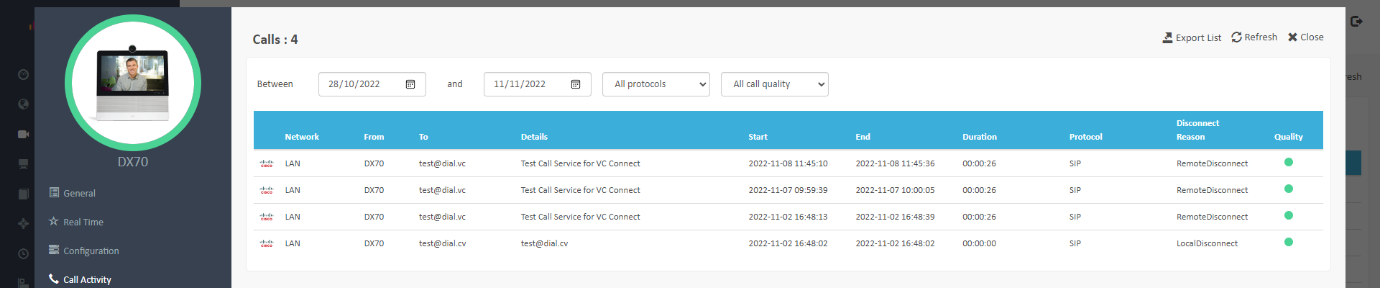
Calls in this list are rated as: (Cisco only feature)
| Perceived Call Quality | Packet Loss | Jitter |
|---|---|---|
| Good | < 0.2% | <10ms |
| OK | 0.2% <> 2.0% | 10-50ms |
| Bad | >=2% | >=50ms |
You may export this call list to a CSV file by clicking the  button.
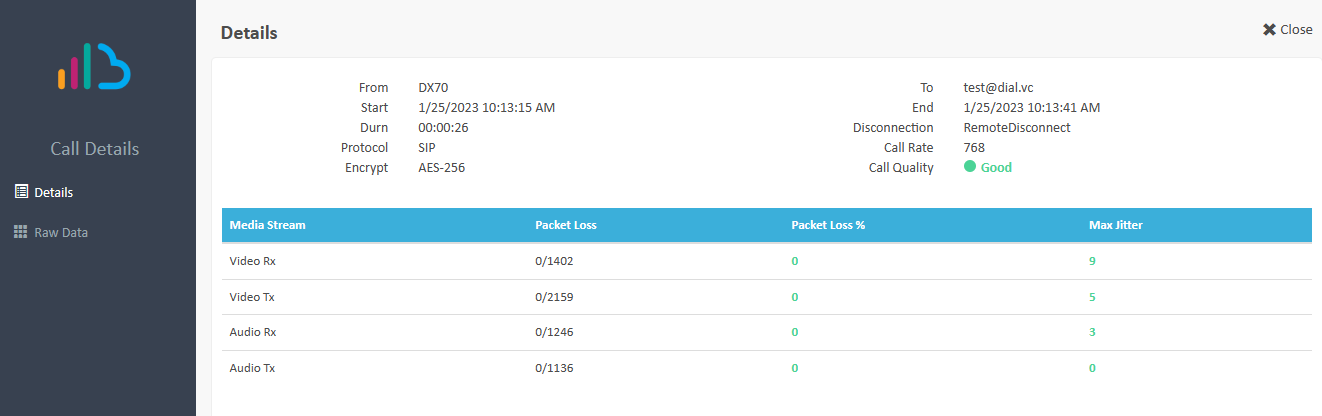
Clicking on a listed call will provide further data on that specific call including encryption levels and disconnect reasons. See example:
Analysis
The Analysis page provides a summary view of the Device over 3 timeframes – Last 24 Hours, Last 7 Days or Last Month. Selecting the buttons at the top will alter the view displayed, to the chosen timeframe.
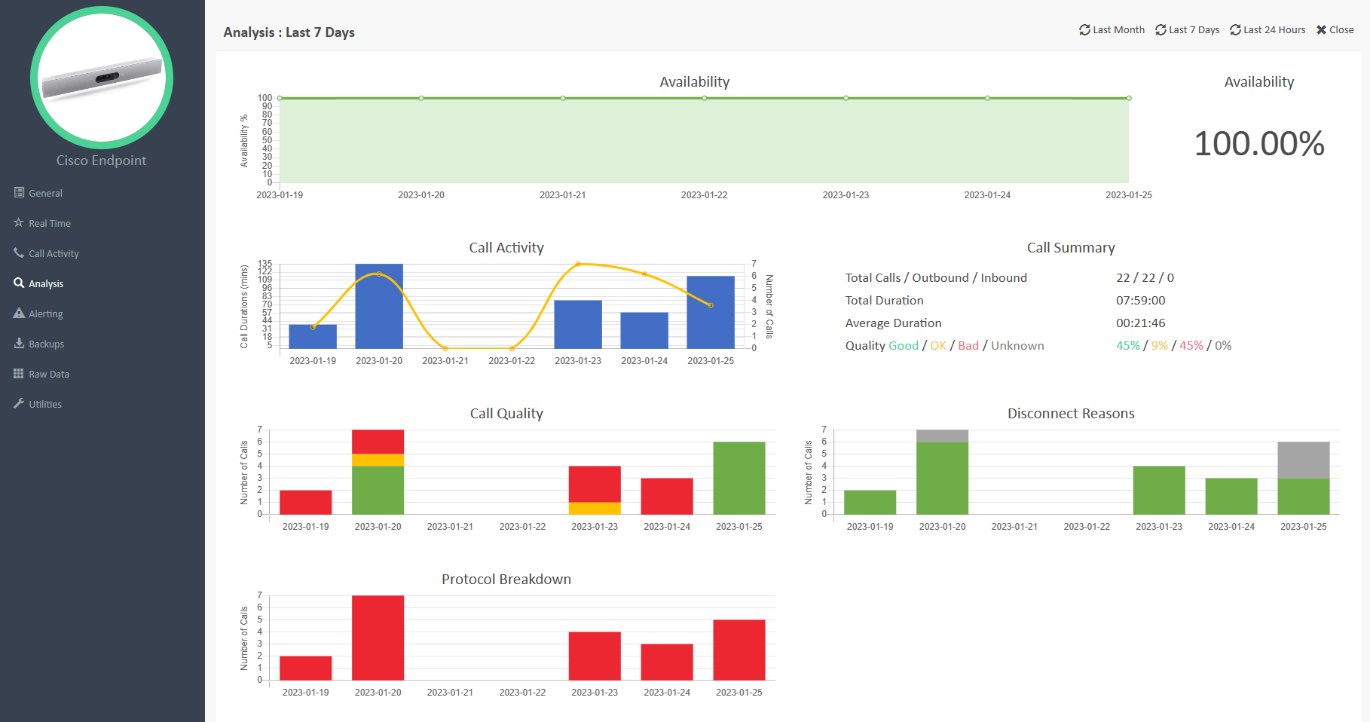
The Analysis sections listed are:
- Availability – how long has the Device been online (network), shown as a graph and percentage of timeframe selected.
- Call Activity – how many calls have been made, and the combined duration of them during the timeframe selected.
- Call Summary – a summary of the calls during the timeframe selected.
- Call Quality – of the calls made, what are the ratio of Good, Ok and Bad calls with regards to rated quality.
- Disconnect Reasons – of the calls made, what were the supplied call disconnect reasons: Good, Bad or Unknown.
- Protocol Breakdown – which call protocols were used in the calls
 Features shown may vary due to data supplied from the Devices used.
Alerting
Enabling alerts on a Network is done via the Organisation menu, then selecting the Network of that organisation that you wish to enable. This will load up the Network Details screen. To turn on alerts for the Devices, ensure that the Devices Alerts selection box is ticked.
Next, in the Alert Notifications field, add the email addresses of the people or distribution lists that you want to have alerted when there is an issue. For multiple entries, separate the addresses by a comma. Click Save to finish.
To Disable alerts for a Network, simply uncheck the Devices Alerts selection box and click Save to finish.
On a Device, to enable email alerting for issues, the Alerting menu will provide you with the alert options available. The alerting items are only active when the Enable Alerts check box is ticked.
Once ticked the options to alert on are:
- Offline Status Alerting – the Device is offline and uncontactable by the morbit hub (e.g., unit is switched off or network down)
- API Status Alerting – the morbit hub is unable to connect to the Device API. This could be due to the credentials being incorrect or the access is disabled.
- Registration Status Alerting – the device is reporting as unregistered to a video service.
- Error Health Alerting – the Device is reporting errors in the device configuration.
- Warning Health Alerting - the Device is reporting warnings in the device configuration.
Alerts can be sent out based on multiple criteria. They are customisable depending on requirements on a per Device basis.
Backups
To take a backup of a Device in its current configuration, then provide a label for the backup in the Label field and click Backup Now. After a couple of seconds, you should receive a confirmation message letting you know it was successful.
You may use any backups taken to restore a configuration back onto the Device. Simply select the backup required and choose Restore Now to apply it.
 A restore will not include the Device credentials for SIP or H.323 registrations. These will need to be applied via the Configuration screen once the Device is restarted from the restore process.
Upgrade – Cisco SIP-based devices only
You can remotely upgrade (or downgrade) the firmware of a Device in this menu. When appropriate firmware is made available to the platform (full details in Firmware section) you can initiate the process simply by clicking the Upgrade Now button.
Displayed in the screen is the current software version and the Is Latest Version is identified via a  icon.
icon.
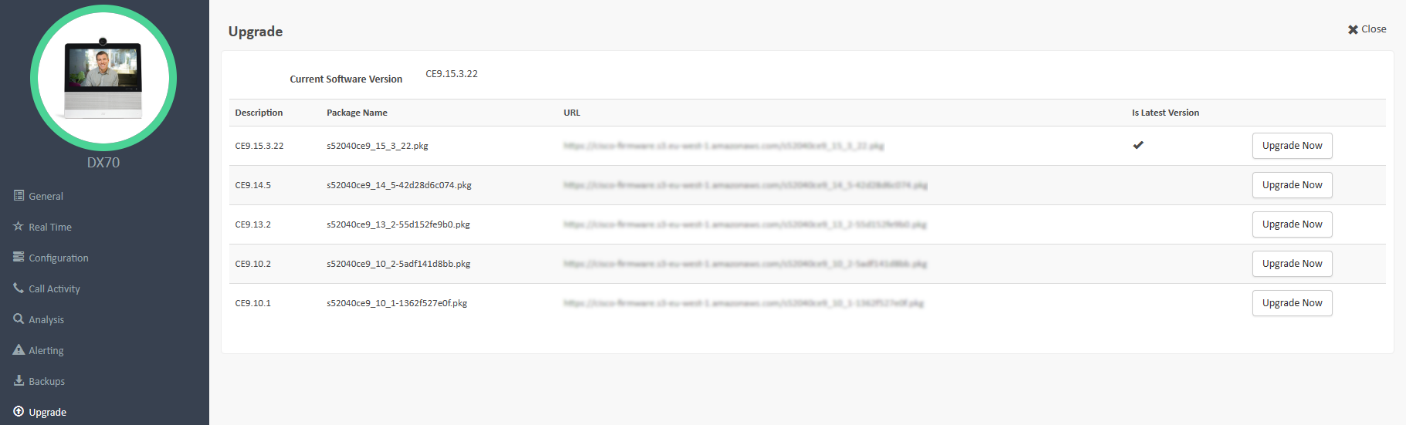
Should you need to downgrade to a different version due to issues, then select the Upgrade Now button next to the software version you require.
 Please read your manufacturers documentation for compatibility when upgrading or downgrading software. Some software versions may not support roll-back.
Raw Data
Should it be necessary to get information not displayed in the morbit studio interface then there is an additional method to obtain that data via this menu. The raw system data of the Device is available by clicking the required information from the menu heading options.
Utilities
In the Utilities section, you will be able to SSH or Telnet to and PING the Device for troubleshooting purposes.
If the Web/API credentials allow it and SSH Mode or Telnet in Configuration is set to On, then you will automatically establish a session to the Device. Use this as you would any SSH/Telnet session to the system. Features not exposed to the morbit studio user interface may be configured via this access.
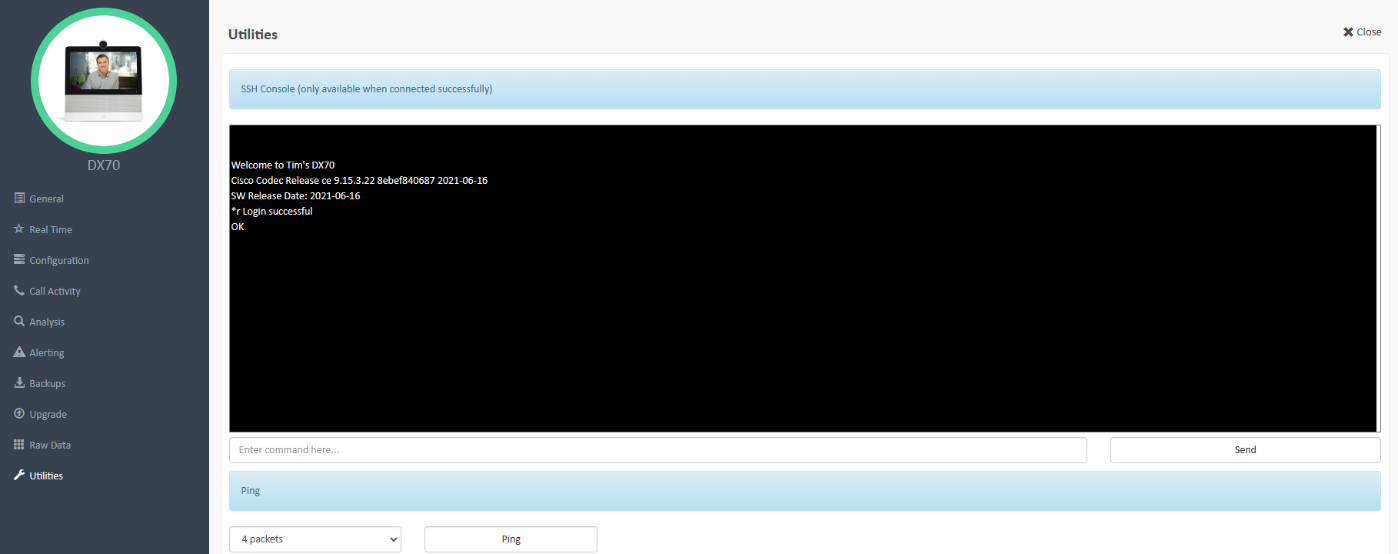
You can test a Device for connectivity or packet loss via the PING tool. Select the number of packets to send and click the Ping button. The interface will display a “Working” message whilst the test is being run.
Notes
You can use the Notes section to add any further details to the device that you might find helpful, such as support notes or specific settings that you need to record.
Making a Call
To initiate outbound calls from a Device, select the Device required from the Unified Comms Devices list and wait for it to load up the General screen. On the right side, add into the ‘Address’ field the remote address to call, select the protocol and call speed. Click the Call button to initiate the call. You can view the real time call data in the Real Time menu for the Device.
 This feature is only available when the Web/API credentials are valid and working.
Support Contract information
Should a Device be under a manufacturer maintenance contract, then to assist with managing the renewal of that, the expiry date can be assigned against a Device. In the General screen, under the hardware details of the Device, tick the Support Contract box. Select the expiry date and in the Support Reference put in the support contract number/identifier (or similar). Click Save.
In the Asset Management > Service Contracts report there will be an information about any upcoming contract expiries to allow for timely renewals.
Suggested next article: Manage Microsoft Teams Devices
Was this article helpful?
That’s Great!
Thank you for your feedback
Sorry! We couldn't be helpful
Thank you for your feedback
Feedback sent
We appreciate your effort and will try to fix the article