The Morbit Hub can be installed on Windows or Linux platforms. Installation instructions for both can be found on this page.
Windows Instructions
- In the Network Details page, select the Hubs menu item on the left. You will load up the Hubs screen for the network.
- Select the Download Now button. The hub will download as an MSI installer. Run the install program on the computer where the hub is to be running from. For security purposes and avoidance of Windows Smart Screen blocking, the MSI installer is digitally signed using our extended validation certificate.
- You will initially be presented with a welcome screen as shown below:
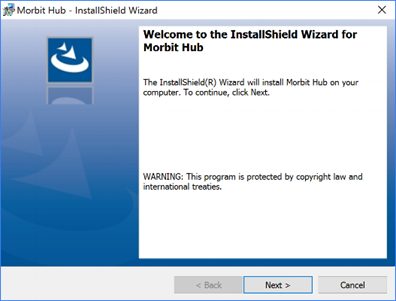
- Click Next to the install location screen. If you do not want the default location, please change it here to suit your needs. Click Next to proceed to the next install confirmation screen.
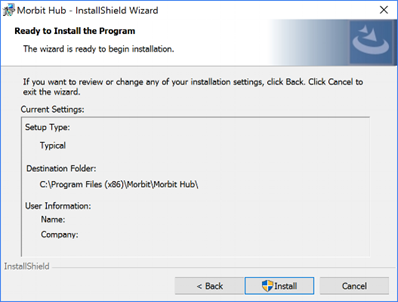
- Click Install if you are happy to proceed with the installation. Once completed, you will be presented with this screen.
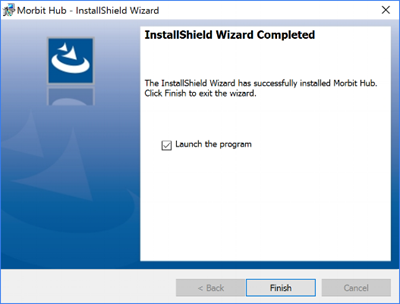
- We recommend that you continue with the Launch the program option selected. Click Finish.
Linux Instructions
Morbit Hub for Linux (allows you to deploy a Morbit Hub on any Linux server or device, including Raspberry Pi. The installer handles all dependencies and configuration automatically.
Supported Platforms
- Architectures: x86_64, ARM64 (aarch64), ARM 32-bit (armv7l)
- Distributions: Ubuntu, Debian, Raspbian, and other Linux distributions
- Requirements:
- Root access (sudo)
- Internet connection
- .NET 8 Runtime (installed automatically if missing)
- PowerShell 7 (installed automatically if missing, required for WMI support)
Installation
Run the following command as root:
The installer will:
- Detect your system architecture
- Check for and install required dependencies (.NET 8 Runtime and PowerShell)
- Download and install Morbit Hub
- Configure and start the systemd service
- Display your Hub Key
Suggested next article: Pair the Morbit Hub to Your Account
Was this article helpful?
That’s Great!
Thank you for your feedback
Sorry! We couldn't be helpful
Thank you for your feedback
Feedback sent
We appreciate your effort and will try to fix the article