Instructions for both Windows and Linux environments can be found on this page.
Windows Instructions
- If the hub window is not already showing, go to the system tray where you will find an animated morbit logo (
 ). Right-click this logo and choose Open.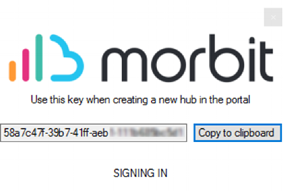
- Return to the Hub section of the Networks screen and click the New Hub button.
- Give a Description to the Hub (suggestion: use the computer name for easy identification). You will need to paste in the key from the previous step in the Hub Key section.
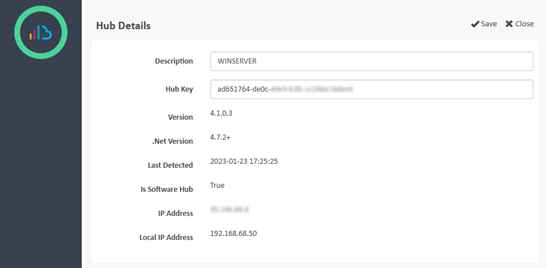
- Once completed, click the Save button. After a few seconds, your Hub and Network status will now change to Online.
Congratulations, your Devices are now being monitored by morbit. You may repeat this process for any other subnets or offices that you require.
Suggested next article: Enable Remote Connections
Linux Instructions
Once Hub installation completes, you will see your Hub Key displayed on screen. Copy this key.
- Return to the Hub section of the Networks screen and click the New Hub button
- Give a Description to the Hub (suggestion: use the computer name for easy identification). You will need to paste in the key from the previous step in the Hub Key section.
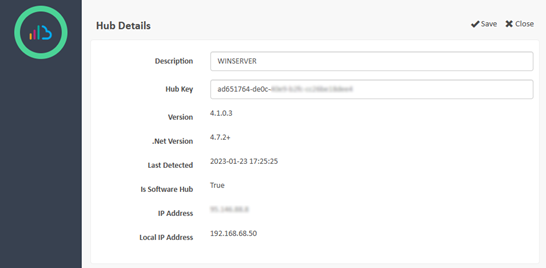
- Once completed, click the Save button. After a few seconds, your Hub and Network status will now change to Online.
Congratulations, your video Devices are now being monitored by morbit. You may repeat this process for any other subnets or offices that you require.
Suggested next article: Enable Remote Connections
Useful Linux Commands
| Command | Description |
|---|---|
| sudo systemctl status morbithub | Check service status |
| sudo journalctl -u morbithub -f | View live logs |
| sudo systemctl stop morbithub | Stop the service |
| sudo systemctl restart morbithub | Restart the service |
Retrieving Your Hub Key
If you need to retrieve your Hub Key after installation:
Upgrading
To upgrade an existing installation, simply run the install command again. Your Hub Key and configuration will be preserved.
Uninstalling
To remove Morbit Hub from your system:
Was this article helpful?
That’s Great!
Thank you for your feedback
Sorry! We couldn't be helpful
Thank you for your feedback
Feedback sent
We appreciate your effort and will try to fix the article