Asset Management
The Asset Management section brings a centralised register of all assets held in the system. This can be viewed either by country location, office building, or meeting room. Alternatively as a simple list view.
The main Asset Management menu has three sub-menus:
- Asset Explorer - explore assets by physical location
- Asset Register - view a list of all the combined assets and add non-networked assets (peripherals, furniture, etc)
- Service Contracts - view service contracts and expiry dates assigned to assets
To build the sites and rooms to enable asset allocation to Buildings and Rooms, you'll need to follow the instructions in the section Configure Buildings, Floors, and Rooms.
The icons used in Asset Management are for quick statuses of:
- Service Contract support
 | Service Contract not expiring for more than 60 days |
 | Service Contract expiring within 60 days |
 | Service Contract expired |
 | Service Contract unknown or no dates added |
- Online status
 | Device is online |
 | Device is offline |
Note: Asset Management features are based on devices being added into the platform. If you have not done this yet, complete those steps first.
Asset Explorer
Asset Explorer allows you to navigate the assets of an Organisation using their physical location. The structure is based on:
Company Name > Country >Building Name > Room Name
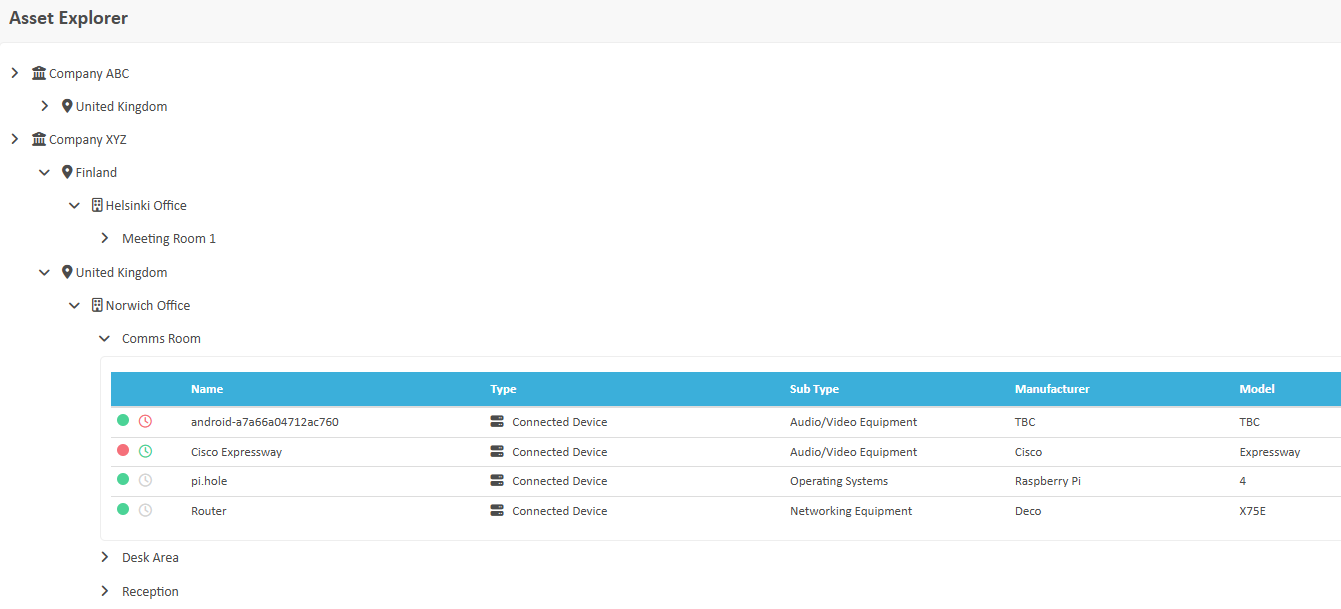
Simply expand the locations and view the data. Clicking any asset in the view will open up the standard device management screens associated to the device type.
Clicking a Building or a Room in the Explorer view allows you to manage it, including allocation, or de-allocation of assets.
Note: If you have not created Building or Rooms yet, please complete those steps first. See section Configure Buildings, Floors, and Rooms.
Asset Register
The Asset Register is a complete list of all assets associated with the system. Assets listed here can be filtered by clicking the filter icon and selecting your view preferences or options.
Allocating Assets to Rooms
Click the '+' symbol at the end of the row of the asset you want to allocate. This will open up a list of rooms, simply click the 'Allocate' option against the room you want to assign the asset to.
Adding non-network connected assets
As well as supporting network attached assets, the system will also support non-network connected assets such as peripherals, furniture, accessories, or digital assets such as software licenses.
To add these, click the + Add Asset and complete the details as thoroughly as possible. Once added these will appear in the Asset Explorer view (if assigned to a Room) and in the Asset Register list.
Service Contracts
A report to show you the status of any service contracts that might be active against your Devices. This data can be exported via the Export button.
Suggested next articles: Manage Microsoft Teams Devices, Manage Connected Devices, Manage Display Systems or Manage Cisco and Poly Devices
Was this article helpful?
That’s Great!
Thank you for your feedback
Sorry! We couldn't be helpful
Thank you for your feedback
Feedback sent
We appreciate your effort and will try to fix the article