The morbit studio interface is designed to help you get to the information you need without being exposed to a flood of unnecessary data. The experienced is designed to be consistent regardless of the Device manufacturer you are working with, although some subtle differences are acknowledged and detailed in the interface.
Dashboard
The Dashboard screen is the default entry page for the platform. It has been designed to give a quick summary of the estate being managed in a glance.
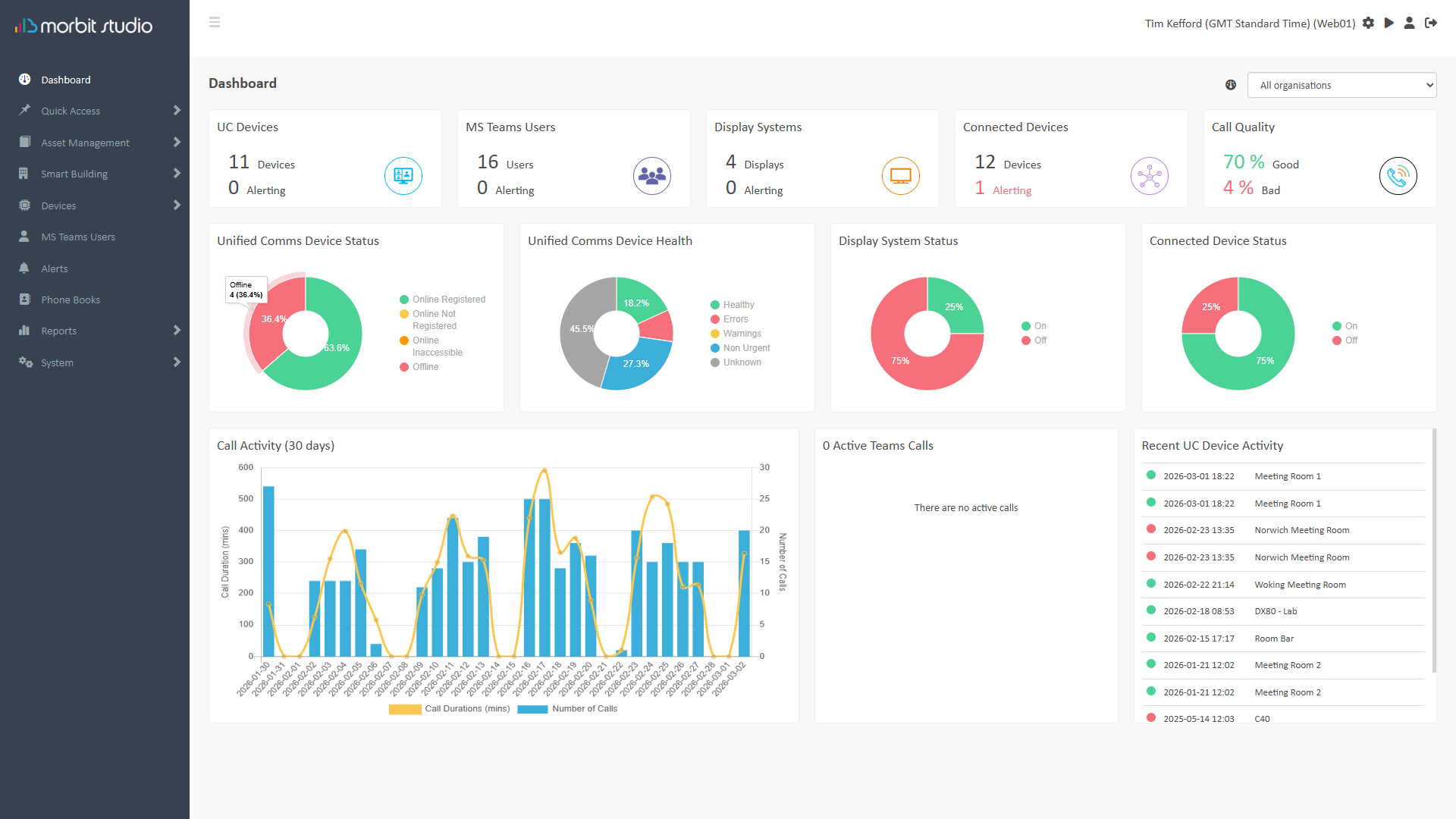
Unified Comms Device Status
This chart shows the information on current statuses of the Devices on the platform. These are described as:
| Status | Further Information | |
|---|---|---|
| Online + Registered | Device is online and registered to a video service | |
| Online + Not Registered | Device is online but not registered | |
| Online + Inaccessible | Device is online but web/API credentials not working | |
| Offline | Device is offline and inaccessible |
Unified Comms Device Health
This chart shows the diagnostic health information of the Devices on the platform. These are described as:
| Status | Further Information | |
|---|---|---|
| No Issues | Device is reporting no diagnostic issues | |
| Warnings | Device is reporting warnings in its configuration or hardware | |
| Non Urgent | Device is reporting minor issues or notifications that need attention | |
| Errors | Device is reporting errors in its configuration or hardware | |
| Unknown | Device diagnostics are not available |
Display System Status
This chart shows the information on current statuses of the display systems on the platform. These are described as:
| Status | Further Information | |
|---|---|---|
| On | % of displays in an 'On' state | |
| Standby | % of displays in a 'Standby' state | |
| Off | % of displays in an 'Off' state |
Connected Device Status
This chart shows the information on current statuses of the Connected Devices on the platform. . These are described as:
| Status | Further Information | |
|---|---|---|
| On | % of Connected Devices in an 'Online' state | |
| Off | % of Connected Devices in an 'Offline' state |
Call Activity
Call activity displayed over the last 30 days. This information is based on the call duration and number of calls collated from each Device to form a Summary chart.
Active Teams Calls
The number of calls currently active in the MS Teams tenant. This value is based on the Users’ active presence statuses. For 100% accurate call data, see Call List reports after the meeting has completed.
The  icon indicates the person listed is presenting their screen.
Recent UC Device Activity
This screen displays the online and offline events from the Unified Comms Devices managed in the estate, where:
 | Device went offline |
 | Device came online |
Organisation Filter
Above the graphs is a drop-down list where you can filter the views to specific Organisations in your portal. Selecting a specific organisation (if multiple are configured) will set that for the view on all other pages where there is an Organisation filter. You can see when it’s activated as the filter box is highlighted green to indicate it. To reset the view, simply select All organisations again.
Suggested next article: Using Quick Access
Was this article helpful?
That’s Great!
Thank you for your feedback
Sorry! We couldn't be helpful
Thank you for your feedback
Feedback sent
We appreciate your effort and will try to fix the article