Any Microsoft 365 accounts that have a Microsoft Teams license assigned will be picked up and brought into the MS Teams Users screen (except for a Limited Scope Deployment).
In the MS Teams Users screens, a view of all the Users assigned to the platform is shown. Selective views can be applied per column or names filtered. Listed in the view are the following settings:
- Display Name
- User Principal Name (from Active Directory)
- License Type
- Organisation
- Location
- Country
- Department
This list can be exported to CSV using the Export List button.
General
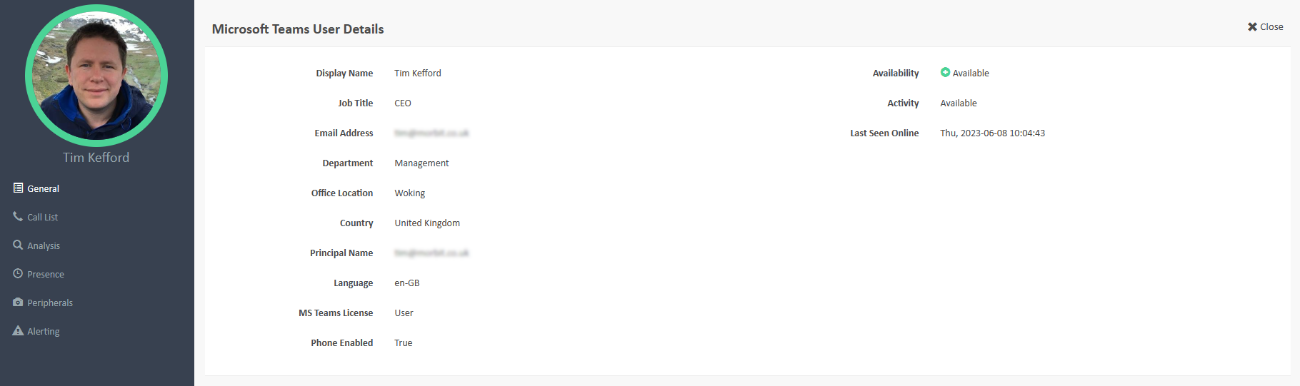
The General screen is the default page opened. It contains information on the following data:
- Display Name
- Job Title
- Email Address
- Department
- Office Location
- Country
- Principle Name
- Language
- MS Teams License
- Phone Enabled
- Availability
- Activity
- Last Seen Online
- User Profile picture (if added in M365)
Call List
The calls of the current logged in user will be listed in the Call List page. Using the date range selectors will show all inbound and outbound calls for that user. In the main page, the summary information of the call is provided (including a Call Quality rating).
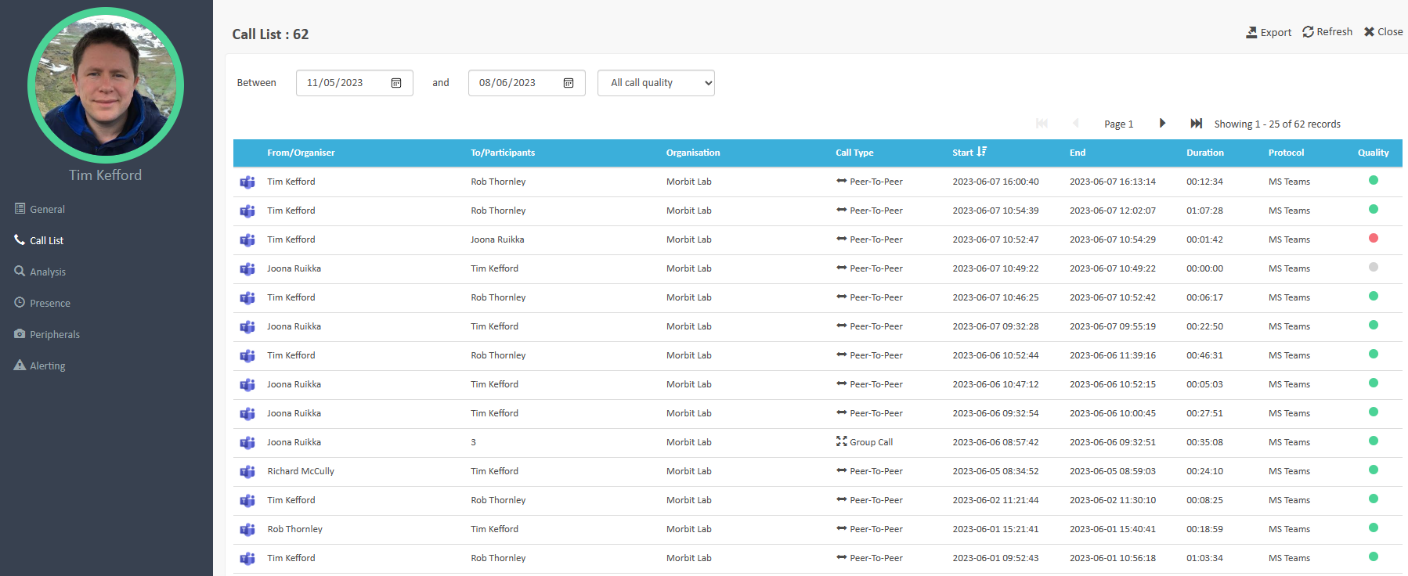
Clicking a particular call will drill into the call metrics of each participant in the call shown.
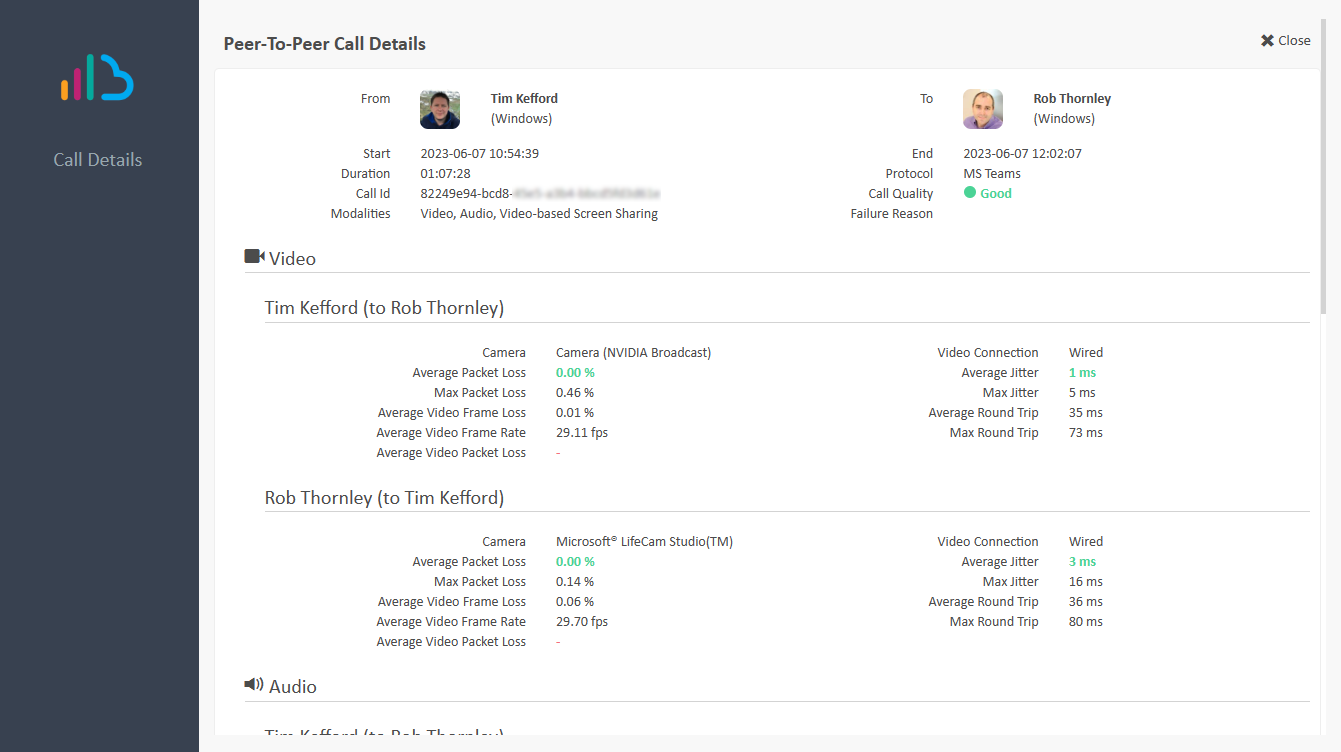
Data collected from calls made on the MS Teams platform include:
- Type – Peer-to-peer or group call
- Participants
- Media type – audio or video
- Modalities
- Duration
- Protocol
- Audio, Video and Screen Sharing Media – Streams:
- Stream Direction
- Video Jitter – Average and Maximum
- Audio Jitter – Average and Maximum
- Packet Loss – Average and Maximum
- Round Trip Time – Average and Maximum
- Average Video Frame Loss
- Average Video Frame Rate
- Average Video Packet Loss
- Audio Network Jitter – Average and Maximum
- Average Audio Degradation
This information is shown when clicking a listed call in either the Reports > Call List or via the individual Teams User or Device Call Activity screen.
Calls in this list are rated as:
| Perceived Call Quality | Packet Loss | Jitter |
|---|---|---|
| Good | < 0.2% | <10ms |
| OK | 0.2% <> 2.0% | 10-50ms |
| Bad | >=2% | >=50ms |
Caller Anonymisation
Settings are available to anonymise external and internal call participants. See Configure Call Anonymisation guide.
Analysis
The Analysis page provides a summary view of the user over 3 timeframes – Last 24 Hours, Last 7 Days or Last Month. Selecting the buttons at the top will alter the view displayed, to the chosen timeframe.
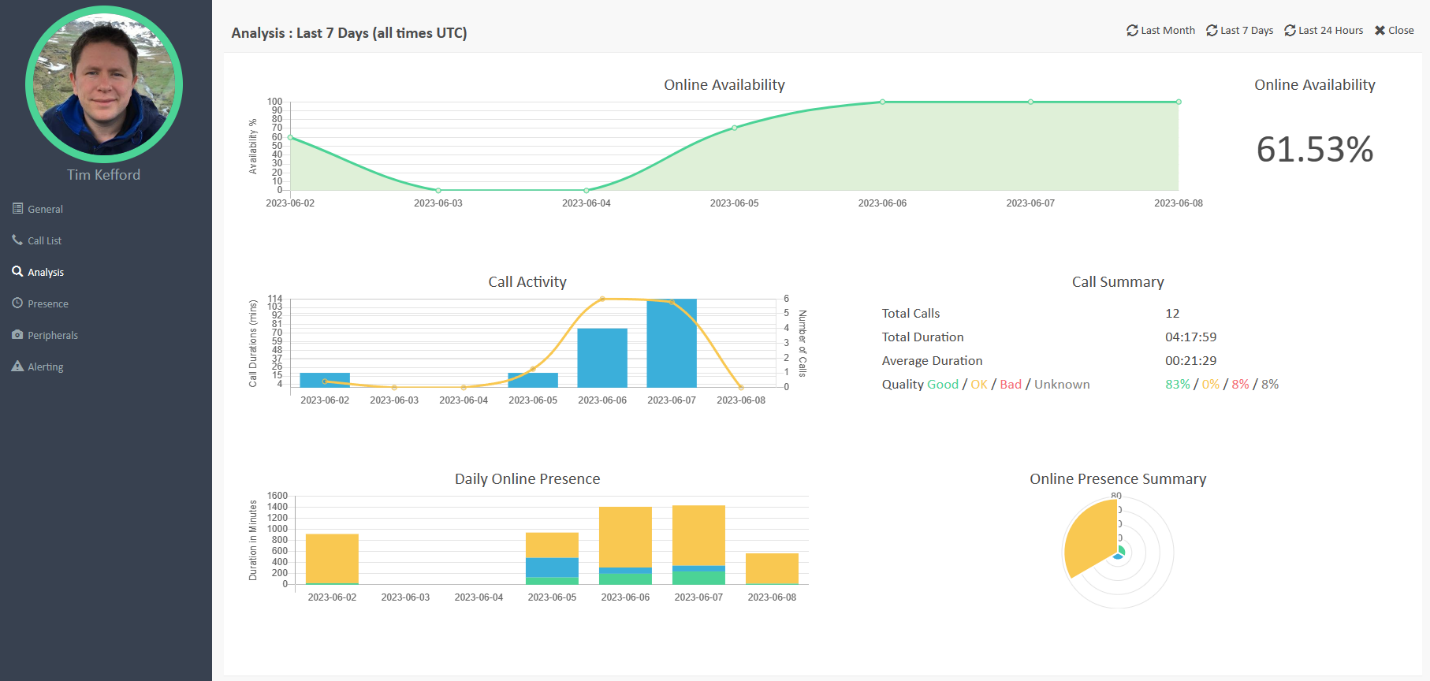
The Analysis sections listed are:
- Availability – how long has the user been online (network), shown as a graph and percentage of timeframe selected.
- Call Activity – how many calls have been made, and the combined duration of them during the timeframe selected.
- Call Summary – a summary of the calls during the timeframe selected.
- Call Quality – of the calls made, what are the ratio of Good, Ok and Bad calls with regards to rated quality.
- Daily Online Presence – the share of presence statuses daily (excluding Offline).
- Online Presence – Total summary graph of the presence statuses.
Peripherals
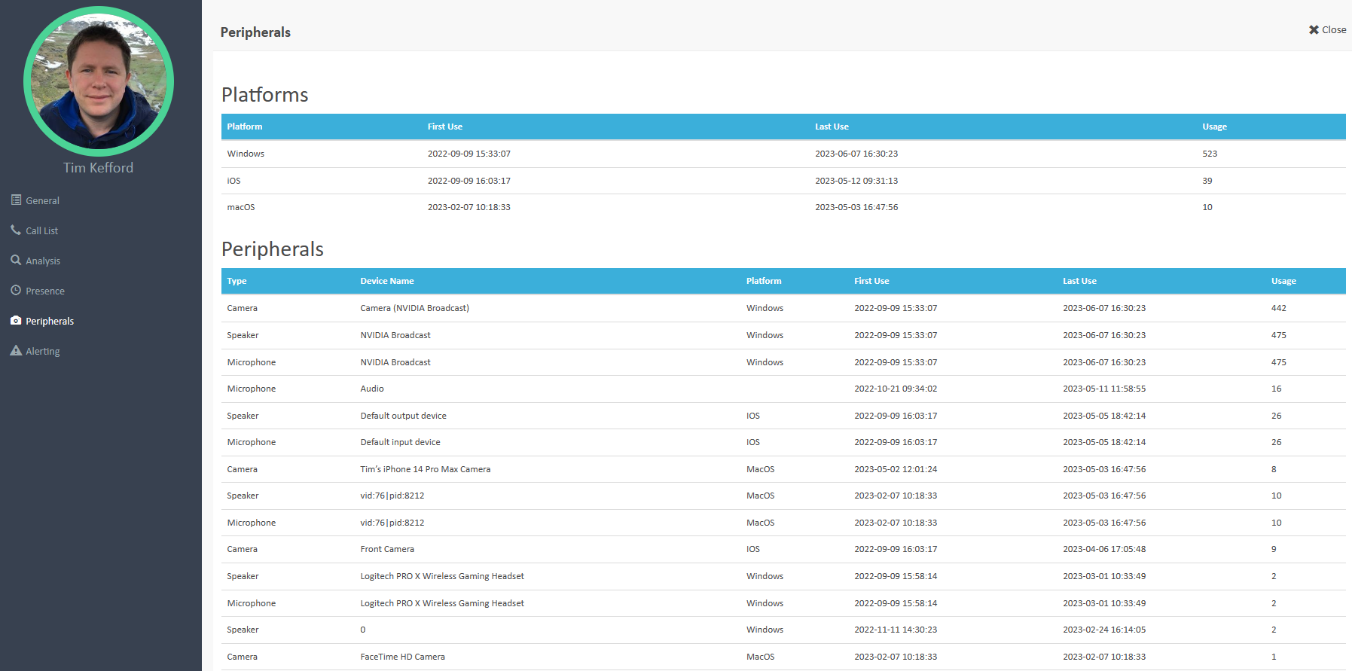
Reporting on the used peripherals and device operations systems used (platforms), can be viewed in the Peripherals section. The peripheral types displayed are:
- Camera – manufacturer name and model
- Microphone – manufacturer name and model
- Speaker – manufacturer name and model
The recorded details are the first and last time they were used, plus the number of times used (usage).
The Platforms section shows how the service and peripherals are being used. The possible displayed platforms are:
- Windows
- macOS
- iOS
- Android
- Web
- IP Phone
- Room System
- Surface Hub
- Holo Lens
The recorded details are the first and last time they were used, plus the number of times used (usage).
Alerting
When an issue is detected, alerts are generated by the platform. Alerts are indicated in the web interface and by emailing the support contact(s) listed for that MS Teams tenant (accessed via the System > Configuration > "Company Name" menu).
The alerting items for a user is:
- Presence On/Off Status
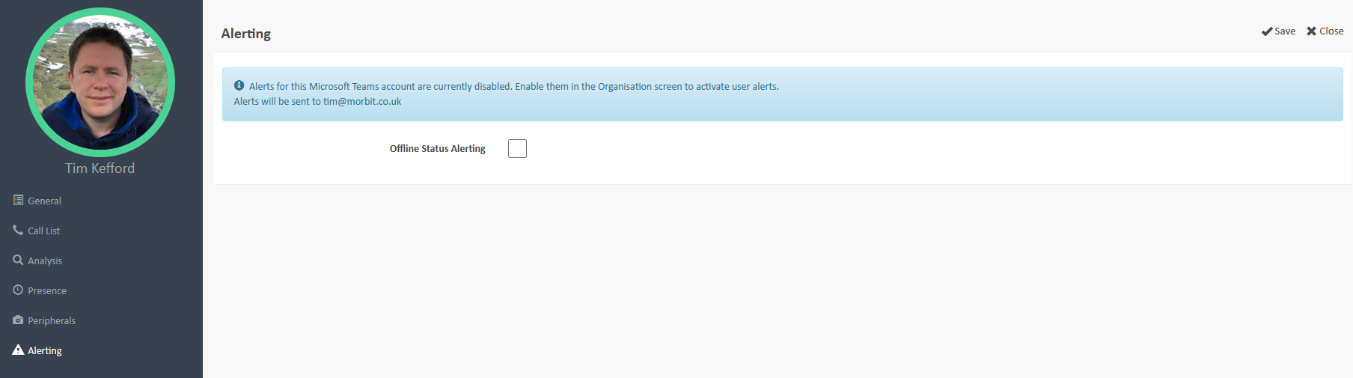
Consideration should be given to enabling this alerting. For example, if the user is logged into a laptop or mobile phone then energy saving methods may inadvertently put the user offline and trigger an alert event.
Alerts
A centralised view of all the alerts is available using the Alerts page. By default, the screen will open to show any existing alerts on the platform.
Using the column filters, further information can be provided.
To see all open and closed alerts over the current date range, change the Status filter to All.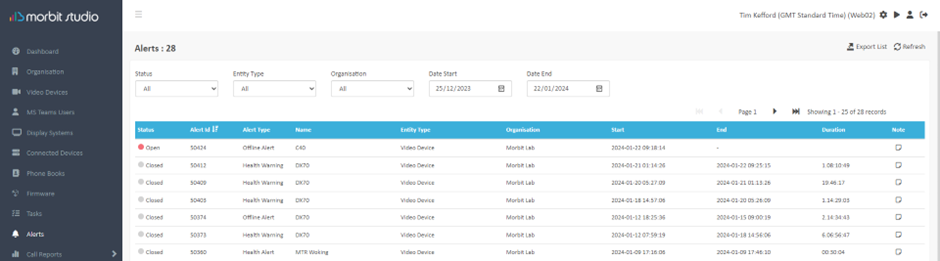
Clicking each alert listed will open up the device shown, so that further information can be gathered, or actions can be taken.
Notes
Notes may be written against an issue to help those working on it know any actions that have been done, or for adding any additional 3rd party information such as the ticket number from another solution.
To add information to an alert, click the notes icon at the end of the row. Add in the details you want, then click Save to save and close the screen. Alerts with notes added show as this  icon.
icon.
Suggested next articles: MS Teams Reports Guide or Manage Microsoft Teams Devices
Was this article helpful?
That’s Great!
Thank you for your feedback
Sorry! We couldn't be helpful
Thank you for your feedback
Feedback sent
We appreciate your effort and will try to fix the article