Microsoft Teams devices are noted by MS Teams in the Platform column. Filter options are available to drill-down the viewed list of Unified Comms Devices.
Summary icons
Provided next to the Name of the of Devices is a quick summary view of the status of the device. These statuses are detailed as:
| Icon | Description |
|---|---|
 | Device is online |
 | Device is offline |
 | API connection is working |
 | API connection is not working, no live data is available. |
 | Device is registered to the MS Teams service |
 | Device is not registered to the MS Teams service |
 | Registration status is unknown due to an issue |
 | There are no health issues reported |
 | There are warning health issues reported |
 | There are error health issues reported |
 | Health status is unknown |
 | Device is currently in an alert state and emails have been sent to network contacts |
 | The device is not in an alert state (or not configured to alert) |
Microsoft Teams Device Details
Selecting any MS Teams device from the list will load the Microsoft Teams Device screen. The top menu provides for the following features:
- Schedule > Schedule Restart – this will initiate a task to schedule a restart command to this device for a later time and date.
- Tasks > Restart Device - this will initiate a restart command to this device.
- Tasks > Upgrade Software - this will initiate a software upgrade command to this device. This is only valid when a software update is indicated in the Health menu.
 Remote Commands may take up to 15 minutes to initiate as it is dependent on the device synchronising into the MS Teams platform. Progress can be checked in the device System Events menu.
General
The General screen is the default page opened. It contains information on the following asset data:
- Device Type
- Current User
- Name
- Registration video address
- Health Status
- Activity State
- Manufacturer
- Model
- Serial number
- Processor
- Software Versions
- Admin Agent Version
- Teams Client Version
- Partner Agent Version
- Operating System Version
- Firmware Version
- Company Portal Version
- Enrolment date
- Last sync date and time
The supported Device Type that will be shown are:
- Teams Room for Windows
- Teams Room for Android
- Surface Hub
- Collaboration Bar
- Teams Display
- Teams Phones
- SIP Device
- Touch Console
- Teams Panel
Environment Data
Neat devices
If you've enabled Neat Pulse integration with your devices, you will additionally be presented with local Environment data for that device:
- Temperature (C)
- Humidity (%)
- Carbon Dioxide - CO2 (ppm)
- Air Pollutants - VOC (ppb)
- People Count
- Illumination (lux)
Cisco devices
If you've enabled Cisco Webex Control Hub integration with your devices, you will additionally be presented with local Environment data for that device:
- Temperature (C)
- Humidity (%)
- Air Pollutants - TVOC
- People Count
The list of certified devices for Microsoft Teams can be found here: https://docs.microsoft.com/en-us/microsoftteams/rooms/requirements. The devices are all validated to conform to the requirements of the Microsoft Graph API, and as such adhere to a known standard. Features available depend on the Teams license purchased.
Additional sections are provided to show the device hardware info, and the versions of installed software. This information will vary by device type and make and model.
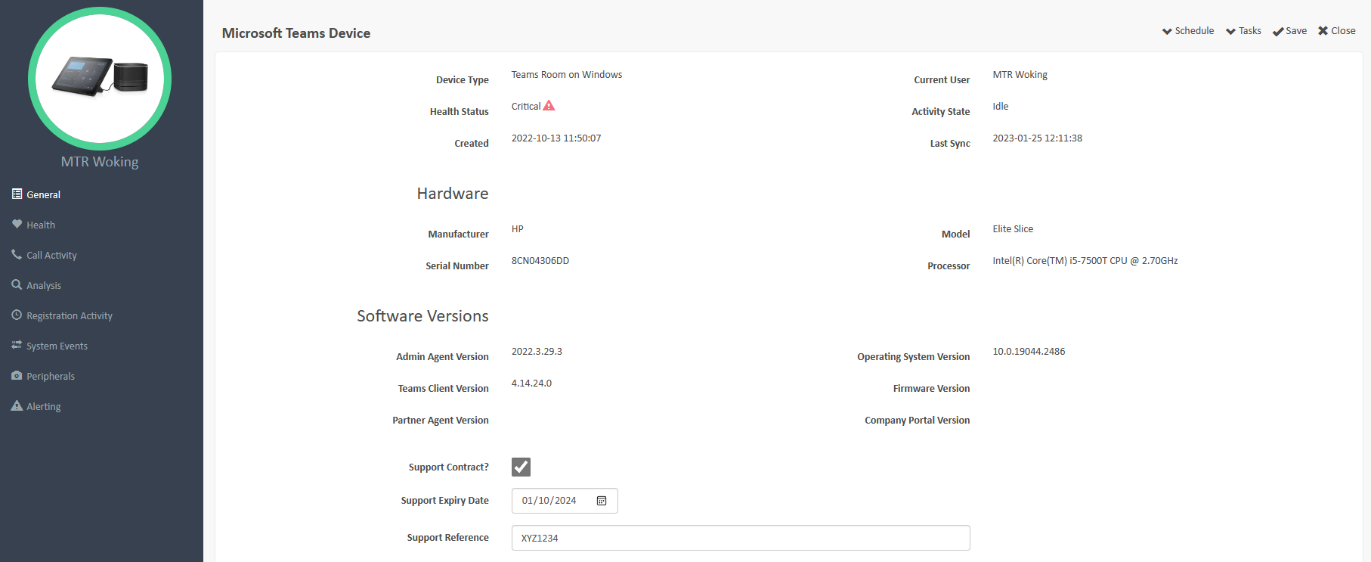
Should a device be under a manufacturer maintenance contract, then to assist with managing the renewal of that, the expiry date can be assigned against a device.
Support Contract information
Should a Device be under a manufacturer maintenance contract, then to assist with managing the renewal of that, the expiry date can be assigned against a Device. Tick the Support Contract box. Select the expiry date and in the Support Reference put in the support contract number/identifier (or similar). Click Save.
In the System > Service Contracts report there will be an information about any upcoming contract expiries to allow for timely renewals.
Remote Connections
Note: this feature is only listed if the device is on a network with the Remote Connections feature enabled on a Hub.
Depending on the device type, you can select the following connection protocols:
- Remote Desktop Protocol (RDP)
- HTTP or HTTPS
- SSH
- Telnet
- Custom TCP Port
Health
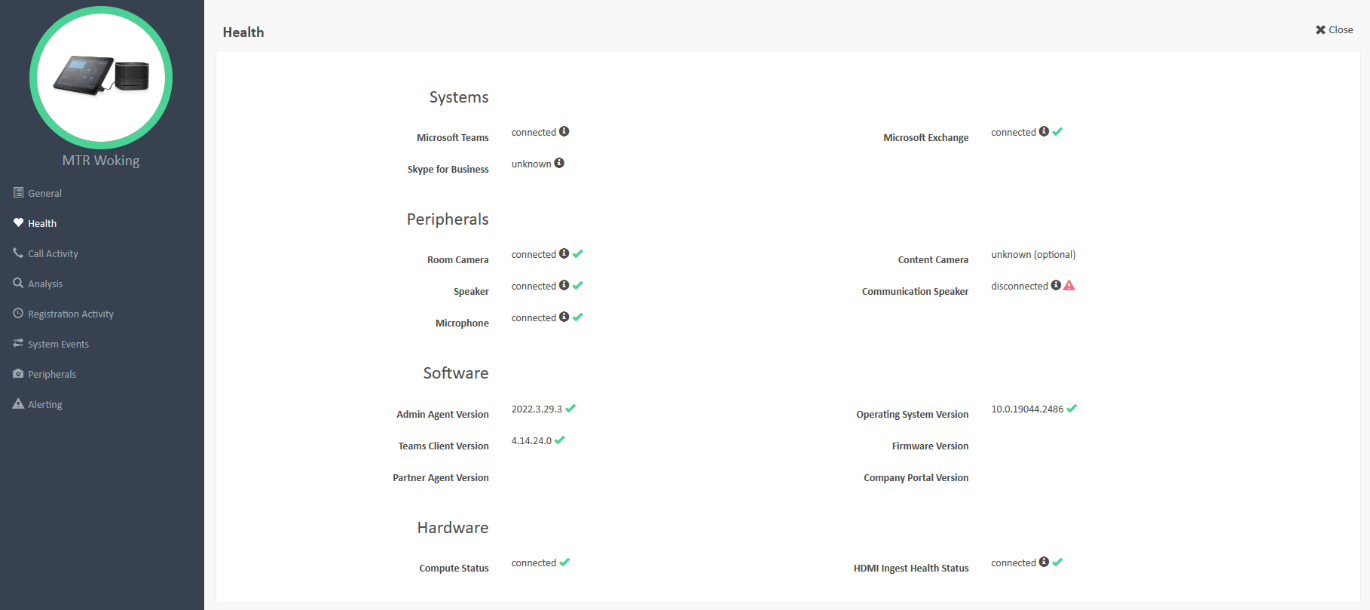
The information displayed shows the systems, peripherals, software, and hardware that are important to the system functioning as intended. This displayed information varies by device type, but should an item fall outside of its intended usage, then it will show as an error. These errors can be then alerted on – see Alerting section.
Call Activity
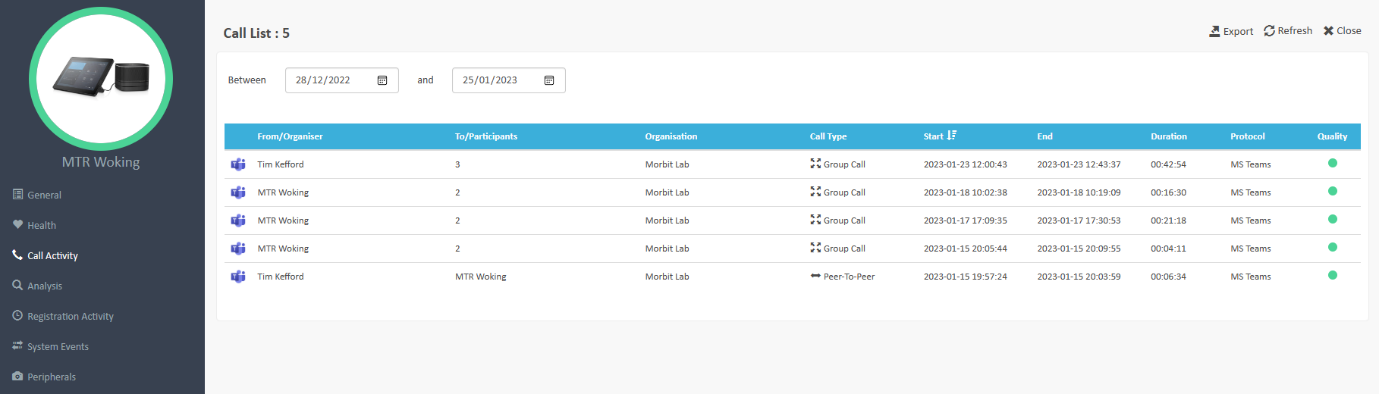
The calls of the current logged in user will be listed in the Call Activity page. Using the date range selectors will show all inbound and outbound calls for that user. In the main page, the summary information of the call is provided (including a Call Quality rating).
Clicking a particular call will drill into the call metrics of each participant in the call shown.
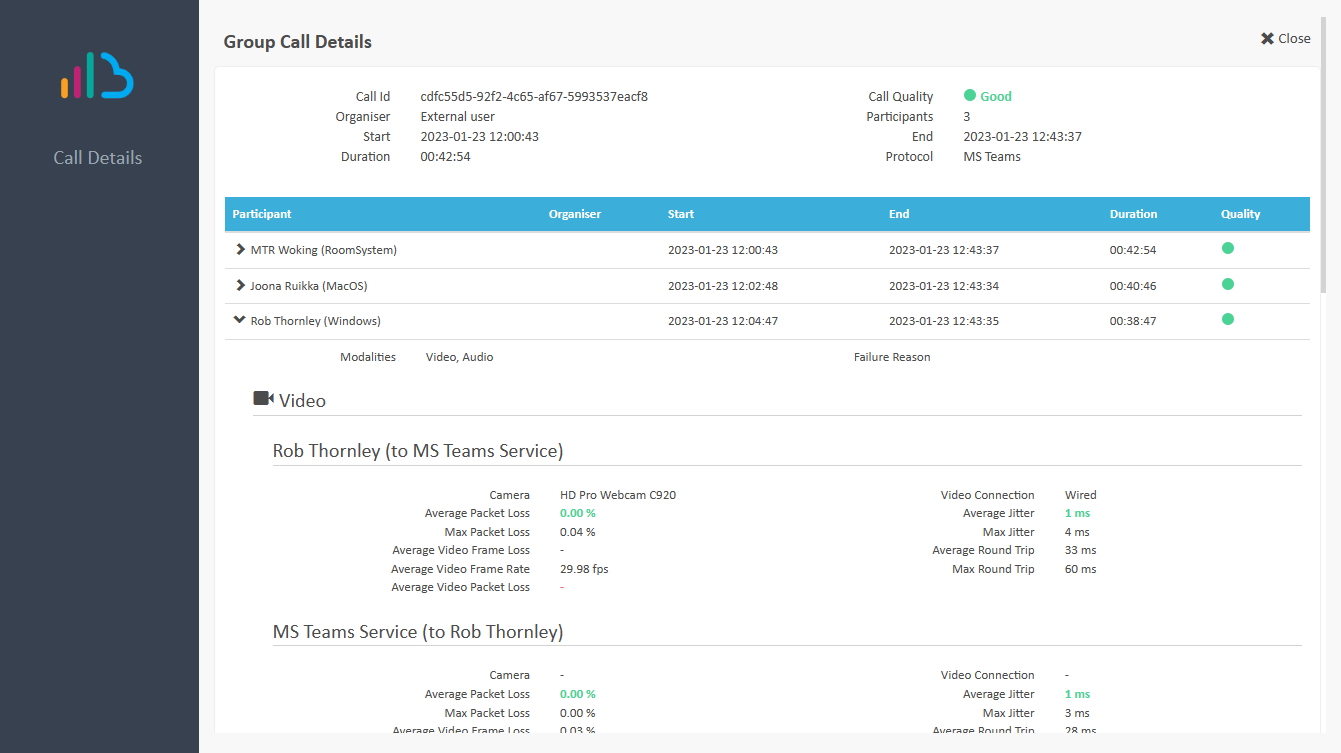
Data collected from calls made on the MS Teams platform include:
- Type – Peer-to-peer or group call
- Participants
- Media type – audio or video
- Modalities
- Duration
- Protocol
- Audio, Video and Screen Sharing Media – Streams:
- Stream Direction
- Video Jitter – Average and Maximum
- Audio Jitter – Average and Maximum
- Packet Loss – Average and Maximum
- Round Trip Time – Average and Maximum
- Average Video Frame Loss
- Average Video Frame Rate
- Average Video Packet Loss
- Audio Network Jitter – Average and Maximum
- Average Audio Degradation
This information is shown when clicking a listed call in either the Reports > Call List or via the individual Teams User or Device Call List screen.
Calls in this list are rated as:
| Perceived Call Quality | Packet Loss | Jitter |
|---|---|---|
| Good | < 0.2% | <10ms |
| OK | 0.2% <> 2.0% | 10-50ms |
| Bad | >=2% | >=50ms |
Analysis
The Analysis page provides a summary view of the Device over 3 timeframes – Last 24 Hours, Last 7 Days or Last Month. Selecting the buttons at the top will alter the view displayed, to the chosen timeframe.
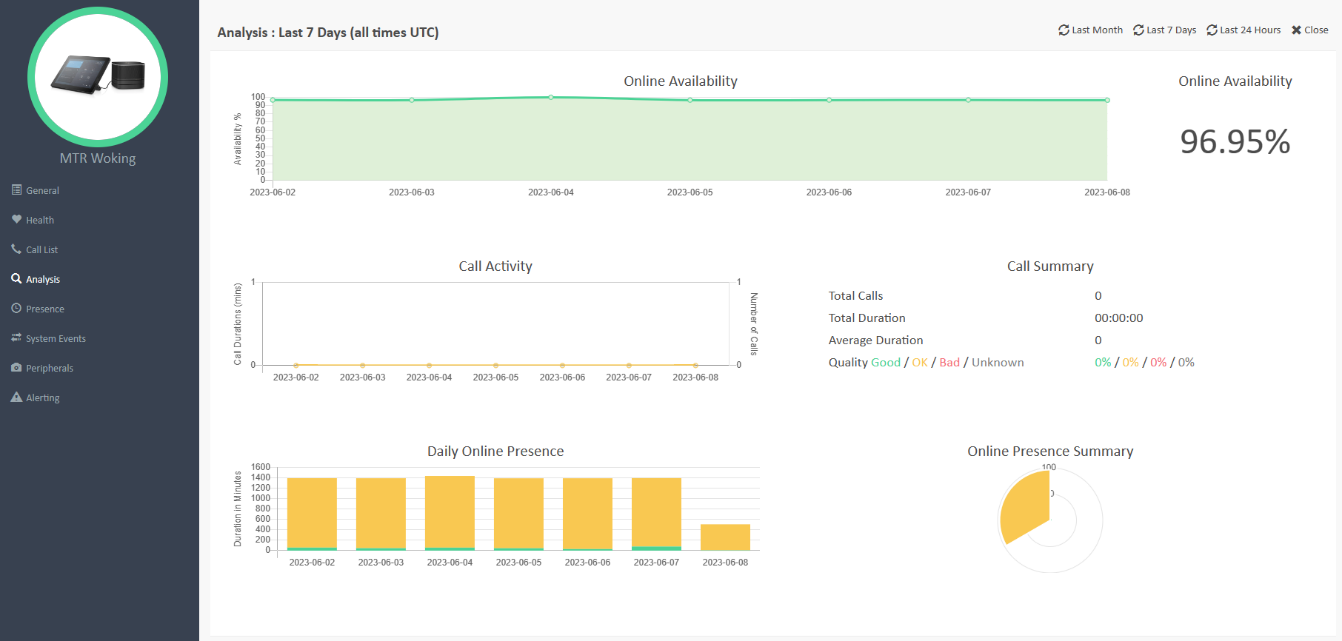
The Analysis sections listed are:
- Availability – how long has the Device been online (network), shown as a graph and percentage of timeframe selected.
- Call Activity – how many calls have been made, and the combined duration of them during the timeframe selected.
- Call Summary – a summary of the calls during the timeframe selected.
- Call Quality – of the calls made, what are the ratio of Good, OK and Bad calls with regards to rated quality.
- Daily Online Presence – the share of presence statuses daily (excluding Offline).
- Online Presence – Total summary graph of the presence statuses.
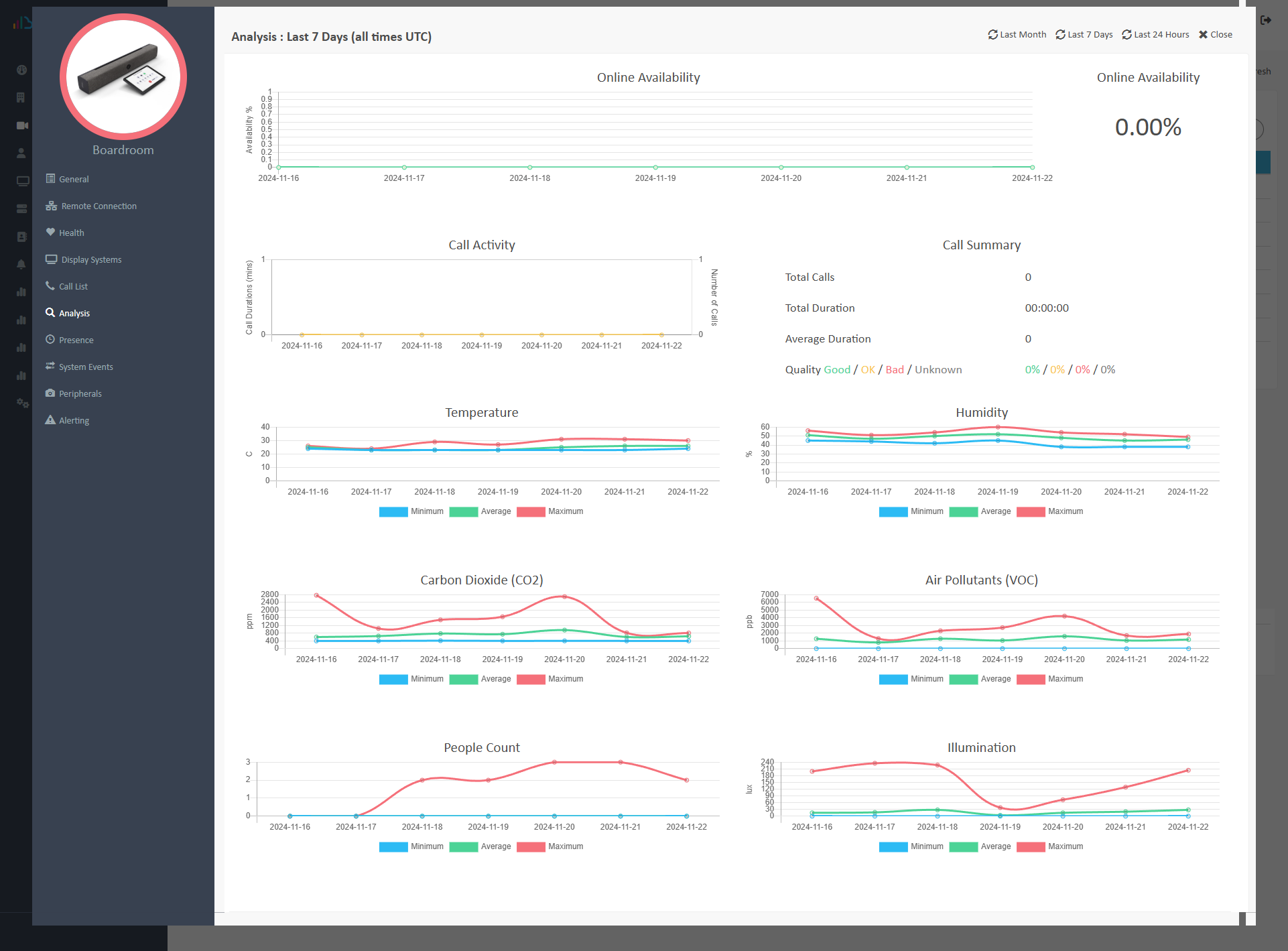
Devices with Environmental Integrations (Neat and Cisco)
Additionally for devices that registered to Neat Pulse or Cisco Webex Control Hub, if integration has been set up you will see additional environmental data (varies by manufacturer) captured showing:
- Temperature (C)
- Humidity (%)
- Carbon Dioxide - CO2 (ppm)
- Air Pollutants - VOC (ppb)
- Air Pollutants - TVOC
- People Count
- Illumination (lux)
Presence
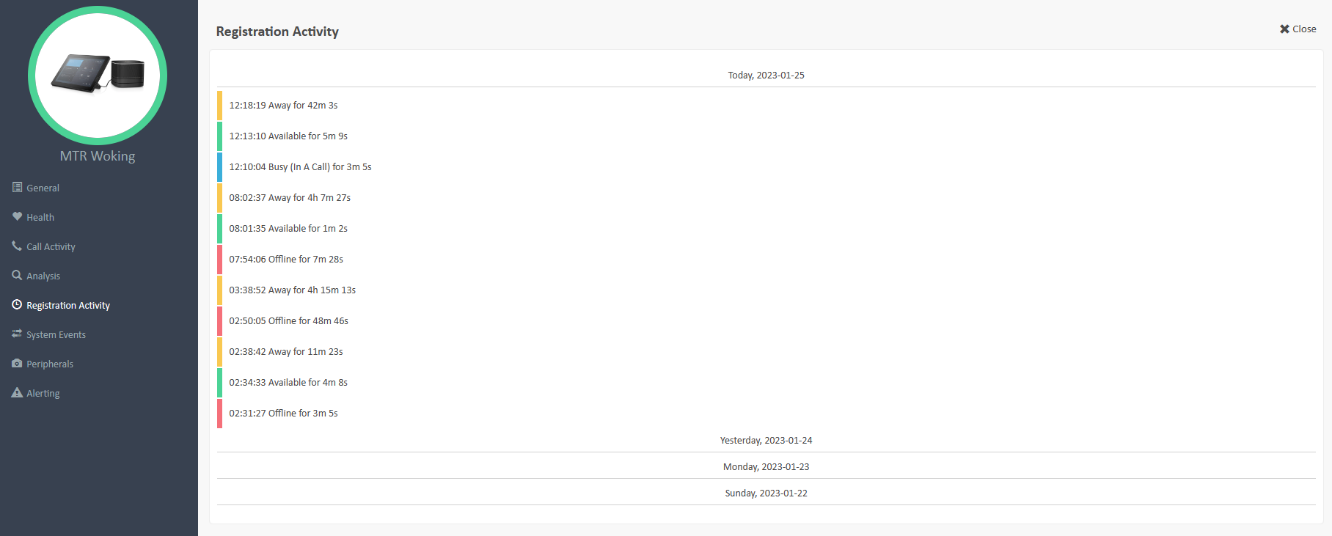
Presence status changes are recorded and shown in a timeline of events in the last week.
System Events
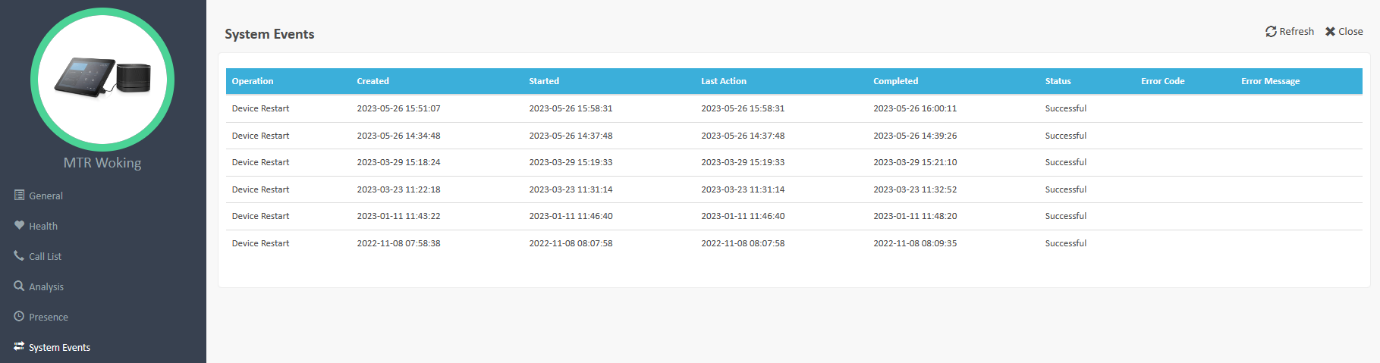
When a restart or a software update event is submitted, the status of the request will be listed in the System Events page. Any errors and error messages will also be displayed in the list.
Peripherals
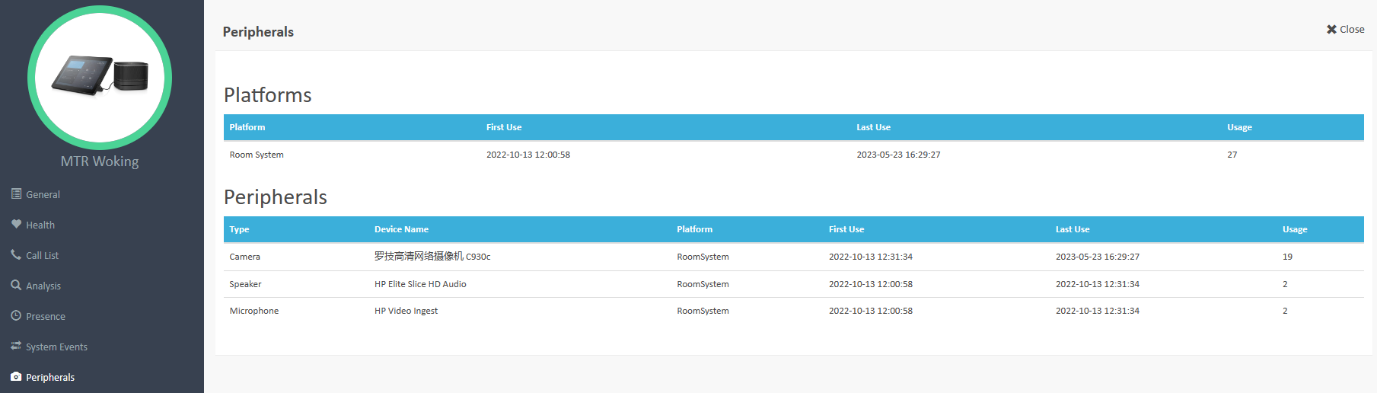
Here you can see which devices have been plugged into the system and made calls. You can see the Platform and those connected Peripherals used. This included Type (Camera, Speaker and Webcam), the Device Name and the number of times it’s been used.
Alerting
When an issue is detected, alerts are generated by the platform. Alerts are indicated in the web interface and by emailing the support contact(s) listed for that MS Teams tenant (accessed via the Organisation menu).
The alerting items are:
- Camera Health
- Microphone Health
- Speaker Health
- HDMI and Display Health
- Software Versions
- Connectivity Health
- Registration Status
- Touch Panel Health
- Call and Media Health and Statistics
- System On/Off Status
- Presence Status
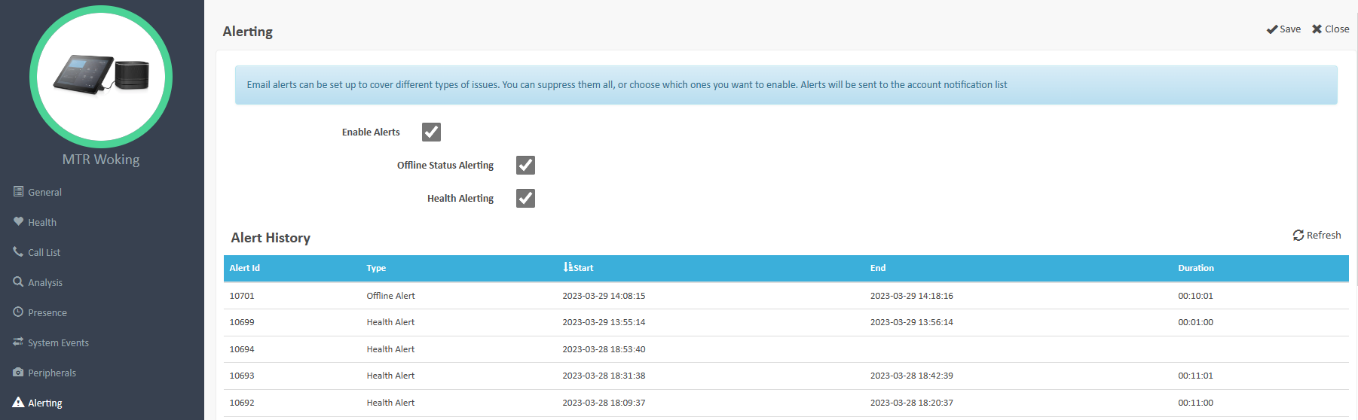
 Alerting items vary by device, with only Teams Rooms on Windows providing peripheral alerting. Since Teams Rooms on Android, IP Phones and Touch Consoles have fixed hardware you will not see the Peripherals listed in the Health screen as alert items.
Suggested next articles: Monitor Microsoft Teams Users, Manage Connected Devices or Manage Display Systems
Was this article helpful?
That’s Great!
Thank you for your feedback
Sorry! We couldn't be helpful
Thank you for your feedback
Feedback sent
We appreciate your effort and will try to fix the article