Create an API Credential for your Poly Lens Account
- Go to ACCOUNT menu > Manage <Your Company Name>.
- Select API Credentials from the side tabs.
- Select Add New to create an API Credential in your Account.
- Enter the API Name and set the Role to 'Admin'. This provides full access to manage the devices and install software updates.
- Select Create.
- The new API Credential displays on the API Credentials page and can be used to access Poly API's using the Client ID and Secret.
Configuring Morbit Studio
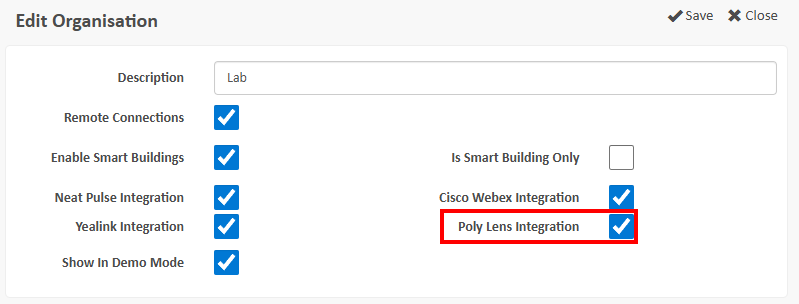
In the Organisation section of Morbit, Edit the Organisation you wish to enable with Poly Lens integration, by ticking the necessary checkbox. Click Save.
In the Microsoft Teams Tenant section for the same organisation, select to open the Teams Tenant for the Poly Devices you wish to integrate into Morbit. Selecting the Poly Lens side menu will show this screen:
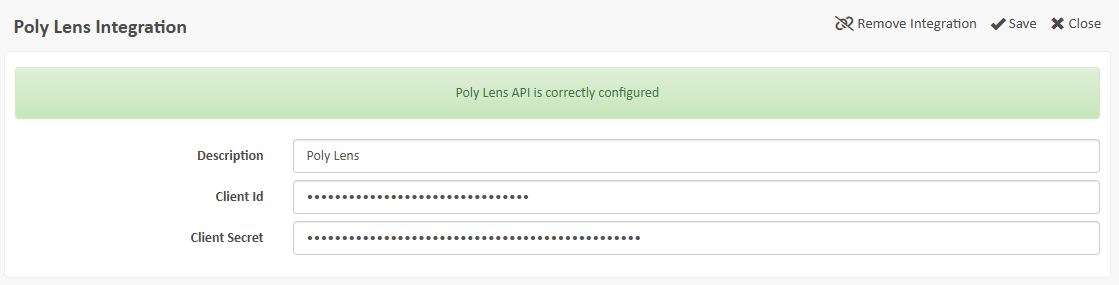
Using the details from the Create an API Credential for your Poly Lens Account section of this guide, complete the fields shown. The Description is something you assign that's appropriate for the integration, such as, "CompanyABC Poly Lens API". Click Save.
The application will now run a background process pairing the Poly devices with your MS Teams devices. Please allow a few minutes for this to complete.
Once connected, you will be able to confirm the connection between the platform as the Poly devices detected with show the cloud icon next to their brand name. Example below:

Was this article helpful?
That’s Great!
Thank you for your feedback
Sorry! We couldn't be helpful
Thank you for your feedback
Feedback sent
We appreciate your effort and will try to fix the article