Onboarding a Zoom Account
The Morbit Studio Zoom integration requires you to first enable the feature for your Organisation (or the Organisation that you are setting up). To do this, you must follow these steps:
Note: you must be an Administrator on the Zoom platform to authorise and successfully complete this process.
- In Morbit Studio, navigate to System > Configuration
- Select the Organisation you want to enable Zoom integration with, and click the edit icon (viewable when you place your mouse cursor over the Organisation name)
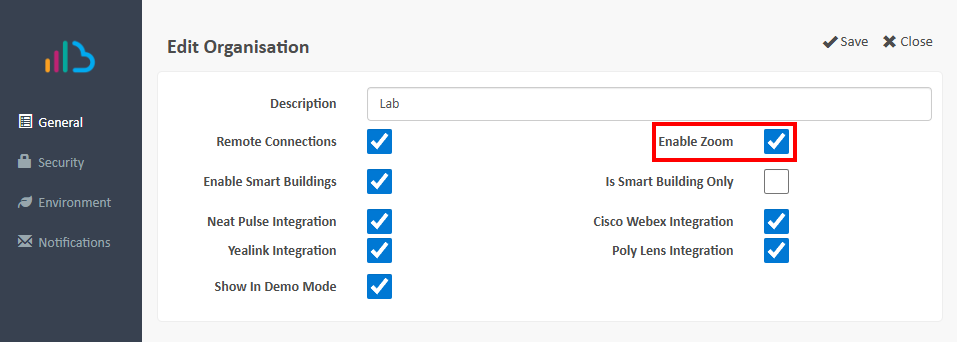
- In the General menu, tick the Enable Zoom option and click Save.
- In the main Configuration screen for this enabled Organisation you will now see the Zoom Accounts option. Click New Account to begin the integration of the platform.

- The New Zoom Account screen will open. Add a Description for the integration and then select Save and Authorise.
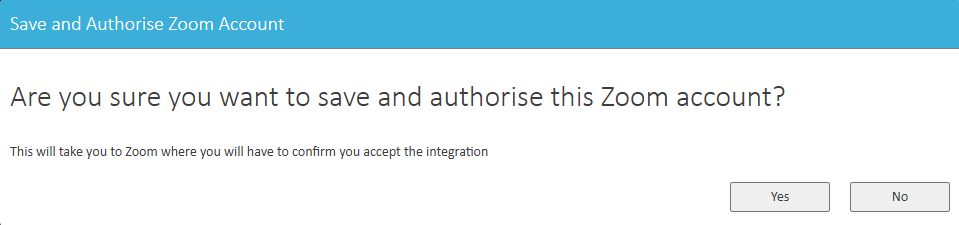
- When the 'Are you sure...' screen loads, select Yes.
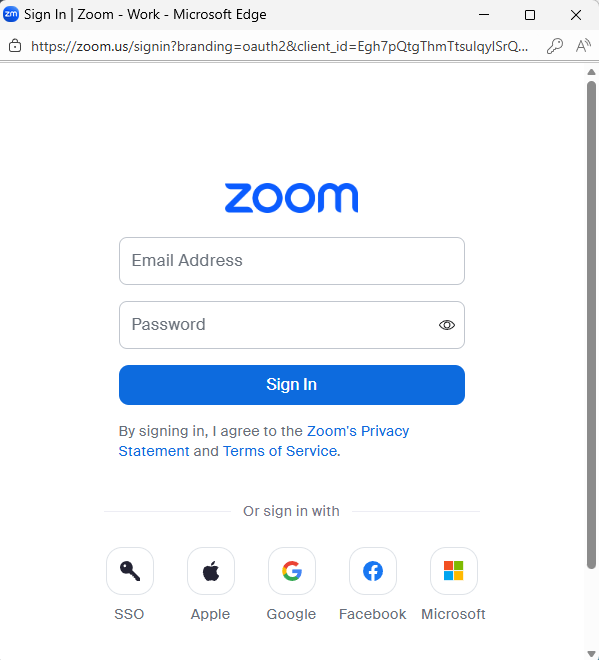
- You will then be prompted to sign into your Zoom account - complete this step.
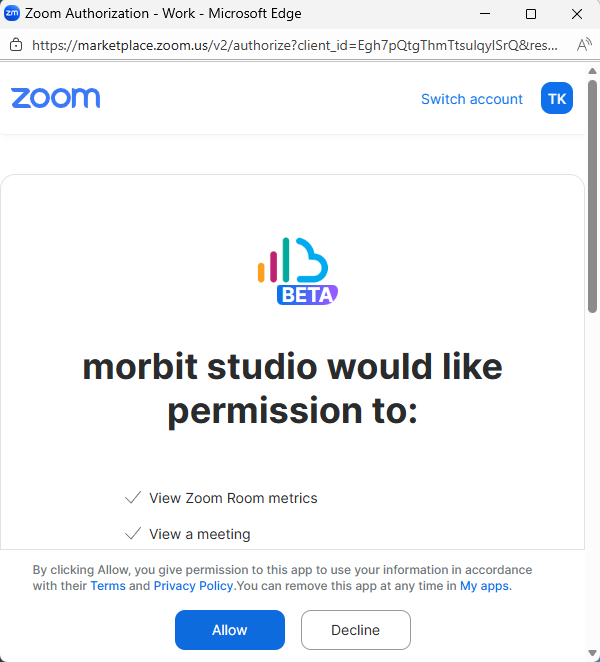
- The next screen with ask you to review the permissions required and prompt you to Allow or Decline this option. To proceed you need to select Allow. Full details on the permissions required are provided in this article for you to review in depth.
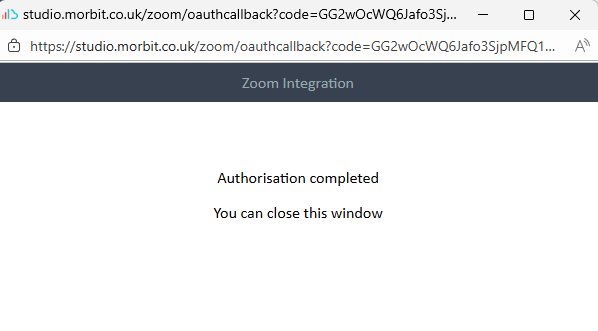
- Once the integration is complete, you can then close the pop-up window as instructed.
- The integration is not yet completed though as no data will be imported until the following steps are completed.
- Open up the Zoom account you just integrated with in the Organisation screen with the Configuration menu.
- Select the Discovery menu and set up the access we are allowed to monitor.
- Include Rooms - this will import the Zoom Rooms on the Zoom service. You can limit this using the Name and/or Location filters. The Name and Location as based on the settings within the integrated Zoom platform.
- Include Users - this will import the Zoom Users on the Zoom service. You can limit this using the Department, Email or Timezone filters. These filters are based on the settings within the integrated Zoom platform.
- Click Save to complete the onboarding process. The service will take around 15 minutes to synchronise the integration.
Set up Alerting on Zoom Rooms
If you want to enable proactive alerts in the platform, you must complete the following steps:
- In Morbit Studio, navigate to System > Configuration and select the Zoom Account to add alerting to.
- In the General menu, tick the Enable Alerts box and then in the Alert Notification field add the email addresses to get the alerts. To add multiple recipients, use a comma between the email addresses. Click Save when complete.
- Navigate to Devices > Unified Comms Devices and select each device in turn that you want to enable Alerts for:
- Open the Zoom device by clicking it and then select the Alerting menu option.
- Tick the main Enable Alerts box, followed by the sub-category of Alerts you want enabled. For complete coverage we recommend that all these boxes are ticked.
- To ensure consistent Alerting, you should also check that within your Zoom Account you have all device alerts enabled for your account. If they are not enabled here, we will not receive the alert notifications.
- Within the Zoom Management portal (https://zoom.us/account), sign in with an Administrator account.
- Navigate to Admin > Room Management > Zoom Rooms
- In the right-side window select Account Settings from the heading menu to load up your Account Profile page.
- On the top row of tabs, click Alert then select Notification Email and Webhook settings in the side menu.
- Enable all the items you want to have notified within Morbit Studio. We recommend the following minimum options to be enabled. You must also tick all associated 'Send an email...' boxes for recovery events:
- Audio device has quality issues
- Video device issues
- Poor voice quality alert
- Controller or scheduling display disconnected
- Companion Whiteboard or Companion Zoom Rooms disconnected
- High CPU usage is detected
- Low bandwidth network is detected
- Zoom Room is offline
- Selected mic, speaker or camera has disconnected
- Zoom Rooms Display is disconnected
- Zoom Room passcode entered incorrectly
- Zoom Room automatically recovered from upgrade failure
Was this article helpful?
That’s Great!
Thank you for your feedback
Sorry! We couldn't be helpful
Thank you for your feedback
Feedback sent
We appreciate your effort and will try to fix the article