Connected Devices functionality is dependant on a Hub being deployed on the same network as the devices to be managed. If you have not done this, please do so following the steps within this guide.
A Connected Device is defined within this platform as a network connected IP-based device. So long as a Hub is installed and able to reach the device, it can be added to the system. The flexibility of this is that it allows any device to be monitored, and alerted for should it go offline.
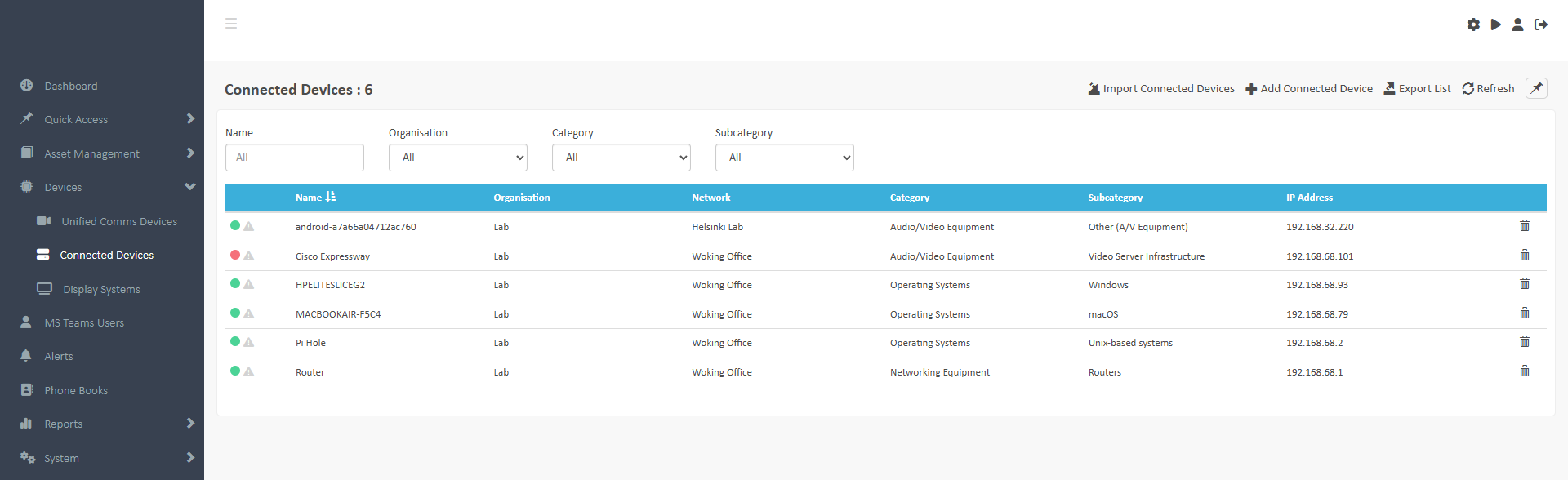
Adding a Connected Device
In the Connected Devices screen, click the + Add Connected Devices button. The following screen will load:
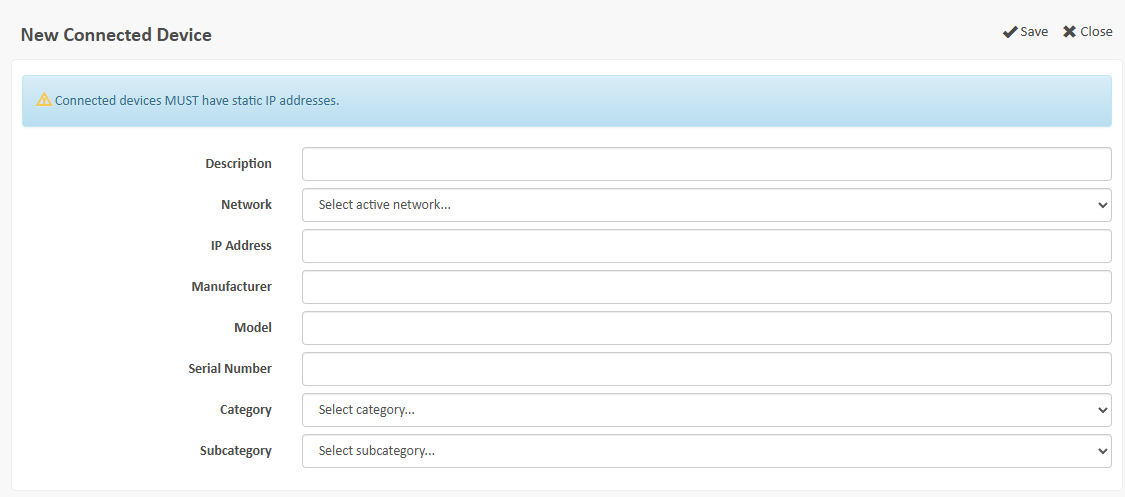
Complete the fields displayed and ensure you select the correct Network (see Networks & Hubs for more information) for the device being added. Networks must have an Online status to appear in the drop-down list. Click Save when complete.
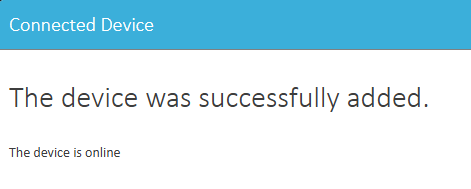
The Hub will now try to detect the system to add it as a Connected Device. If it is unsuccessful, this is likely due to the Hub not being able to access the device. You should check the IP address given and the Hubs access to this IP address. If successful you will get this message:
Importing Connected Devices
To Import Connected Devices, click the Import Connected Devices button. This will load up a screen where you can upload a CSV file (commas and semi-colons both supported). Upload the Devices per Network only.
Clicking the Sample File will provide you with an example format with the correct column headings applied.
Connected Device Details
When clicking on a Connected Device from the list, you will load up the Connected Device Details screen. From here, you can edit information about the device, or add Support Contract details. The left pane provides further device options.
Remote Connection
Note: this feature is only listed if the device is on a network with the Remote Connections feature enabled on a Hub.
Depending on the device type, you can select the following connection protocols:
- HTTP or HTTPS
- Remote Desktop Protocol (RDP)
- SSH
- Custom TCP Port
Console
If the Connected Device has SSH enabled you may use this to connect to the device over SSH. Add in your Username and password and click Connect.
Note: you should only use this for simple commands and queries and not file editing. If you need to do that, you should use the Remote Connections feature for SSH full functionality.
Macros
In Macros you can build command sets to run on a remote device to save time on rewriting regular instructions for devices. Use a new line for each command being issued. The command Results (output) can be all saved in the session, or just the last command, or simply ignored.
To execute the Macro, just open it up and click the Execute button.
Session Logs
All Console sessions and Macros that have been run are noted in the Session Logs. This does not include the content of those commands, only that a command was run, by who, and when. This is for the purpose of auditing access.
Analysis
The screen will show you device uptime over pre-defined time periods, including its online availability percentage.
Alerting
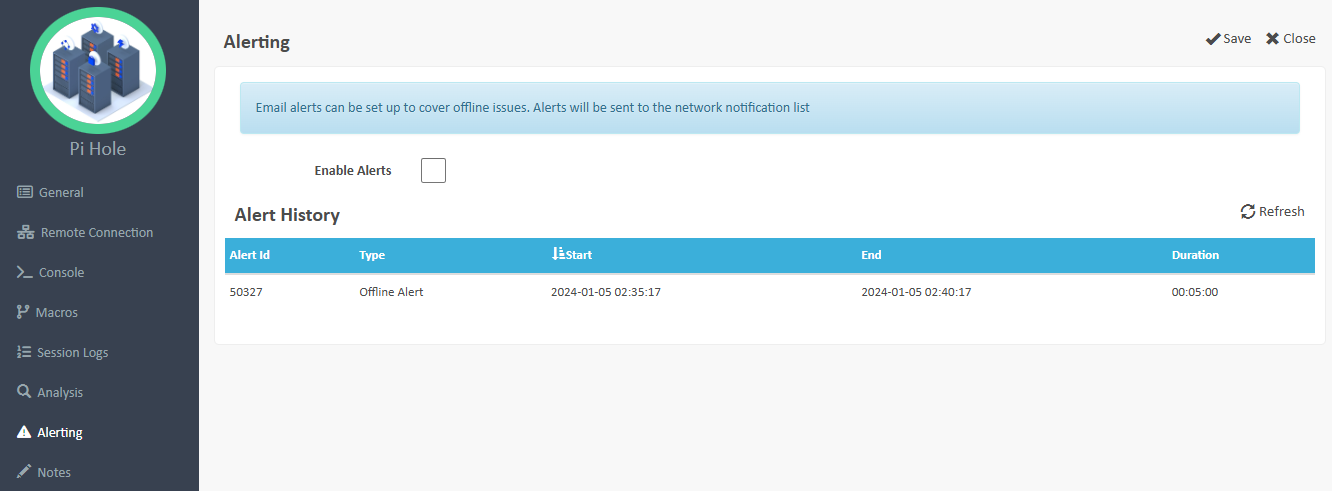
You can enable offline alerting by ticking the Enable Alerts check box. Alert History will also be displayed for review.
Notes
A free text field to add any notes of use for this Connected Device. This is viewable by anyone with access to this device.
Was this article helpful?
That’s Great!
Thank you for your feedback
Sorry! We couldn't be helpful
Thank you for your feedback
Feedback sent
We appreciate your effort and will try to fix the article