Display Systems functionality is dependant on a Hub being deployed on the same network as the devices to be managed. If you have not done this, please do so following the steps within this guide.
Display Systems can either be considered as stand-alone display or connected to a video conferencing device - when this is the case we call this display a Linked Device.
Adding a Display System
In the Display Systems screen, click the + Add Display System button. The following screen will load:
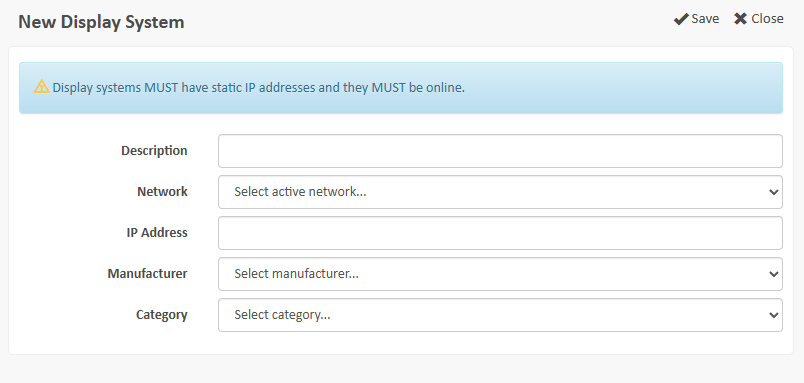
Complete the fields displayed and ensure you select the correct Network (see Manage Networks and Hubs for more information) for the device being added. Networks must have an Online status to appear in the drop-down list. Click Save when complete.
The Hub will now try to detect the system to add it as a Display System. If it is unsuccessful, this is likely due to the Hub not being able to access the device. You should check the IP address given and the Hubs access to this IP address.
Importing Display Systems
To Import Connected Devices, click the Import Display Systems button. This will load up a screen where you can upload a CSV file (commas and semi-colons both supported). Upload the Devices per Network only.
Clicking the Sample File will provide you with an example format with the correct column headings applied.
Display System Details
Clicking a Display System in the table will open up it up for remote management. From here you can:
- Change Input Source
- Change Volume levels
- Mute and Unmute volume
Video Devices
Clicking on Link to Video Device will open up a list of (unlinked) UC Comms Devices. Select the UC device that the display is connect to by clicking the link icon. This will now pair the display and the UC Device.
Analysis
The screen will show you device uptime over pre-defined time periods, including its online availability percentage.
Alerting
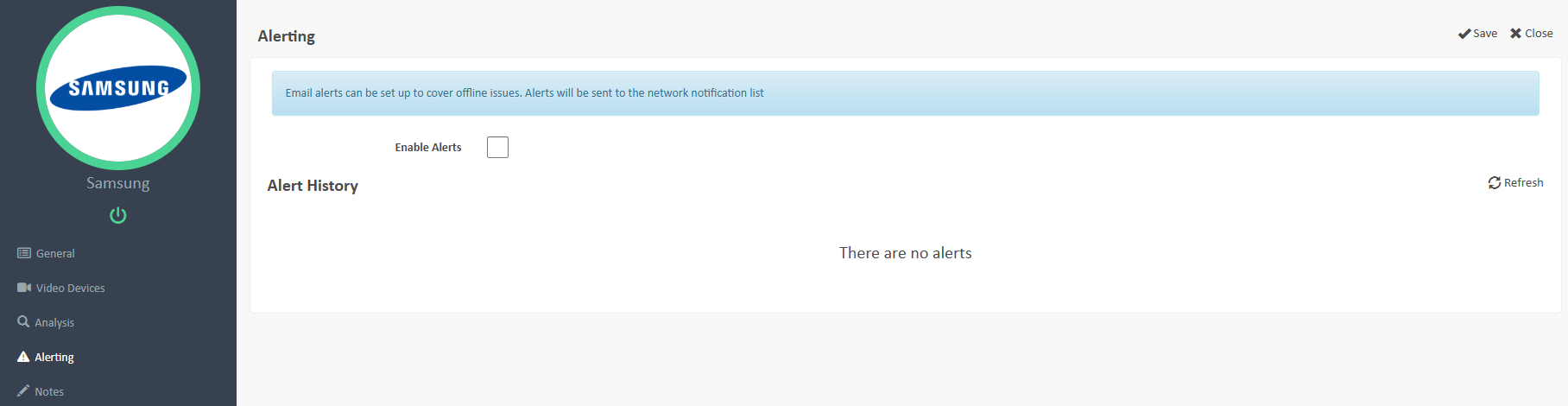
You can enable offline alerting by ticking the Enable Alerts check box. Alert History will also be displayed for review.
Notes
A free text field to add any notes of use for this Display System. This is viewable by anyone with access to this device.
Was this article helpful?
That’s Great!
Thank you for your feedback
Sorry! We couldn't be helpful
Thank you for your feedback
Feedback sent
We appreciate your effort and will try to fix the article