Morbit Studio integrates with Crestron Processor devices - both 3-Series and 4-Series - to allow for on-premise pro-active monitoring and management. Devices covered include the on-network (TCP/IP devices) and off-network devices (not network enabled but connected to the control processor).
This guide walks you through enabling the integration and then registering the control processors and associated devices in to Morbit Studio.
Prerequisites:
- A Morbit Studio account with 'Full Access' rights
- A deployed and registered Morbit Hub with IP network access to the Control Processors (CPs)
- Crestron Integration enabled on your Account - you can request or check this via help@morbit.co.uk.
- You MUST remove any Crestron Processors that have been added to Connected Devices, otherwise they will not work due to the IP address conflict. The system will tell you that a device already exists and not add the control processor.
Enable Crestron integration for you Organisation
- Navigate to System > Configuration.
- Click your Organisation where you are setting up the Crestron devices, and select the Edit icon.
- On the General menu, tick the Crestron box and click Save.
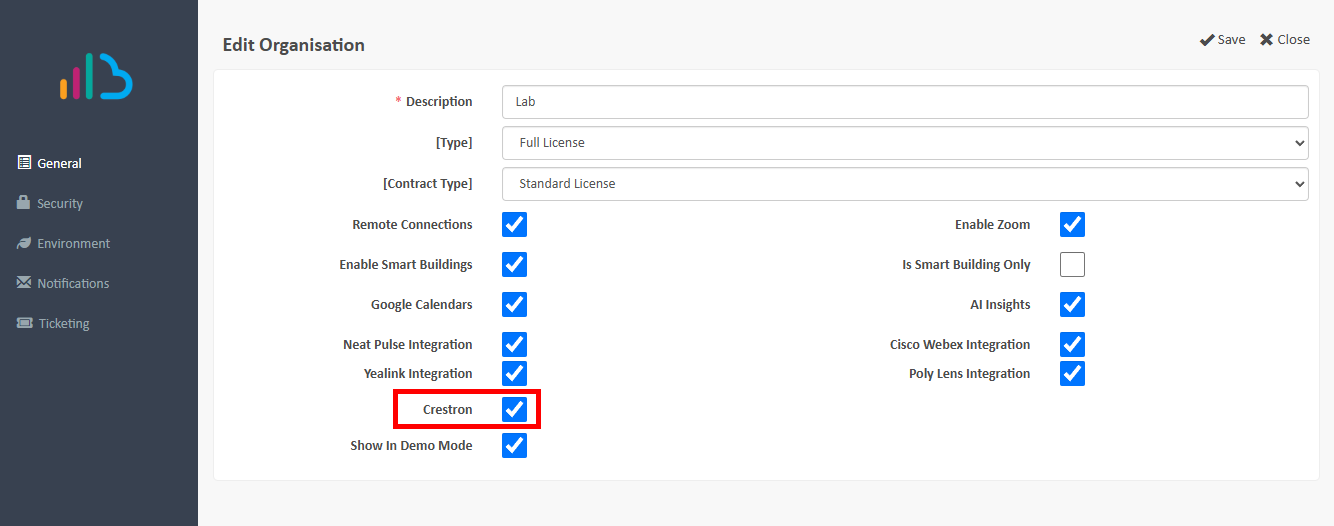
Adding in Crestron Processors
- In your left-side menu, expand Devices and select Crestron.
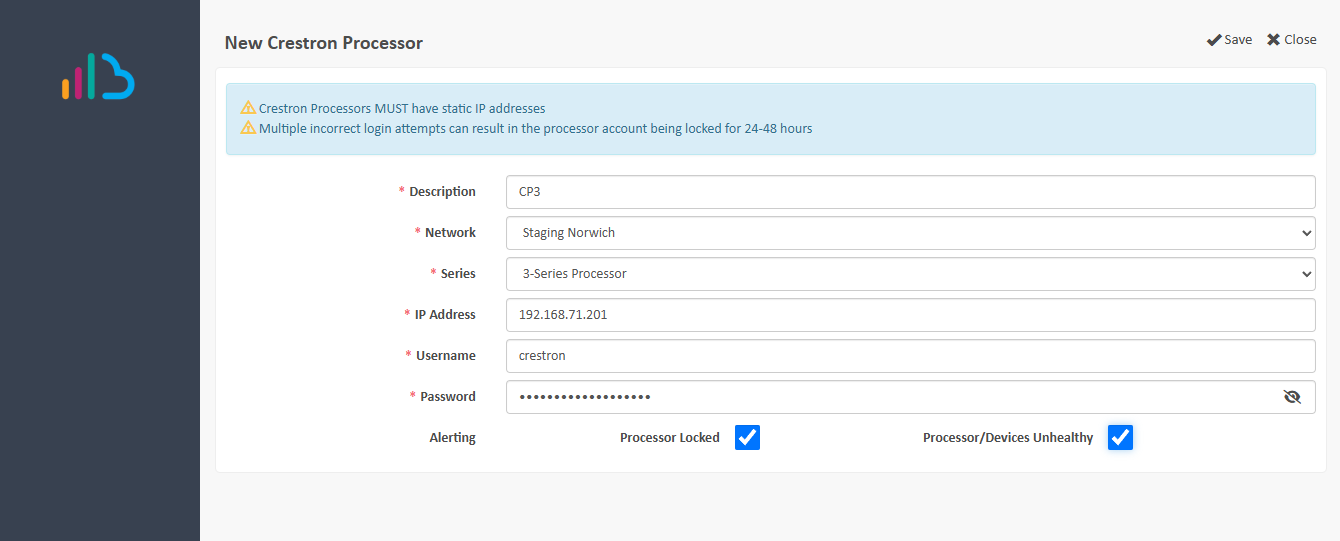
- Click the Add Crestron Processor button. You will need the following information to successfully set up a Control Processor:
- IP Address - the Morbit Hub on the network must be able to reach this IP address (this must be a static address)
- Username - with SSH access and PROGRESET command rights.
- Password - for the Username above
- Complete the details as given:
- Description - provide a meaningful description or system name of this device.
- Network - Select the network that the control processor can be accessed from (and that has an online Hub).
- Series - select either 3-Series Processor or 4-Series Processor. This must match what is being added.
- IP Address - of the control processor being added
- Username
- Password
- Alerting - enable the alerts you want to be notified for. The alert notifications go to the Alert Notifications that are set up in the Network & Hubsfor the Network selected.
- Processor Locked - we will alert if the device gives us a single rejected authentication. This is because you can easily lock out access with three incorrect login attempts.
- Processor/Devices Unhealthy - this alerting will notify you if the Status of the connection between the control processor and any connected device goes wrong (OFFLINE, ERROR or LINK LOST).
- Once completed it should look similar to this:
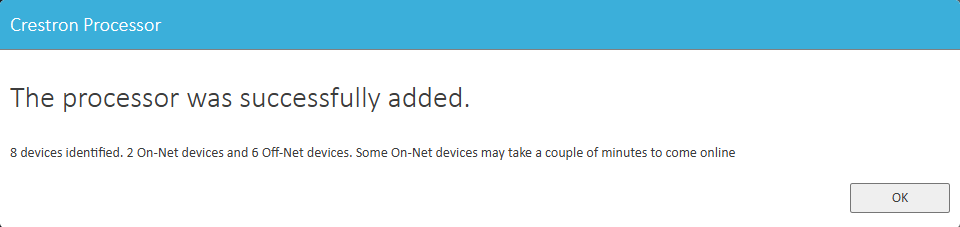
- On a successful connection, you will be notified of the number of devices detected:
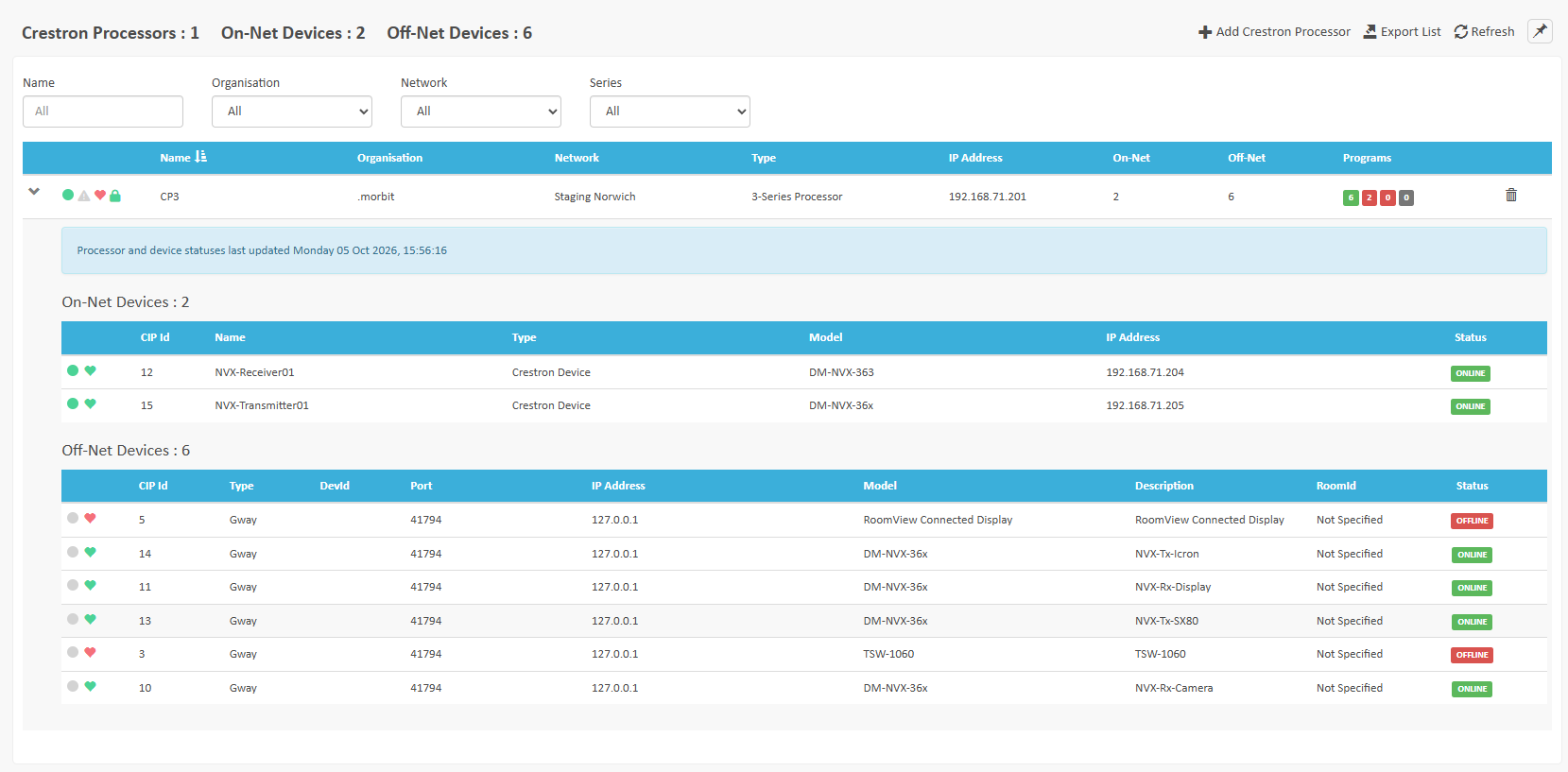
- Clicking OK you will be returned to the list view with all the devices showing. Expanding the row will give the complete details of the devices:
- The system defines the following device types:
- On-Net Devices: These are devices will an IP address. They are directly accessible form the network and have Remote Connections (if enabled) and network connectivity alerting, alongside the Status monitoring within the Control Processor.
- Off-Net Devices: These devices are not on the IP network and are accessible only to the control processor (they are identified by their 127.0.0.1 address in the IPTABLE)
- Within the main control processor row, on the right is a Status total of devices registered to the control processor. In this example there are 2 x OFFLINE devices in the Status metrics:

- This can be further reviewed within the expanded view:
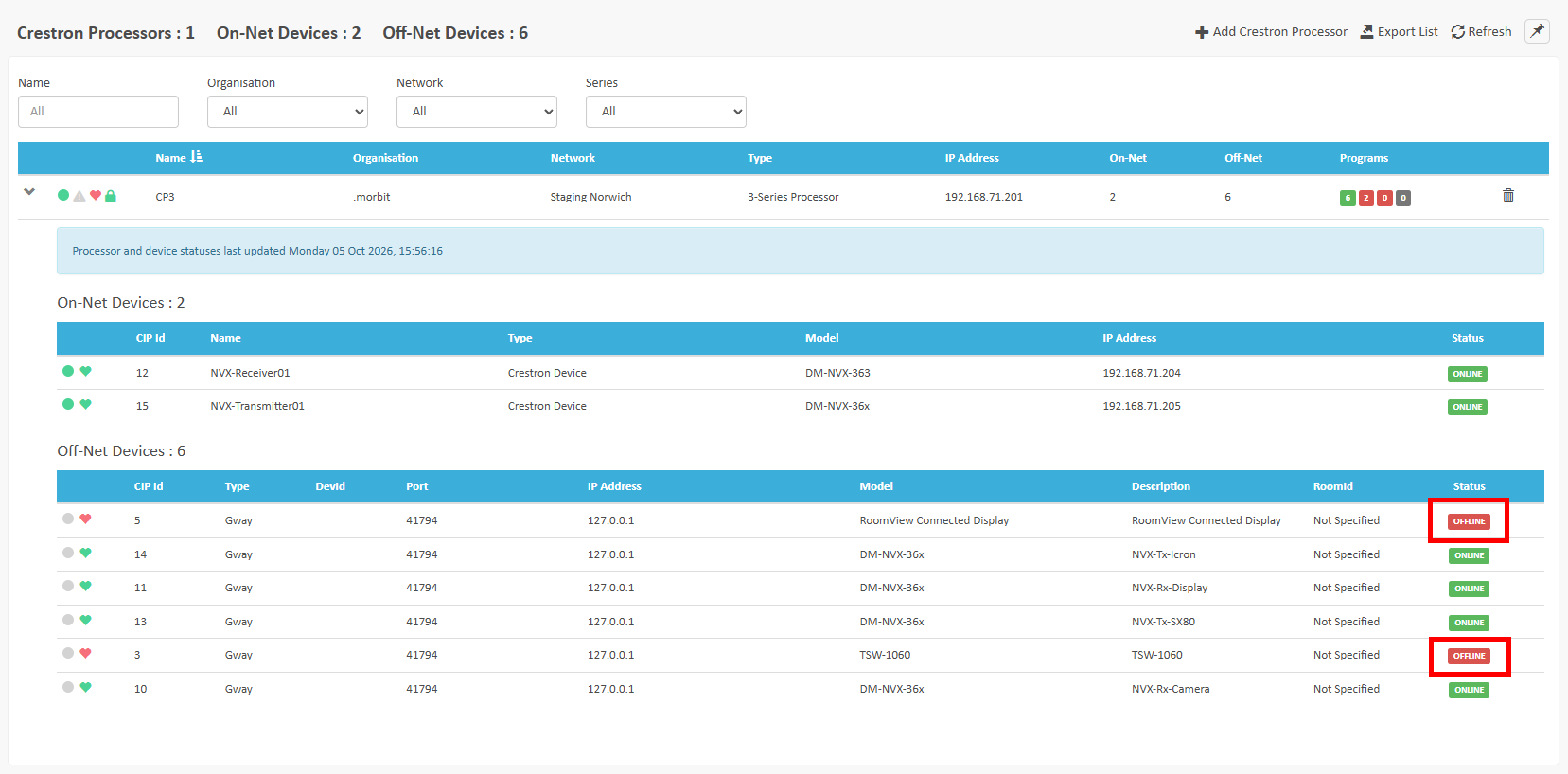
Managing a Crestron Processor and its Devices
- Clicking on the control processor in the main view will open up the management options on the unit:
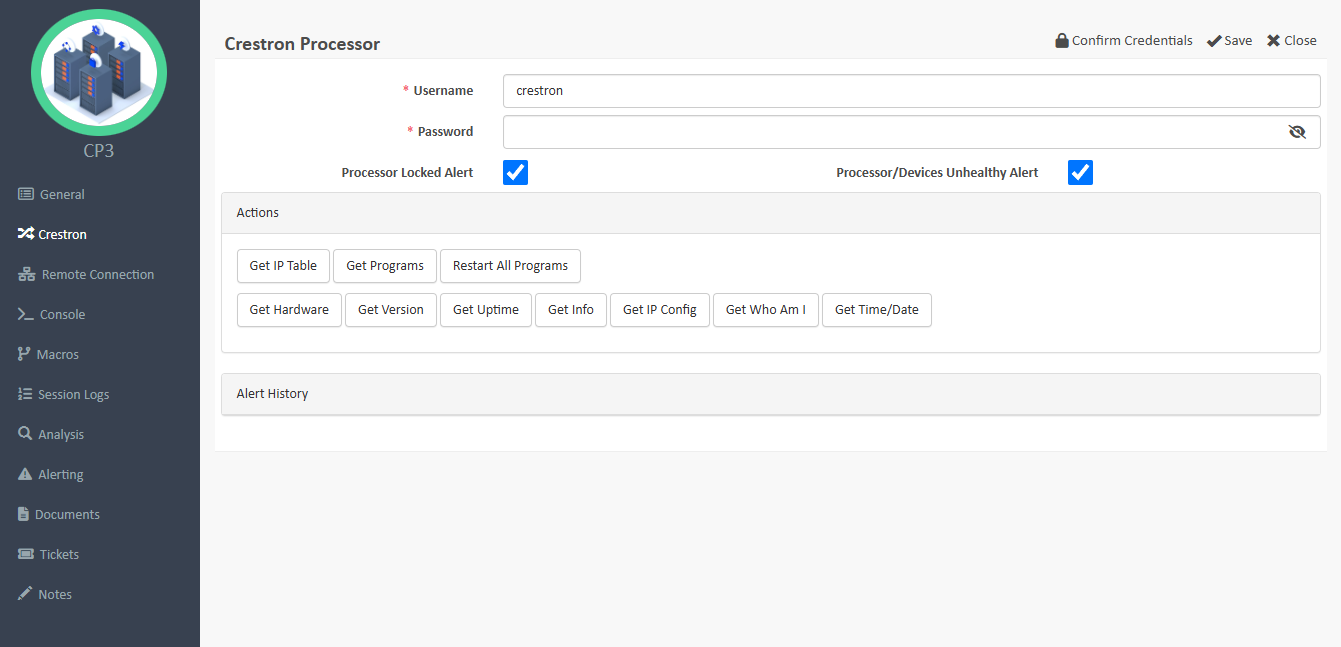
- The main Crestron left menu provides the actions you can take against this control processor.
Action Crestron Command Details Get IP Table IPTABLE -T This lists the full IPTABLE running on the control processor Get Programs SHOWHW This is a formatted SHOWHW list where you can restart individual program slots Restart All Programs PROGRESET Restarts all the programs (commonly used to fix Status issues) Get Hardware SHOWHW Show hardware information Get Version VER -V Show the full version information Get Uptime UPTIME Show how long the system has been running Get Info INFO Show the system information Get IP Config IPCONFIG Show the IP configuration Get Who Am I WHOAMI Show the running user of this command Get Date/Time TIMEDATE Show the system Time and Date - At the top right of the menu you can select Confirm Credentials if you need to revalidate the authentication of the system - for example if the password was changed. This prevents needing to remove and re-add the control processor back into the platform.
- The remaining menu options are all identical to the Connected Devices features. These are:
- General: System information including MAC Address, Serial number, Support Contract and Location
- Remote Connection (if enabled): Allows for remote access to the device via a point-to-point encrypted tunnel
- Console: SSH access to the device (authentication saved per User, not per Organisation)
- Macros: Premade command groups that can be sent on demand to a device and results recorded
- Session Logs: Audit logs for Console and Remote Connection sessions
- Analysis: Online Availability stats for the device
- Alerting: Monitoring on a network layer - this is not the Crestron application layer alerting.
- Documents: Supporting documentation that might have been added to the device
- Tickets (if enabled): Create, change or close tickets relating to this device
- Notes: A free-text field for making notes against this device to share as info with colleagues.
Managing an On-Net Device
When expanding the control processor to review the On-Net and Off-Net devices, you can click on each On-Net Device to manage it like you would a Connected Device within this platform. The menus are identical to the Crestron Processor options, but without a dedicated Crestron menu.
NOTE: If you want network level monitoring of the On-Net Devices, you will need to enable it via the Alerting menu for each On-Net Device.
Removing a Control Processor and its Devices
In the main Crestron list view screen, simply click the bin icon at the end of the row. You will be prompted to confirm this:
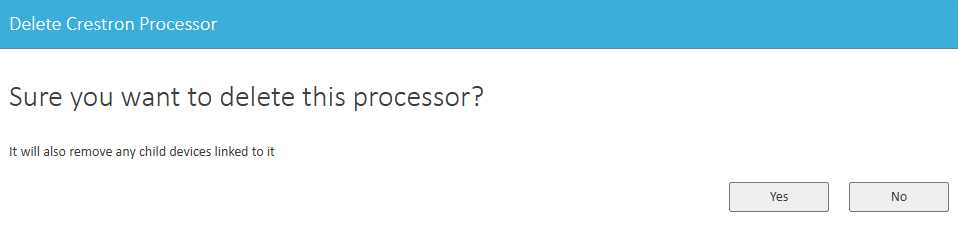
If this is correct, click Yes to proceed.
NOTE: Any devices deleted will automatically remove themselves from the Asset Register and associated Room data.
Was this article helpful?
That’s Great!
Thank you for your feedback
Sorry! We couldn't be helpful
Thank you for your feedback
Feedback sent
We appreciate your effort and will try to fix the article