Information: When referring to IP Addresses, we mean the public IP address(es) of your internet connection that will be used to connect our service. See https://www.whatismyip.com/ as an example, with the 'Your IP Address (IPv4)' listed being your public IP address.
Note: Add IP addresses prior to enabling the Restrict to Whitelisted IP Address check box. Failure to do so may lock out screens.
You can restrict access to the Door Panel, Wallboard and Floor Tracker screens by restricting access to IP addresses. This is enabled at the Building level of where the screens are installed.
Navigate to the System > Configuration screen, then select your Organisation. In the Buildings section in the right pane, select your building where you want to restrict the screens. In the Security menu you can now add whitelist IP addresses by clicking the Add IP Address button. For multiple IP addresses you will need to repeat the process.
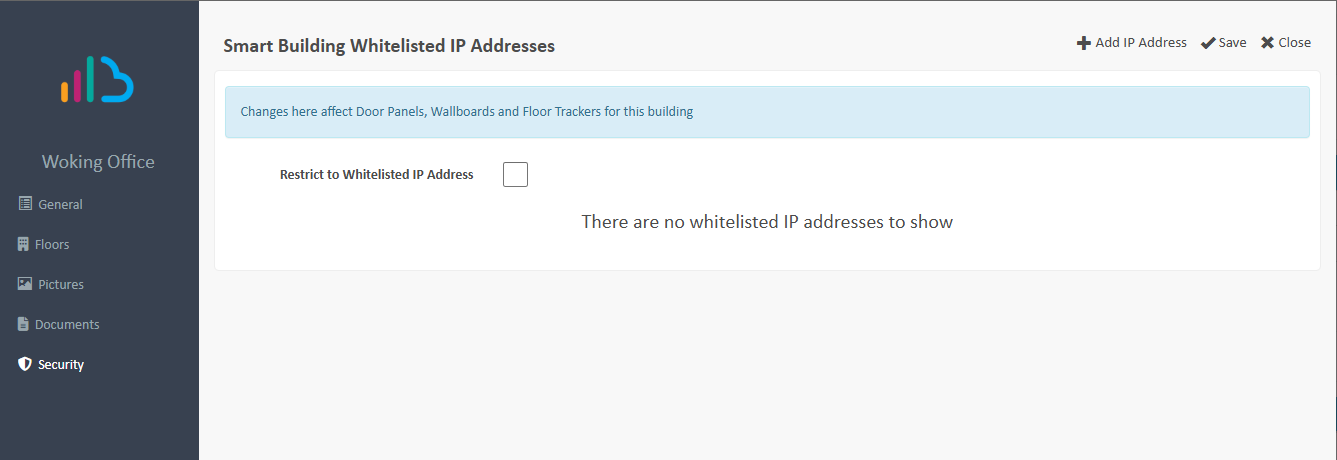
Once complete for each Building, select the Restrict to Whitelisted IP Address check box, and click Save. Repeat this process for all the IP addresses and the Buildings you want to restrict.
Was this article helpful?
That’s Great!
Thank you for your feedback
Sorry! We couldn't be helpful
Thank you for your feedback
Feedback sent
We appreciate your effort and will try to fix the article