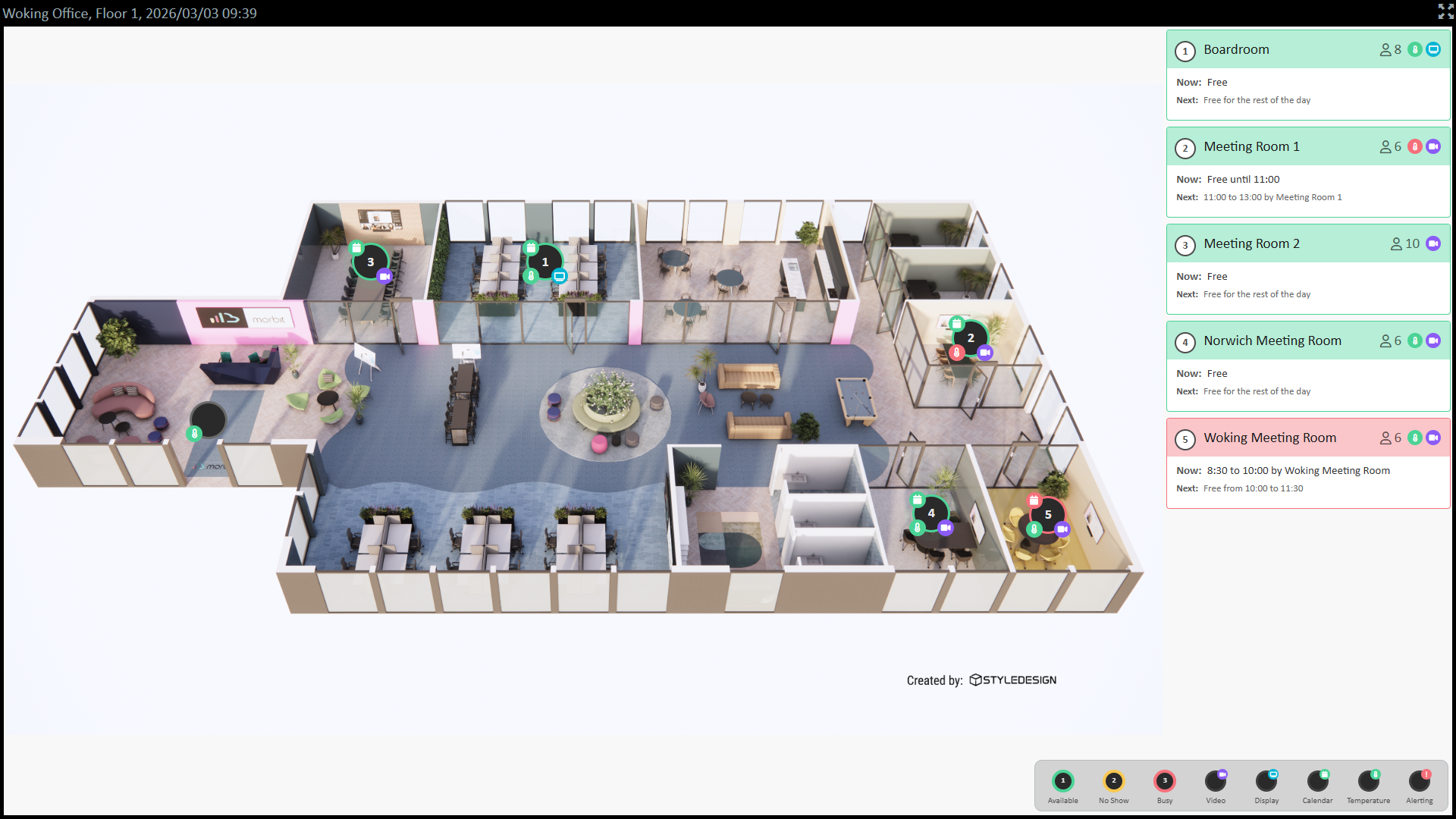
Utilising data from MS Teams, sensors and Exchange Calendar data for Rooms, we've created a unique solution to allow you to review live data of your meeting rooms. Information captured and displayed includes:
- Free/Busy status of Rooms and who the meeting Organiser is
- Recent Call Quality to ensure you are using a reliable video-enabled meeting room
- Sensor data: (metrics captured varies by sensor manufacturer)
- People Count
- Temperature
- Humidity
- CO2
- Air Pollutants (VOC and VOC Index)
- Illumination (Lux)
- Wallboards of the Floor Plans showing Meeting Room status including 'Now and Next' bookings
- Alerts to let you know if a room has a fault with its included equipment
Pre-requisites for feature
In order to deploy the Smart Buildings feature you will need to:
- Have it enabled on your account. If you have 'Smart Buildings' listed in your menu then you have this feature enabled, contact your supplier if not.
- Enable Smart Building on your Organisation. Follow these instructions here to check.
- Successfully added a 'MS Teams Tenant' or 'MS Graph API' to your service. Follow the instructions here for MS Teams and Calendars or here for a 'Calendars Only' integration to complete that if not.
- Added the 'Smart Buildings' additional MS Graph APIs. Further details can be found here.
- Created your office Buildings, Floors and Rooms that match your real world office environment. Instructions are found here.
- (Optional) Add sensors from Neat and Cisco MTR devices. For Neat Pulse users, follow this guide. For Cisco Control Hub users, follow this guide.
- (Optional) For integrating sensors from Disruptive Technologies, follow this guide.
Note: If you want to restrict the Room Resource calendars that are accessible by the platform, please follow this technical guide.
Assigning Exchange Room Calendars to Rooms
Once the pre-requisites are completed, you will need to wait for the platform to synchronise the Room Calendars in your Microsoft 365 Exchange system. To follow this progress you can go to the Smart Buildings > Room Calendars menu and the right-hand pane will populate with the data.
Note: The only type of Calendars we import are ones that have been created as Room Resources within Microsoft Exchange. More information from Microsoft can be found here on how to set this up.
Method 1 - via Room Calendars screen
In the Smart Buildings > Room Calendars screen, click on the '+' symbol at the end of the row of the Calendar you wish to allocate to a Room. When the screen loads, select the Room you want to assign it to.
Method 2 - via Buildings configuration
Navigate to System > Configuration > <Your Organisation> > Buildings. Click the Office Building you want to assign the Calendar in, and click through to the Floors > Rooms to the Room you want to assign the Calendar into. Select the Room Calendar from the Calendar drop-down list and click Save.
Repeat either method until you've assigned your required Calendars to Rooms.
Create a Floor Plan and allocate Rooms
- Navigate to System > Configuration > <Your Organisation> > Buildings.
- Click the Office Building you want to add the floor plan in, and click through to the Floors section.
- Select the Floor you want to add a floor plan to, then click the sub-menu Floor Plan.
- Select the Choose floor plan to upload button, and navigate to the location on your computer or network where the floor plan is saved. The file types supported are: png; jpg; jpeg. Click Upload.
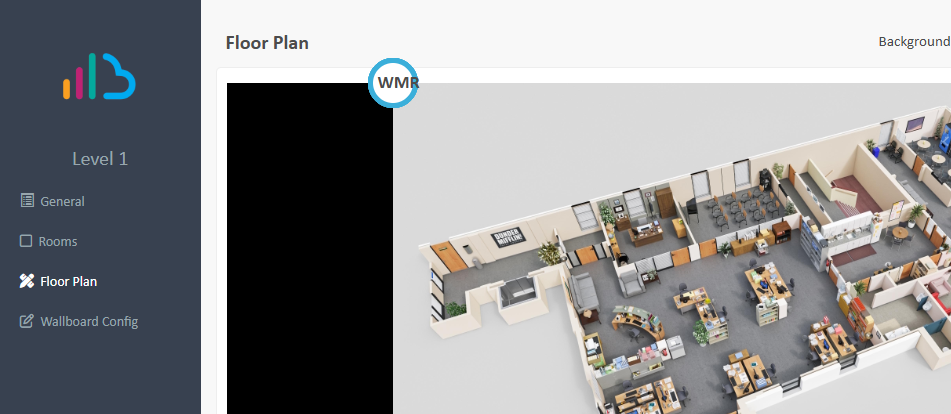
- At the top-left of the floor plan will be a number of blue ringed circles. These represent the Rooms allocated to that Floor, and are assigned the initials of the Room. Drag and drop them onto the floor plan to the location where the Room is.
- Repeat this process until all Rooms are assigned, then click Save Room Positions.
Note: If you do not want a Room to appear in a floor plan, you can go into the properties of the Room via the Rooms sub-menu and de-select Show On Wallboard. Click Save.
Configuring the Wallboard
If you have any black bars down the side of the Floor Plan like this:
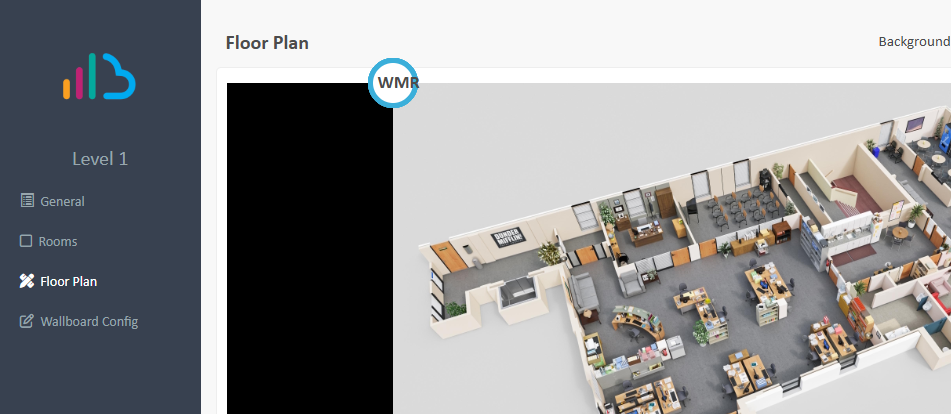
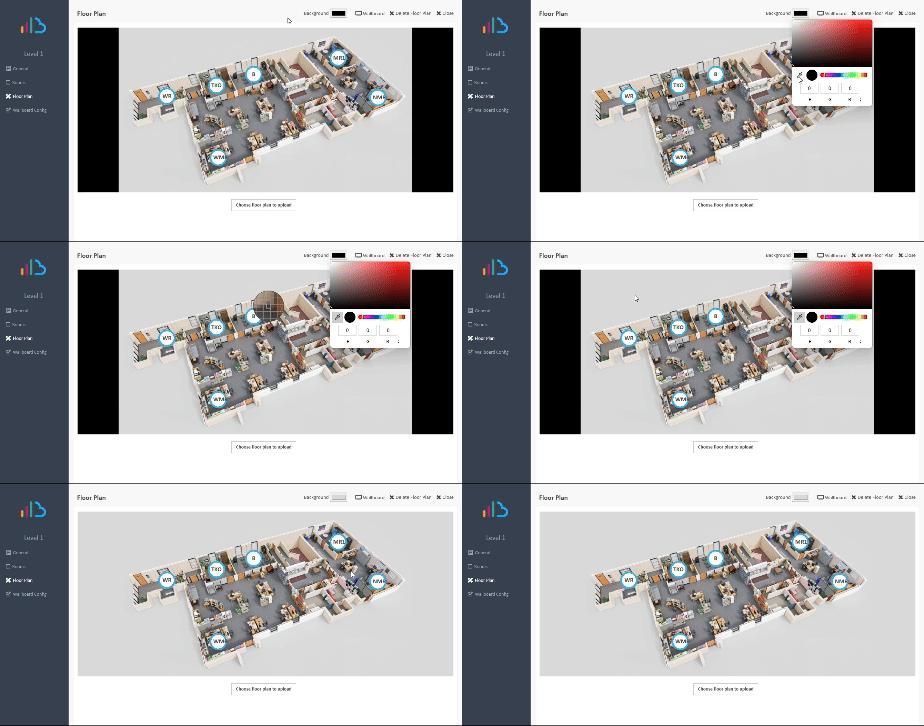
You can remove this by clicking the Background button, and using the colour selector, sampling the colour from the background you'd like:
To set the layout of the Legend and Free/Busy panels on the Wallboard, you can click into the Wallboard Config sub-menu. Select your preferred locations (or Hide them) and click Save.
Launching the Wallboard
Accessing the Wallboard doesn't require an account in the platform, and can see anonymously accessed if you know the URL.
To get the URL or to launch the Wallboard you can do it from a few locations.
Method 1 - via Floor Plans sub-menu
From within the Floor Plan sub-menu, click the Wallboard button at the top right. You can copy the URL and share it out as needed.
Method 2 - via Wallboards
Navigate to Smart Building > Wallboards. From here you can filter the view via the Organisation, Country or Building. At the end of the rows of listed Floor Plans, you can choose to Launch the Wallboard to a new browser tab or Copy the Wallboard URL for sharing.
Method 3 - via Asset Explorer
Navigate to Asset Management > Asset Explorer. Expand the list to the Organisation, Country then Office Building. On the listed floors, you can click the Wallboard icon next to the floor number to launch the Wallboard in a new browser tab.
Creating Door Panels
- Navigate to System > Configuration > <Your Organisation> > Buildings.
- Click the Office Building you want to add the door panels in, and click through to the Floors section.
- Select the Floor that has the Rooms that you want to create Door Panels in.
- Select the Rooms side menu.
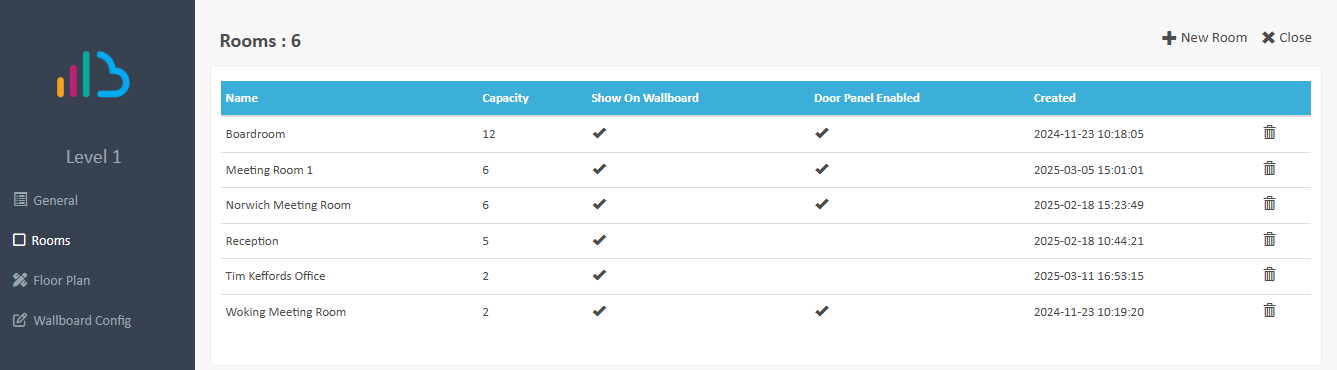
- To create a Door Panel for a Room, click the room to load its Details. Click the Door Panels side menu.
- To enable a Room to have a Door Panel, tick the Enable Door Panel option, and click Save.
Configuring Door Panels
The Door Panels have multiple settings that can be configured on a panel-by-panel basis. For example in a public meeting space, you may want to hide the Subject of the meetings, but in a private office space, you'd like that information to be shared. The Configuration page allows you to easy setup these options.
Features
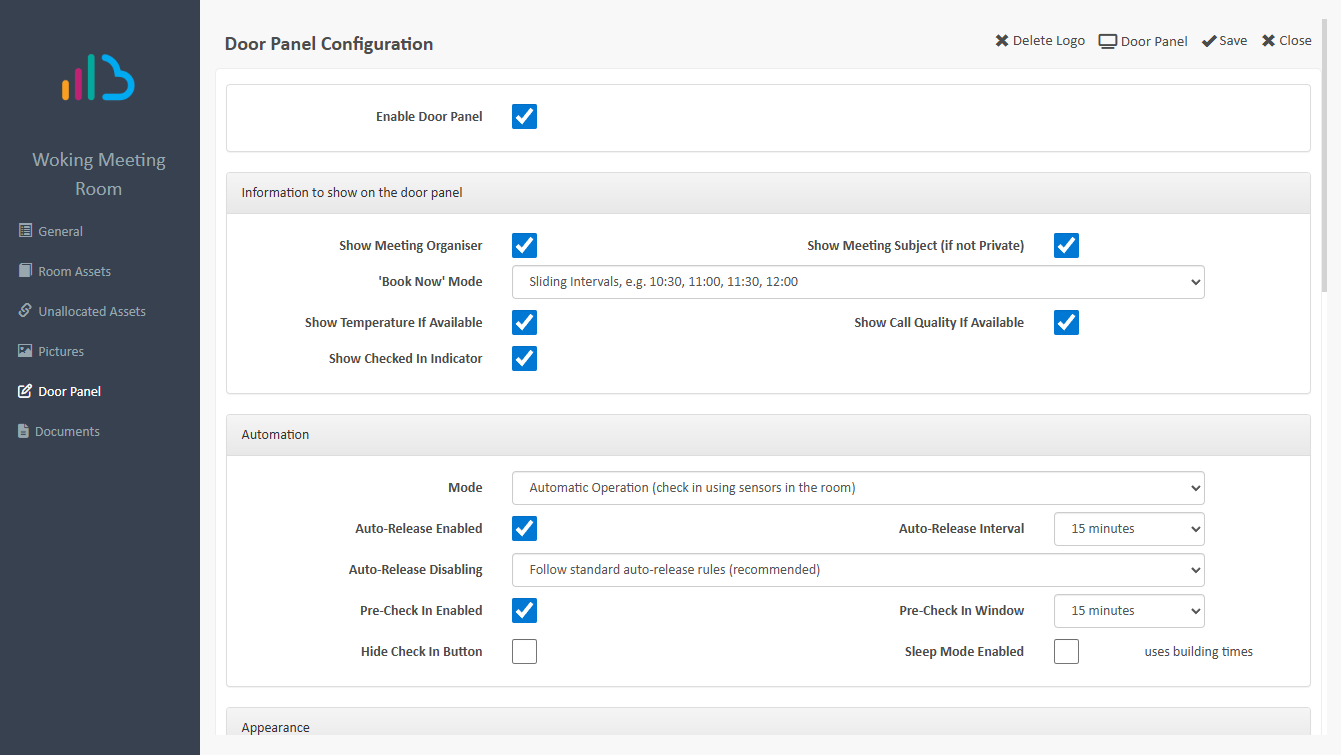
Click Save to apply any changes to the settings below.
| Feature | Options | Information |
|---|---|---|
| Enable Door Panel | On (ticked); Off (unticked) | Turns On/Off the door panel function for a Room |
| Show Meeting Organiser | On (ticked); Off (unticked) | Displays the name of the meeting organiser on the panel screen if turned On, otherwise it's hidden. |
| Show Meeting Subject (if not private) | On (ticked); Off (unticked) | Displays the Subject of the meeting on the panel screen if turned On, otherwise it's hidden. Meetings marked as 'Private' will not show the Subject |
| 'Book Now' mode | Sliding Intervals Fixed Intervals | Sliding Intervals: Meeting bookings rounded to a 30 minute interval to prevent awkward finish times, i.e. 11:30 instead of 11:36 Fixed Intervals: Meetings booked from 30, 60 or 90 minutes from the time they are reserved, i.e. 10:06 to 11:36 for a 90 minutes booking |
| Show Temperature If Available | On (ticked); Off (unticked) | Displays the temperature of the room on the panel screen if turned On, otherwise it's hidden. Requires sensor integrations. |
| Show Call Quality If Available | On (ticked); Off (unticked) | If turned on, it displays the most recent Call Quality of the video conferencing equipment in the room on the panel screen, otherwise it's hidden. Requires sensor integrations. |
| Show Checked In Indicator | On (ticked); Off (unticked) | Displayed the 'Checked In' icon on the display if set to 'On' (useful for confirmation it's worked) |
| Mode | Manual Operation Automatic Operation | Manual: Check In (and Out) and Book meetings using the Door Panel Automatic: Sensor driven Check In/Out of a booked meeting. Manual reservation is still available |
| Auto-Release Enabled | On (ticked); Off (unticked) | If nnabled, when a room is booked, but either a sensor hasn't detected a person, or nobody checks in, then the room will remove itself from the booking and mark itself as available. |
| Auto-Release Interval | 5, 10 or 15 minutes | This time setting is based from the start time of the booked meeting. After this interval the room will automatically release the booking if nobody has checked in or is detected. |
| Auto-Release Disabling | Follow standard auto-release rules Do not auto-release if meeting is longer than X hours | Follow standard auto-release rules: This will auto-release a room is there is a 'No Show' based on the Check-In status. Do not auto-release if meeting is longer than X hours: If a meeting room is booked for longer than X hours, do not auto-release the room. This over-rides the default auto-release setting. |
| Pre-Check In Enabled | On (ticked); Off (unticked) | For 'Manual Operation' check in rooms. If enabled, when a room is booked the door panel will show a 'Check In' button to mark the room as occupied. |
| Pre-Check In Windows | 5, 10 or 15 minutes | This time setting is based on the minutes BEFORE the start time of the booked meeting., when the Check-In button is displayed. The button will continue to be displayed until the 'Auto-Release Interval' time is completed. |
| Hide Check-In button | On (ticked); Off (unticked) | If enabled, there is no Check-In button displayed on the panel. |
| Issue Notification List | Include one or more email addresses | If the 'Issues' button is actioned on the Door Panel, this is the email address(es) of those that will be informed. |
| Sleep Mode Enabled | On (ticked); Off (unticked) | If enabled, the Door Panel screen will go black outside of office hours. Office Hours are set in the Building settings. The panel will go black 1 hour either side of the start and finish times of the office/building where the Door Panel exists. For example, a 5pm finish time, the panel will go black at 6pm. It will remove this at 8am if the start time is 9am. |
Background Image
Select one of the images you would like to use for the Door Panel background, or alternatively in the Background Image drop-down list choose Custom Library to use your own image. The custom image needs to be sized as 1536 x 1024 pixels.
Note: When choosing a Custom Image make sure to use an image that allows for the white text to be easily readable. Darker background are recommended.
Company Logo
You can upload your company logo by clicking the 'Choose new picture to upload' button. This will appear in the bottom left of the panel. If you are including your name, please ensure it uses a white font for easy readability.
Supported file type: PNG; JPG and JPEG. Use PNG is you need transparent backgrounds.
Bulk Editing Door Panels
In the Door Panels menu, there is a Bulk Edit button which can be used to set features on a larger scale. Using the Filter options, you can change the view of the door panels displayed (e.g. by Building or Country), then click the Bulk Edit button to select the feature to amend.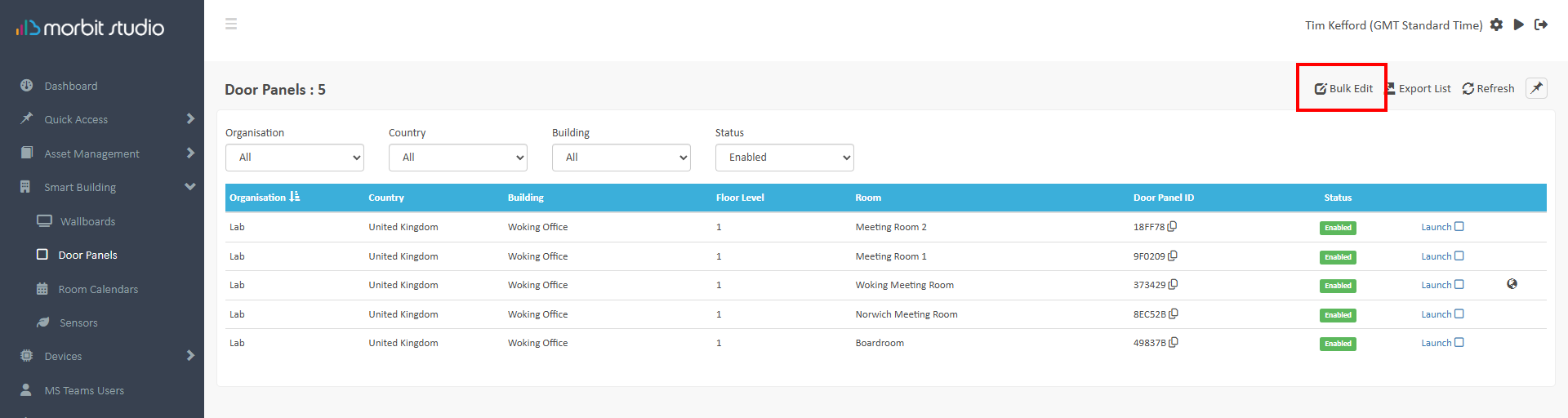
Clicking the edit icon for a feature will allow you to set it. You can make multiple changes and click Save when completed to apply to all door panels.
Further Information
What is 'Check In' and 'Check Out'?
It's important to 'Check In' and 'Check Out' of a booked meeting room as this will feedback into the statistical data about your room booking and usage. Additionally, if Rooms are not checked in, then the Organiser will be considered to be a 'No Show'.
What is a 'No Show'?
Sometimes this is referred to as a 'Ghost Meeting'. It is when a Room is booked, then nobody shows up to use it. This booking may have prevented somebody else from utilising the Room, and causing booking issues. Issues like this are recorded and reported on in the Room Usage Reports section of the platform.
Launching Door Panels
Navigate to Smart Building > Door Panels and click the Launch option to see the panel in your screen. Or click Copy to save the ID for adding to a Door Panel.
Suggested next articles: Install and Configure Door Panel Software or Configure and Monitor Sensors
Was this article helpful?
That’s Great!
Thank you for your feedback
Sorry! We couldn't be helpful
Thank you for your feedback
Feedback sent
We appreciate your effort and will try to fix the article