The platform has support for 3rd party sensors from the following companies:
- Neat Pulse - instructions for those with an MS Teams integration and Neat MTR for Android devices.
- Cisco WebEx Control Hub- instructions for those with an MS Teams integration and Cisco MTR for Android devices .
- Disruptive Technology sensors - instructions if you have an account and sensors in DT Studio.
Sensors that are not via MS Teams integrations can be viewed in Smart Building > Sensors. 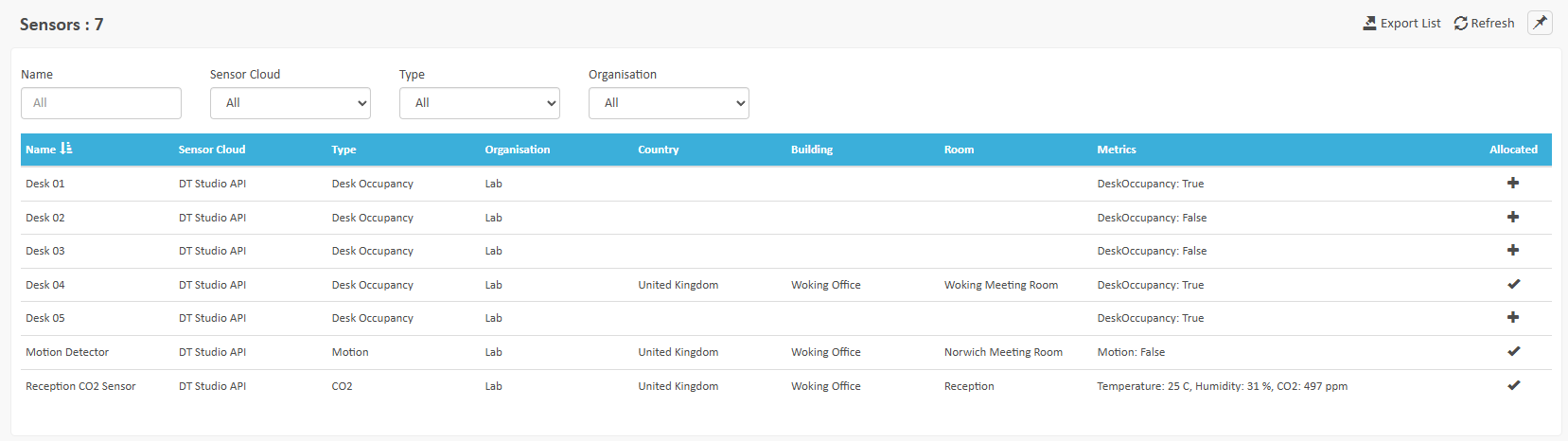
You can click each sensor to review the last 24 hours of data collected.
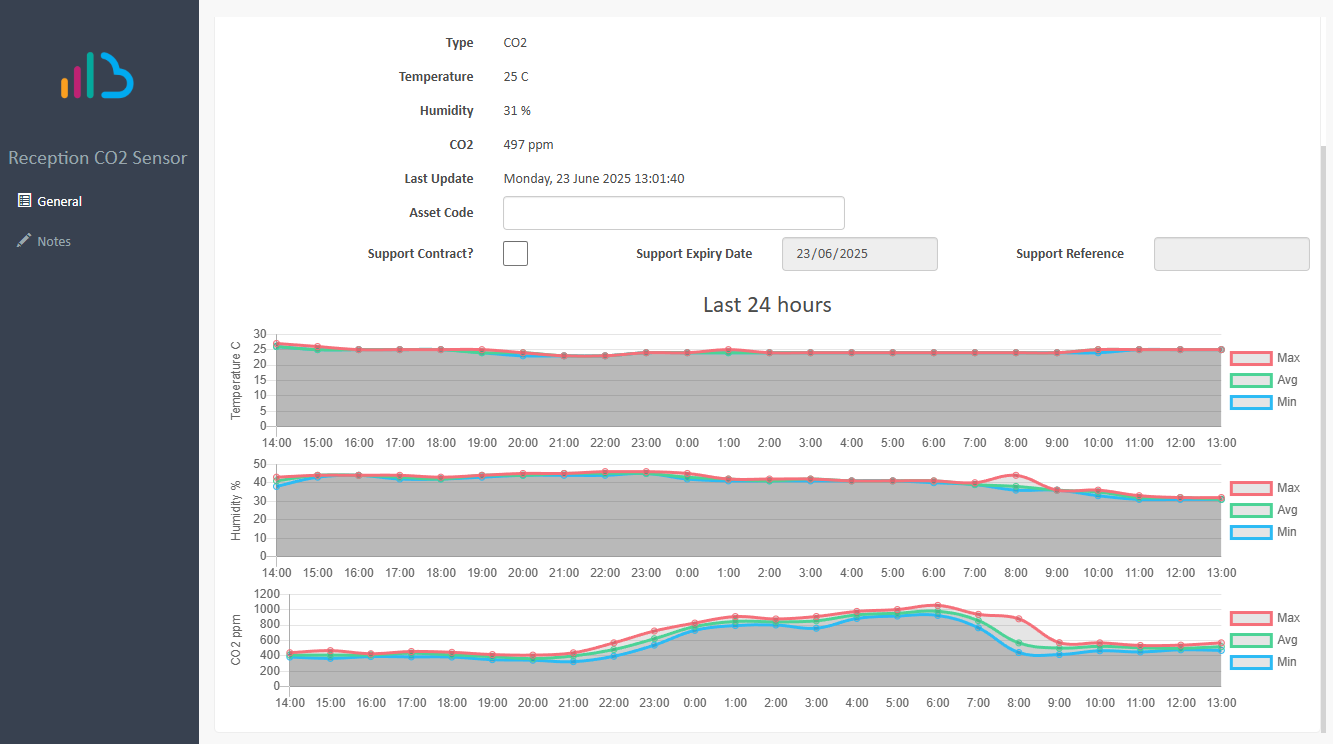
To allocate a sensor to a Room, simply click on the relevant sensor and click the '+' allocate icon at the right-side of the row entry. You can now assign this to the relevant room space.
Overriding Environment Range Settings
The system has been set up to work to a default range of values for environmental data as recommended by various industry bodies (such as the EU standard EN 15251:2007). These ranges are set to:
Sensor Name | Default Range |
|---|---|
Temperature | 20 - 26 °C |
Humidity | 30 to 70% |
CO2 | 0 to 1200 ppm |
VOC | 0 to 1200 ppb |
VOC Index | 0 to 200 |
TVOC | 0 to 1000 µg/m³ |
TVOC Index | 1 to 3 |
If your sensors detect values outside of this range, then this will trigger alerts. Should you wish to amend these ranges:
- Navigate to the System > Configuration menu. In the listed root Organisations, click the
 icon to edit the Organisation entry.
 - Select the Environment menu.
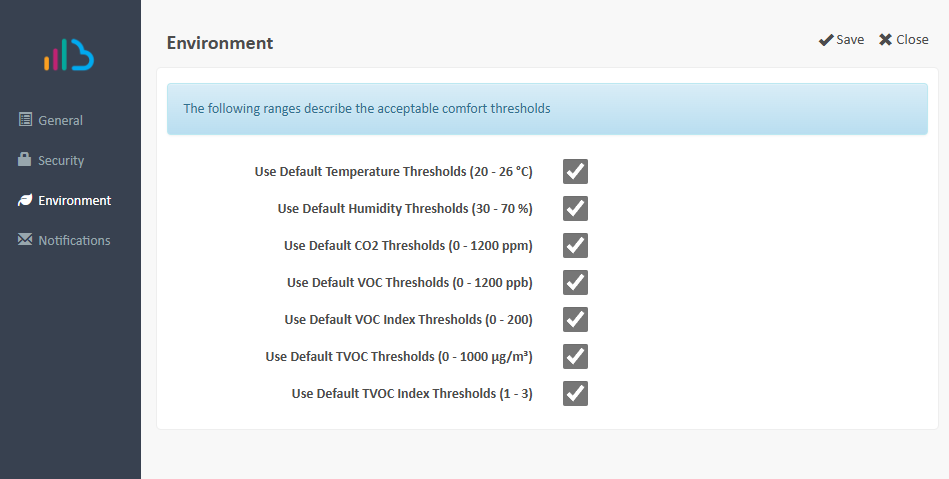
- Untick the sensor value you wish to change, and update it to your preferred setting. Click Save.
Suggested next article: Install and Configure Door Panel Software
Was this article helpful?
That’s Great!
Thank you for your feedback
Sorry! We couldn't be helpful
Thank you for your feedback
Feedback sent
We appreciate your effort and will try to fix the article