Morbit Studio integrates with Google Calendar to bring your meeting room and resource calendars into the Morbit Studio platform, where they can be used with Door Panels, reports, and room scheduling.
This guide walks you through creating the required Google Cloud project, service account, and calendar permissions in Google, and then connecting them to Morbit Studio.
Prerequisites:
- A Morbit Studio account with 'Full Access' rights
- A Google Workspace account with administrator (super admin) rights, including Organisation Policy Administrator permissions
- Access to the following Google services:
- Google Cloud Console – https://console.cloud.google.com
- Google Admin console
- Google Calendar – https://calendar.google.com/calendar
Note: Sections 1 to 4 are completed within Google. Section 5 completes the setup in Morbit Studio.
1. Create a Project in Google Cloud
A project is a container that holds the configuration and permissions for an integration. You will create a dedicated project for the Morbit Studio calendar sync.
- Sign in to the Google Cloud Console at https://console.cloud.google.com using your administrator account.
- At the top of the screen, in the Search type 'Create a project' and click the Create a project option.
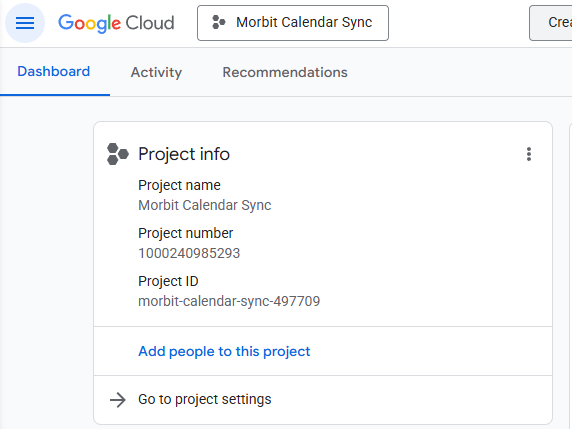
- Give the project a recognisable name, for example Morbit Calendar Sync. Make sure the Organisation and Parent Resources are relevant to your needs.
- Click Create.
- Use the Project Selector at the top of the page to confirm your newly created project is selected. All subsequent steps must be carried out within this project.
2. Enable the Google Calendar API
By default, a new project has no APIs enabled, so you must enable the Google Calendar API before it can be used.
- Open the main menu and select APIs & Services > Library.
- Search for 'Google Calendar API'.
- Select Google Calendar API from the results.
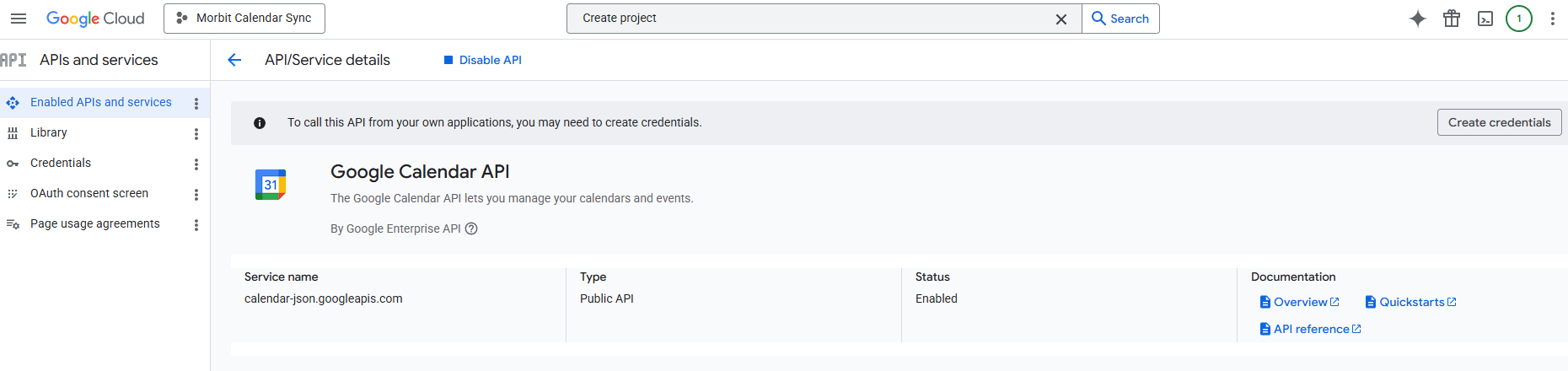
- Click Enable. The API is now available to your project.
3. Create a Service Account and Access Key
A service account is used by Morbit Studio to access the Google Calendar API. It holds the permissions needed to read and manage events in the calendars you share with it.
- In the Google Cloud Console, open the main menu and select APIs & Services > Enabled APIs & services.
- From the list of enabled APIs, select Google Calendar API.
- Select the Credentials tab (do not use the top-right Create Credentials link).
- Click Create Credentials and choose Service account.
- Enter a name for the service account, then click Create and Continue.
- Click Done. No additional permissions or principals with access are required.
- From the main menu, open the service account you have just created (you may need to refresh your screen to see it).
- Copy the service account’s email address (it ends in
.iam.gserviceaccount.com) and keep it to hand — you will need it in Section 4.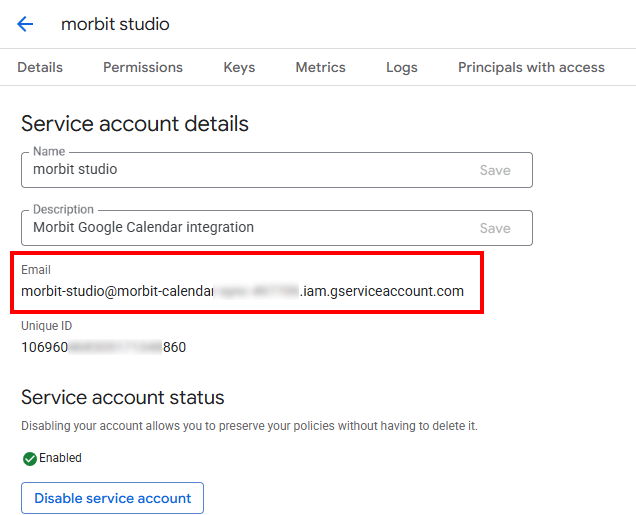
- Open the service account and select the Keys tab.
Note: Service account key creation may be disabled by default under your organisation’s policies. If so, an Organisation Policy Administrator must enable it before you can continue. See Google’s documentation on organisation policies for details.
- Click Add key > Create new key and select JSON.
- The JSON key file will download automatically to your computer.
Important: Store this JSON file securely. It cannot be downloaded again, and you will need it to complete the setup in Morbit Studio (Section 5).
4. Grant the Service Account Access to Your Calendars
The service account must be given access to each calendar you want Morbit Studio to manage.
- Sign in to Google Calendar at https://calendar.google.com/calendar with your administrator account.
- In the left-hand menu, find Other calendars and click the + symbol, then select Browse resources.
- Add all of the room and resource calendars you require.
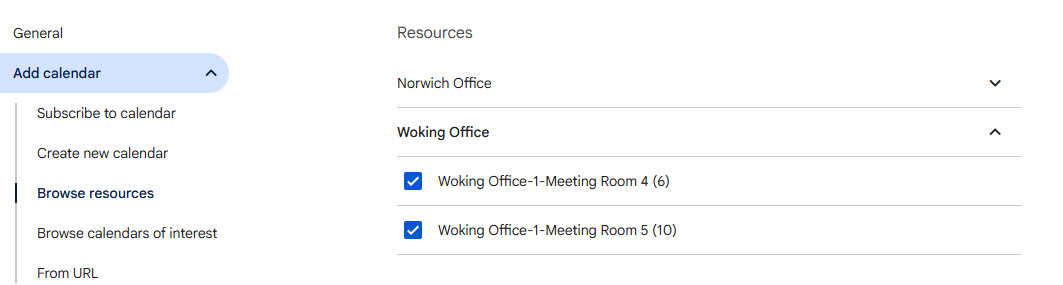
- Return to the main Calendar page. The calendars you added will now appear in your calendar list.
- Hover over a calendar name, click the three dots to its right, and select Settings and sharing.
- Under Share with specific people, click Add people and groups.
- Paste in the service account email address from Section 3, set the permission to Make changes to events, and click Send.
- In the Integrate calendar section, note down each Calendar ID as this will be the email address required for adding each calendar within Morbit Studio.
- Repeat steps 5 to 7 for every calendar you want Morbit Studio to manage.
Note: If you can only select See all event details and not Make changes to events, your account will not have sufficient calendar-sharing permissions. A Google Workspace administrator may need to enable domain-wide delegation or grant your account the appropriate permissions.
5. Add the Account into Morbit Studio
With the Google side configured, you can now connect the integration in Morbit Studio.
- Log into Morbit Studio. In the configuration screen for your organisation, locate the Google Calendar Accounts section.
- Click New Account.
- Enter a Description for the account.
- Drag the JSON key file you downloaded in Section 3 onto the drop zone. Morbit Studio will populate the remaining details automatically.
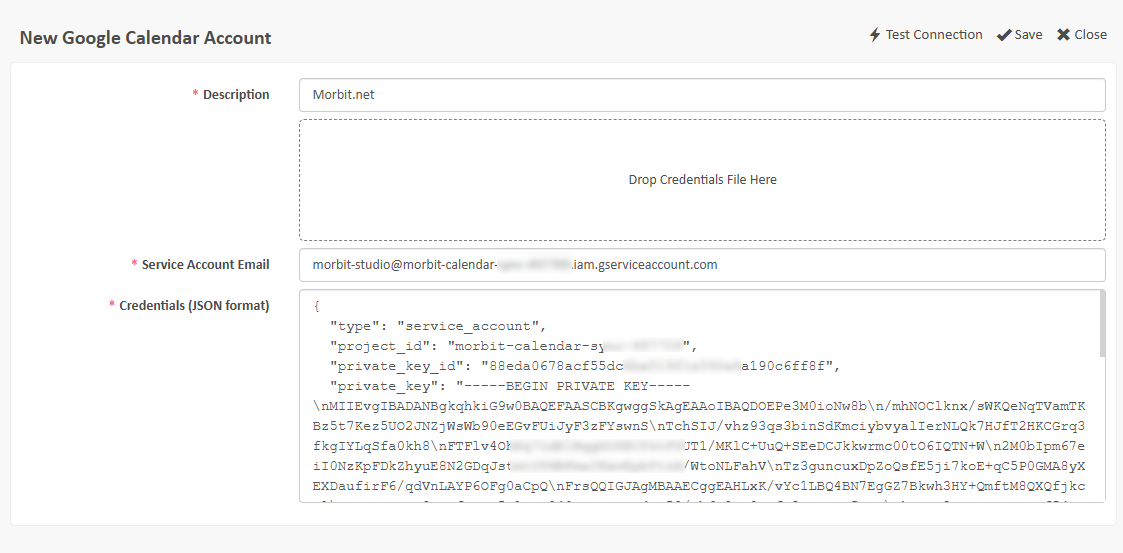
- Click Test Connection to confirm the integration is working, then save.
- Go to Smart Building > Room Calendars.
- Click Add Google Calendar and enter the details. If Morbit Studio cannot see the calendar, it will not allow you to proceed — being able to proceed confirms that all permissions are correctly configured.
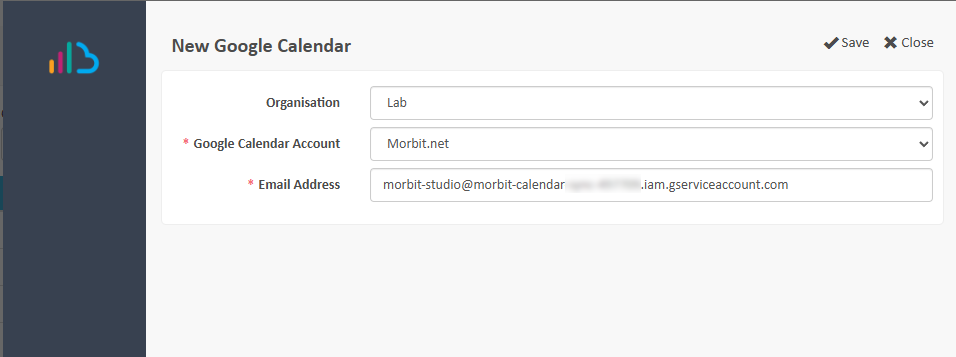
- Click Save to add the Google Calendar
Setup is complete. You can now allocate the calendar to a room and use it across Door Panels and reports.
Was this article helpful?
That’s Great!
Thank you for your feedback
Sorry! We couldn't be helpful
Thank you for your feedback
Feedback sent
We appreciate your effort and will try to fix the article