Note: The feature may need to be enabled by your support provider if you don't see the options below.
Enable your platform
To allow the Microsoft SSO function to integrate into the platform, you will need to first enable it. To do this, follow the following steps:
- Clicking the Account menu cog icon at the top right, will open the Account Details page.
- Select the Security menu. In the right pane you will see:
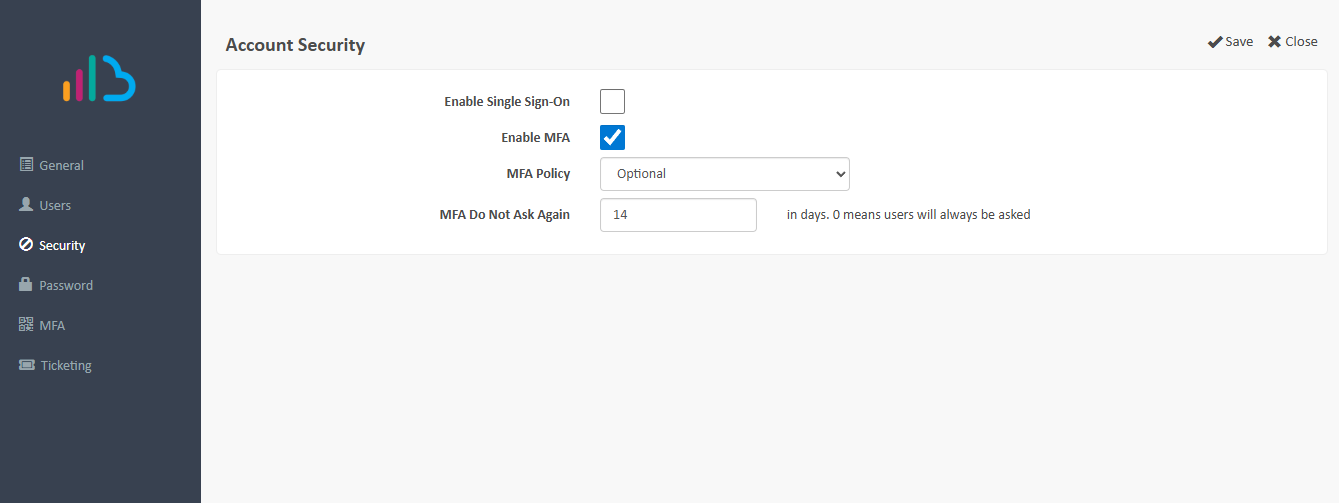
- Tick the Enable Single Sign-On box and click Save.
- Your platform is now enabled for SSO configuration
If you are a service provider running the platform, you should now move onto the Authorising SSO access section below.
User Account access
For Microsoft SSO to work, the registered Morbit Studio User email address and the Microsoft SSO email address MUST MATCH. If they do not you cannot access the system. Equally, if they do not exist in the Morbit Studio Accounts list a User will not be granted access.
To add Users into the platform, you can follow the instructions here.
Enable an Organisation
- Navigate to System > Configuration and select the Organisation you wish to enable.
- Moving your mouse to the Organisation name listed, select the Edit icon.
- Click the Security menu option. In the right pane you will see:
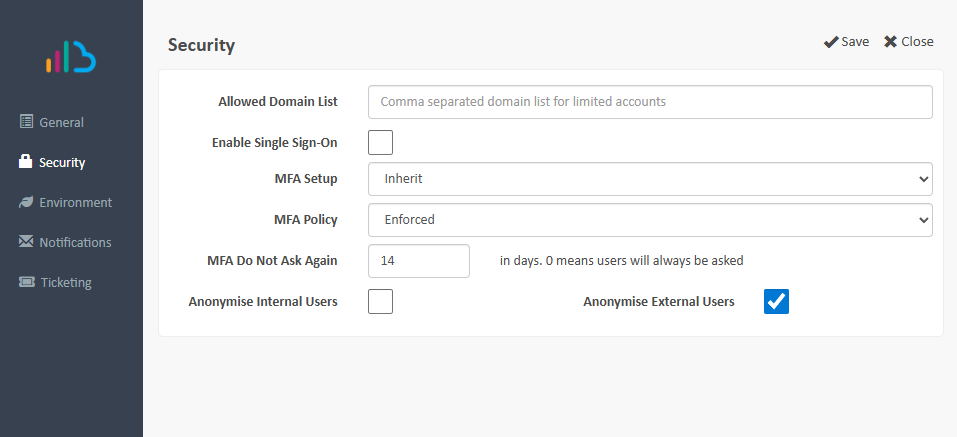
- Tick the Enable Single Sign-On box and click Save.
- This Organisation is now enabled for SSO.
Authorising SSO access
To complete the setup, you will need an Administrator to be the first person to login to the platform (note: you may need to temporarily provide them access with a User account - see User Account access above).
- Open up https://studio.morbit.co.uk and select the Sign in with Microsoft option.
- Login with your Microsoft account when prompted
- You will then receive this authorisation message:
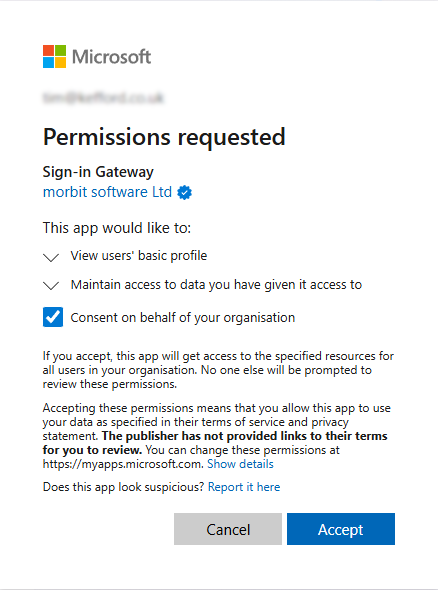
- The permissions being requested are simply your basic profile information such as Name and Email Address.
- Click on the Consent on behalf of your organisation box, then click Accept.
- The login should now complete and you will load up the Dashboard page.
- All Users will now be able to access the solution using SSO now.
Was this article helpful?
That’s Great!
Thank you for your feedback
Sorry! We couldn't be helpful
Thank you for your feedback
Feedback sent
We appreciate your effort and will try to fix the article