System Information
This section details how many of each licensing type you have in the system for billing purposes.
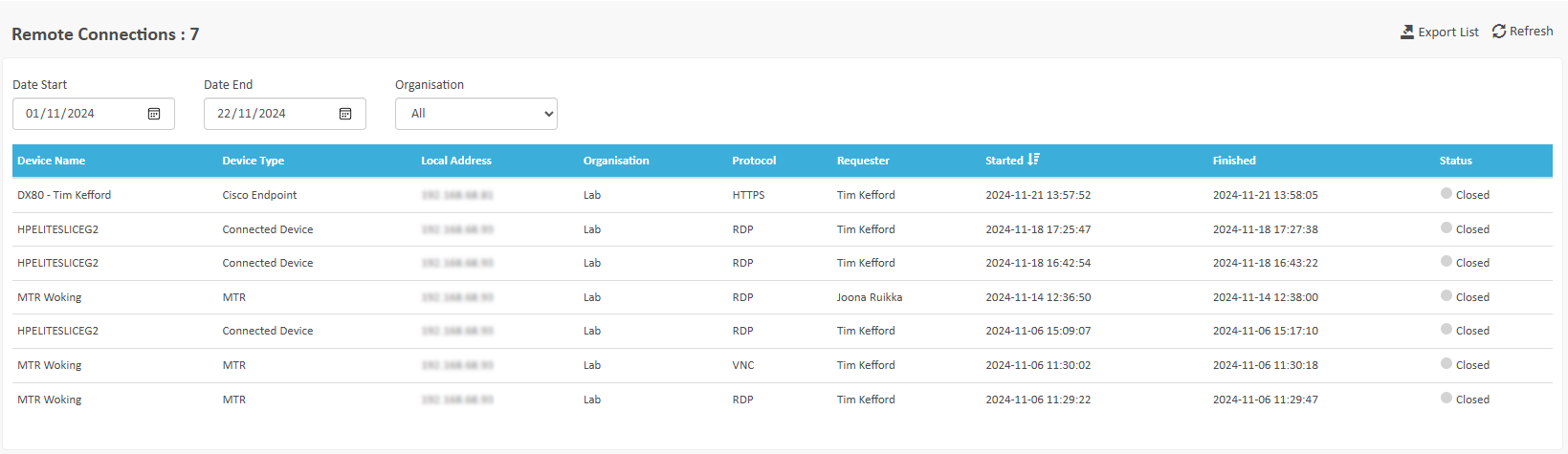
Remote Connections
This view allows you to audit the connections that have been made to remote devices using the Remote Connections feature. If you have not enabled this feature, you will not see any data in this page.
Tasks
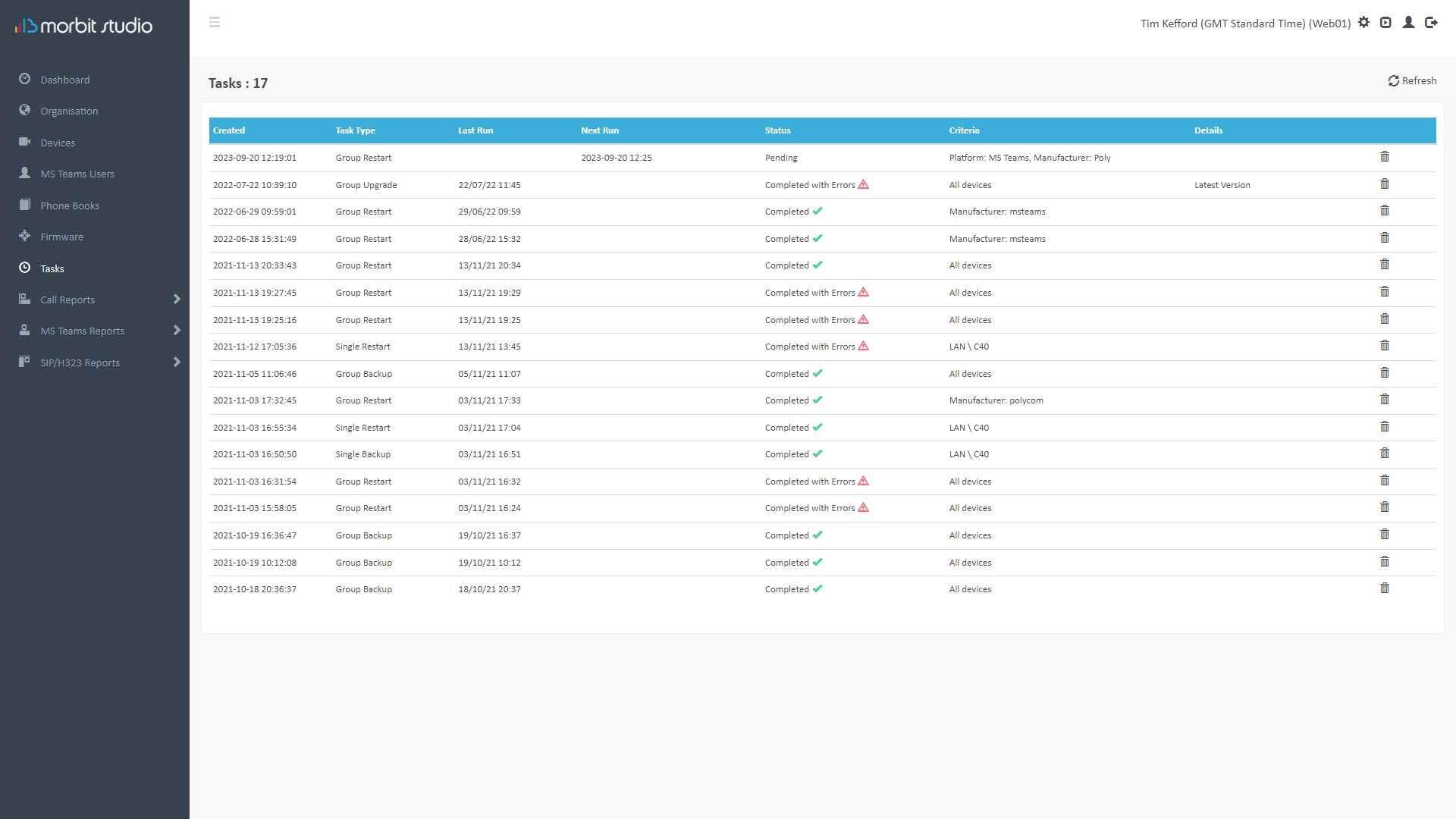
The Tasks screen allows you to view all the tasks set up in the platform. Any group upgrades, group backups, or group restart jobs will appear here and can be managed from this interface, along with individual task events.
Clicking a listed task will provide further details about it and provide timing details of how long it took and which Devices it affected. Likewise, any jobs with a status of ‘Completed with errors’ can be viewed and investigated. For example, a Device might be switched off during a backup task would generate this error.
Cisco Firmware
Note: This feature is only applicable to Cisco SIP/H.323 devices not registered to the Webex Control Hub
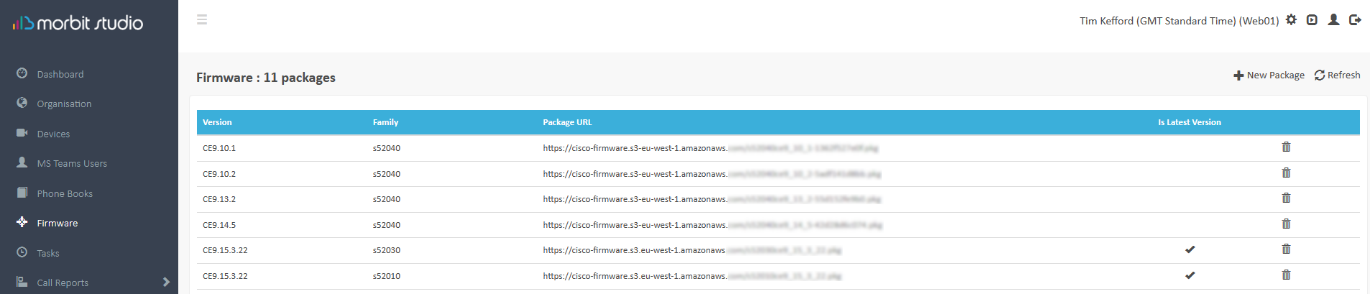
To enable the deployment of new firmware to supported Devices, you can create a Package.
To deploy a new firmware package, click the  button, and simply copy in the location of the firmware and click Save. The platform will recognise the file and identify the Devices that it works with automatically. All valid Devices will now have the option to upgrade to this version.
This must be a HTTP/HTTPS location that is accessible to the Devices – it is not necessary for morbit studio to have access to the files.
Firmware deployment – individual or group
You can deploy the firmware per Device as described here. Alternatively, you can choose to deploy this out to all compatible Devices in the estate, or just a subset of Devices.
To do choose your target Devices, load up the main Devices menu. Should you require it, using the filter views drill-down to the Device requirements that suits your needs. For example, use the ‘Organisations’ filter or ‘Registration filter’ to narrow down the targets. Whatever is in the Devices view, when clicking Group Processing > Group Upgrade Task on the top menu will apply the task to.
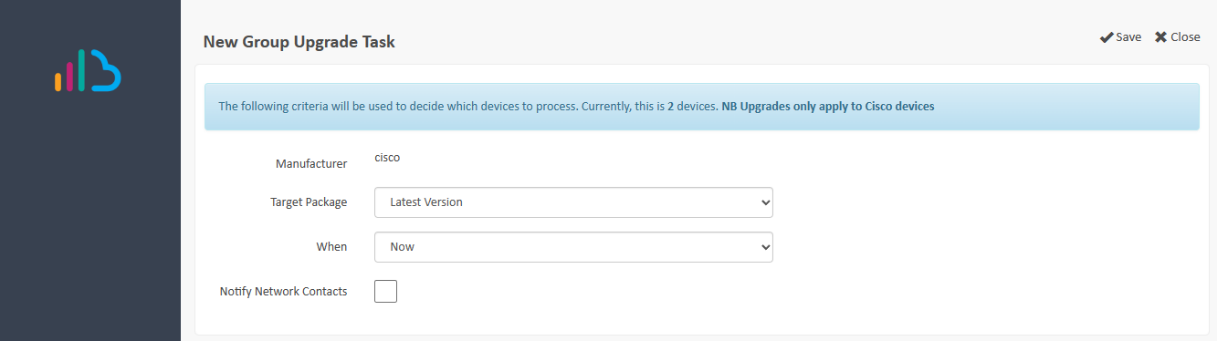
If no filters have been applied, a message is displayed at the top of the screen informing that the upgrade task will apply to all Devices. The options are:
- Target Package: Either Latest version is used, or you can use the drop-down to select a specific version of firmware.
- When: You can apply the task immediately using Now or else Schedule Once or Schedule Recurring.
- Notify Network Contacts: check this box to email the Network Contact that this work is taking place.
The advantage with using the option Latest Version is the system will deploy the latest firmware from the Packages in Firmware. It does not then require further thought as this will allow multiple firmware for different models to be deployed in a group job. The system will apply the correct software to the correct Devices. If deployed as a Scheduled Recurring task, then only new Packages need to be added in Firmware for the deployments to proceed and regular updates to be applied automatically.
Was this article helpful?
That’s Great!
Thank you for your feedback
Sorry! We couldn't be helpful
Thank you for your feedback
Feedback sent
We appreciate your effort and will try to fix the article