Clicking the Account menu  at the top right, will open the Account Details page. This section allows you to:
- General - Update your name details
- Users – Add, Change, Disable or Delete users of the system
- Security – Enable or disable multifactor authentication (MFA)
- Password – change your password
- MFA – set up your MFA login
The Security sub-menu is only available to Users with the Full Access permissions and the Security Administrator role assigned, whilst the MFA menu will only appear if MFA has been turned on in the Security settings.
Managing Users
To manage Users in the system , you need to be assigned the Security Administrator role. This is automatically assigned to the first account created the system. That User needs to assign the permission to new Users where appropriate.
Create a user
Note: This function requires the Security Administrator role.
Open the Users section and click the  button. In the New User screen, add the details of the user. Full Access provides the user with unrestricted access to the platform. Click Save to complete the new account. The new user will receive an email inviting them to complete their sign up to the platform and set up a password.
Resetting passwords and MFA access
Note: This function requires the Security Administrator role.
Select the User account you need to reset, and click the Security tab. From here you can reset the password by inputting the new password and clicking Save.
To reset the MFA, you can click the Reset MFA button.
Limited access role
A limited access role is enabled once the Full Access check box in the User Details screen is unchecked. This removes the following features:
- Firmware/Software – they can no longer view the Firmware menu or initiate software upgrades (or downgrades) of a Device.
- Tasks – the ability to create or schedule tasks is removed, as well as the Tasks menu.
- Organisations – the user is not able to create any new organisations.
Assigning user access to specific organisations
Should you want to assign a user(s) to only specific organisations, then select the user to open the User Details screen. Go to the Access sub-menu and tick the organisations they should be able to access, then click Save.
Multifactor Authentication (MFA)
Global Settings
To turn on MFA, go to the Security sub-menu and tick the Enable MFA box:
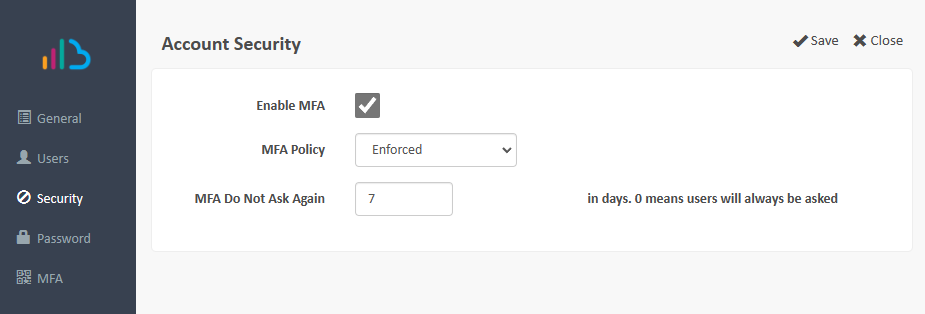
Settings enabled with MFA are:
- MFA Policy:
- Enforced – requires all users to set up and use MFA to login.
- Optional – users are given the option to set up MFA but are not required to enable it on their personal accounts.
- MFA Do Not Ask Again – The number of days between prompting for the MFA code (per device). A value of zero days will require the MFA code every time the user logs in.
Per Organisation MFA
Navigate to the System > Configuration menu. In the listed root Organisations, click the  icon to edit the entry.
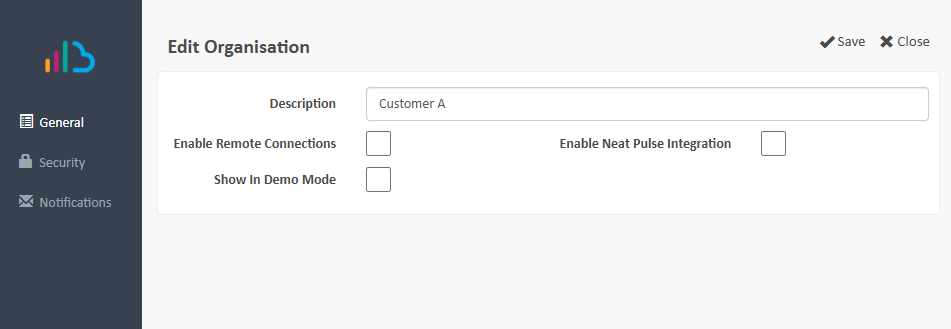
In the Security tab, Settings enabled with MFA are:
- MFA Setup:
- Inherited – this setting will inherit the same setting as the Global account settings. Other settings do not apply in this section.
- On - MFA is turned on, overriding the Global setting if switched off. Configure the remaining settings as required.
- Off – MFA is turned off, overriding the Global setting if switched on. Other settings do not apply in this section.
- MFA Policy:
- Enforced – requires all users to set up and use MFA to login.
- Optional – users are given the option to set up MFA but are not required to enable it on their personal accounts.
- MFA Do Not Ask Again – The number of days between prompting for the MFA code (per device). A value of zero days will require the MFA code every time the user logs in.
Configuring Personal MFA authentication
To complete the following personal MFA configuration, you will need to download and install an MFA application on your mobile/tablet device. Either one of these apps is supported:
- Microsoft Authenticator: https://www.microsoft.com/en-us/security/mobile-authenticator-app
- Google Authenticator: https://googleauthenticator.net/
Once MFA is enabled for your user account, click the Account menu  at the top right, and it will open the Account Details page. Click the MFA sub-menu, and this will load up the My Multi-Factor Authentication Set Up page.
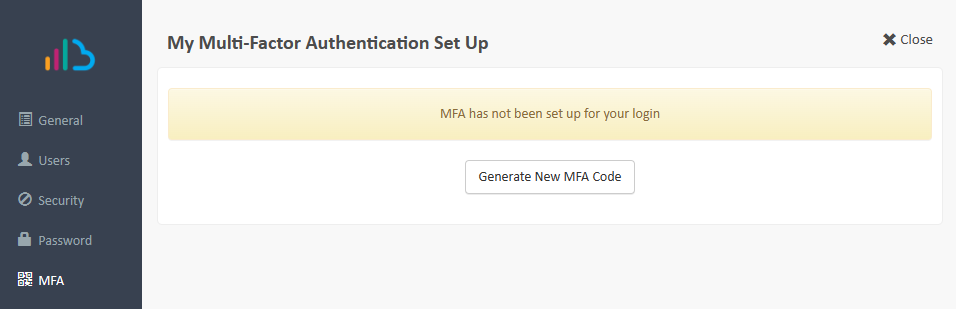
Click the Generate New MFA Code button. This will generate a new authentication QR code. Using your authenticator app, add a new authentication using your device camera and scanning the QR code.
Once the authentication has been added, you MUST click the Update button shown to complete the enrolment:
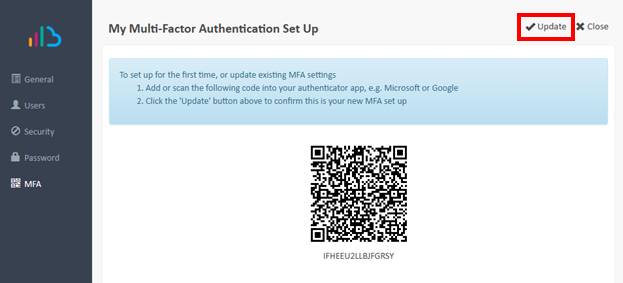
You can now click Close.
You can regenerate a new code at any time by following the above steps.
When you next login to the application you will be required to enter the 6-digit code generated within your authenticator application. If you do not have this available, you can get a code emailed to you as a backup:
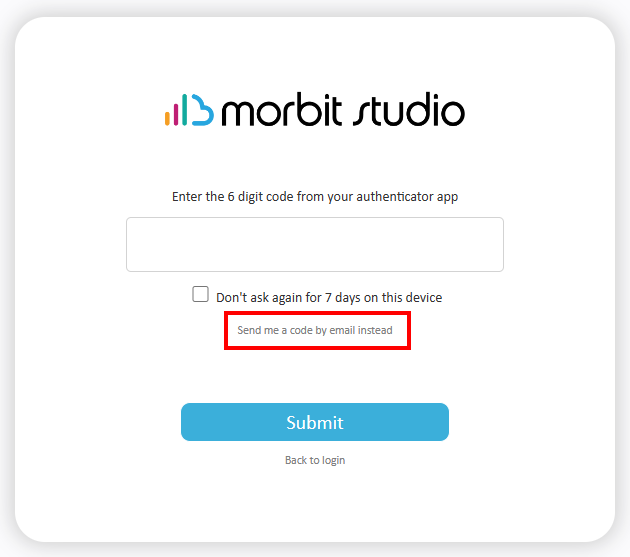
Clicking the Send me a code by email instead link will send you the code to your registered morbit studio email address. Simply complete the rest of the process using the code sent on your email.
Was this article helpful?
That’s Great!
Thank you for your feedback
Sorry! We couldn't be helpful
Thank you for your feedback
Feedback sent
We appreciate your effort and will try to fix the article