Alerts
A centralised view of all the alerts is available using the Alerts page. By default, the screen will open to show any existing alerts on the platform.
Using the column filters, further information can be provided.
To see all open and closed alerts over the current date range, change the Status filter to All.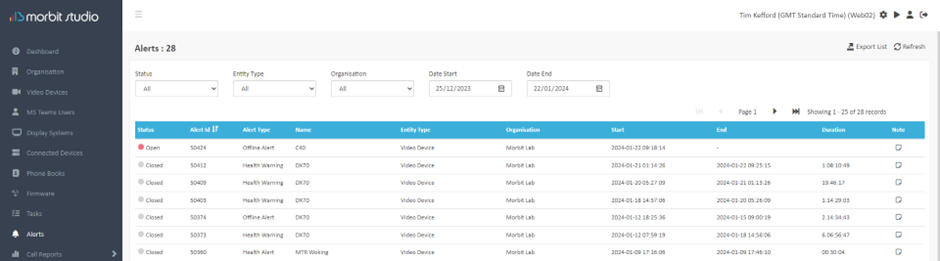
Clicking each alert listed will open up the device shown, so that further information can be gathered, or actions can be taken.
Notes
Notes may be written against an issue to help those working on it know any actions that have been done, or for adding any additional 3rd party information such as the ticket number from another solution.
To add information to an alert, click the notes icon at the end of the row. Add in the details you want, then click Save to save and close the screen. Alerts with notes added show as this  icon.
icon.
Was this article helpful?
That’s Great!
Thank you for your feedback
Sorry! We couldn't be helpful
Thank you for your feedback
Feedback sent
We appreciate your effort and will try to fix the article