You must have a Hub installed to configure and use this feature. See Create and Configure a Network and Installing the Morbit Hub sections.
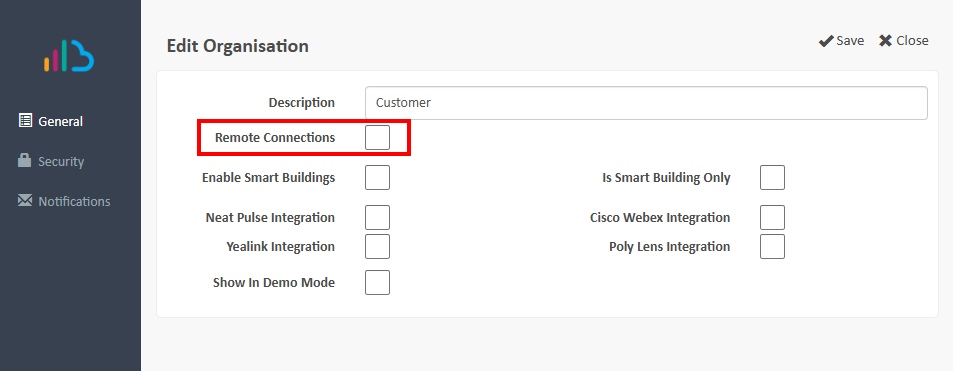
- In the System > Configuration screen, edit the Organisation you wish to enable remote connections for, and tick the box Enable Remote Connections. Click Save.
- In the same Organisation menu, click the Network where the installed Hub is located, when the screen loads, click the Hubs menu.
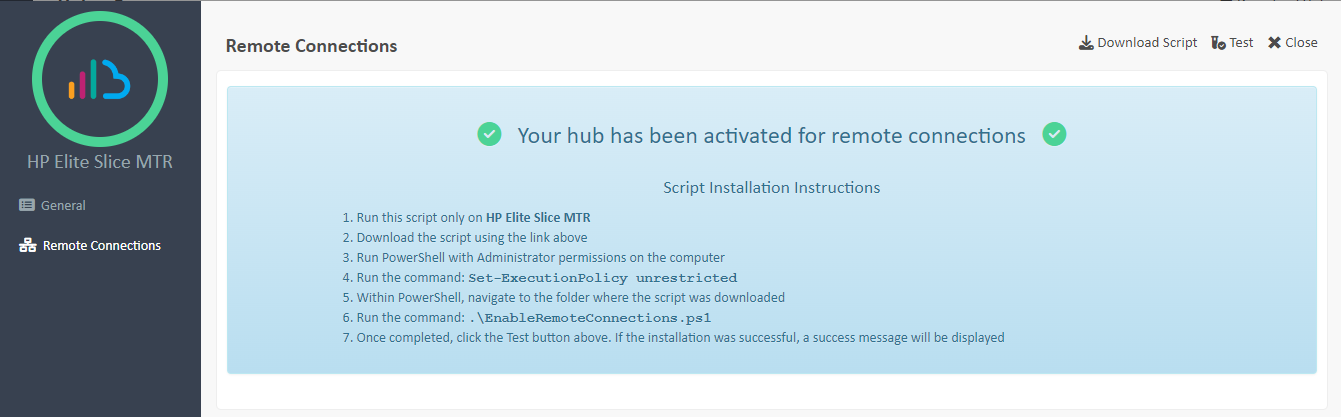
- Now click the name of the Hub where the devices you wish to connect to are located. When that loads up, click the Remote Connections menu, then the Click to enable it button. You will then see this screen.
 Note: for Linux installations, please use the instructions in this guide: Installing Remote Connections for Linux OSes
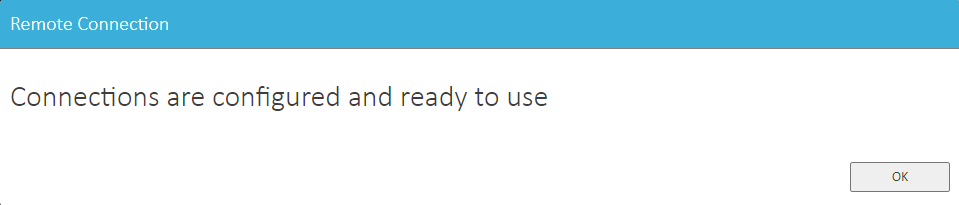
 - Follow the instructions on that screen. Once completed, click the Test option at the top of the loaded box. If it was successful you will see this screen:
- You an now start Remote Connections to Unified Comms Devices and Connected Devices that you have on the network that the Hub was installed on.
Was this article helpful?
That’s Great!
Thank you for your feedback
Sorry! We couldn't be helpful
Thank you for your feedback
Feedback sent
We appreciate your effort and will try to fix the article