Registration Usage
View the user registrations being used on the MS Teams platform – and those that aren’t – offering a view into ways to save licenses with MS Teams.
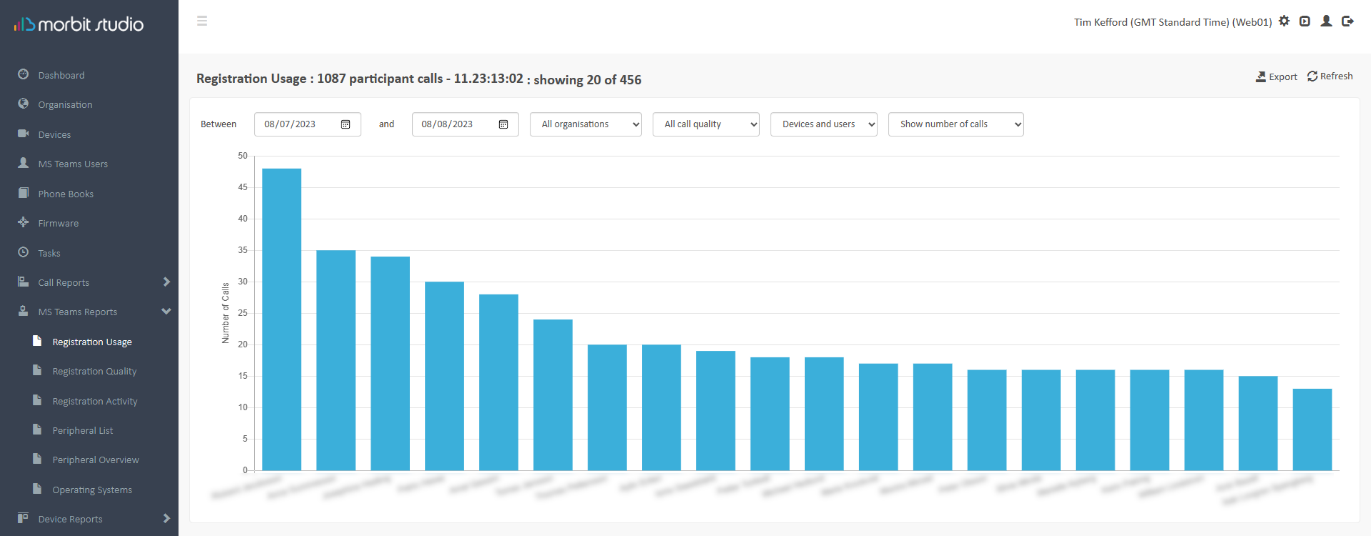
This view can be switched between Show number of Calls and Show number of minutes, and by Call Quality type. Using the Devices and users filter allows for switching between Devices only, Users only, or Devices and users which is the default view. The data in view can be exported to a CSV file, via the Export button.
Registration Quality
Whereas the Call Quality report shows the summary quality of a call, Registration Quality is the quality for each individual registration involved in a call.
Example: A group call with 5 participants is rated as ‘Good’. Four participants had ‘Good’ rated calls and 1 participant had a ‘Bad’ rated call. This would still be classed as a ‘Good Call’. In the Registration Quality report, each registration (participant) is individually rated, rather than on the summary (weighted) rating.
A useful report for highlighting users where the call quality is typically a problem. This can help pro-actively highlight network or devices issues and reduce support-related incidents.
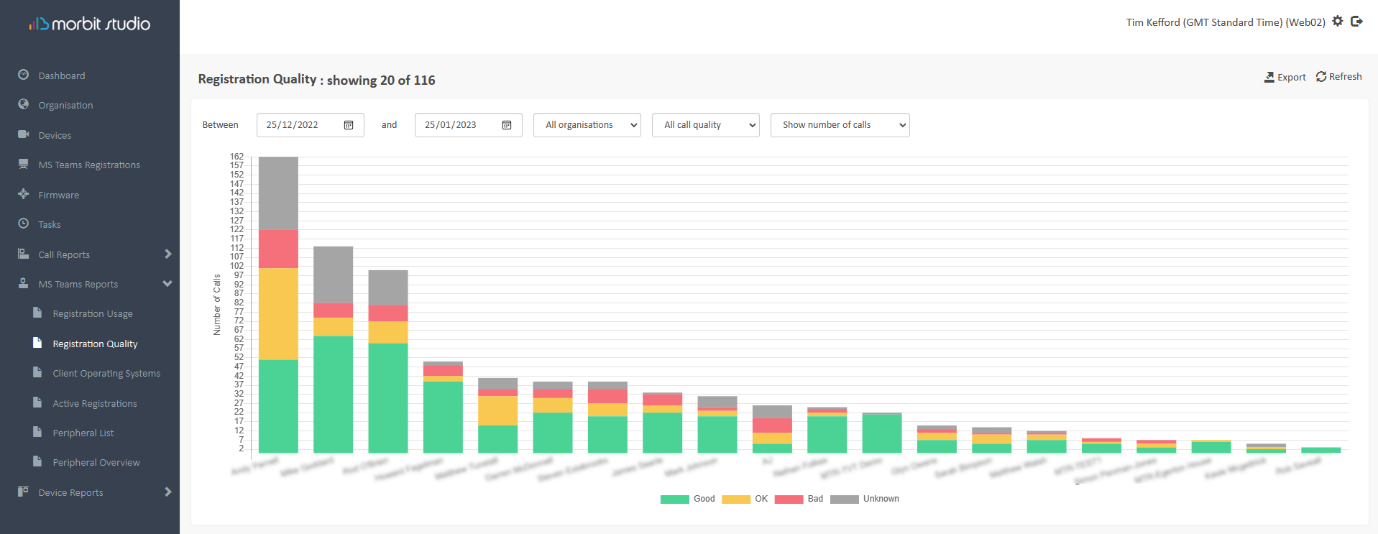
This view can be switched between Show number of Calls and Show number of minutes. Using the Devices and users filter allows for switching between Devices only, Users only, or Devices and users which is the default view. The data in view can be exported to a CSV file, via the Export button.
Registration Activity
A list view of the users on the platform, and their call volume and durations over a specified time range. This data can be exported via the Export button.
Peripheral List
Reporting on the used User peripherals and device operating systems used (Platform), can be viewed on the Peripherals List report. The peripheral types displayed are:
- Camera – manufacturer name and model
- Microphone – manufacturer name and model
- Speaker – manufacturer name and model
The recorded details are the Users name, the first and last time the peripherals were used, plus the number of times used (usage).
The Platforms section shows how the service and peripherals are being used. The possible displayed Platforms are:
- Windows
- macOS
- iOS
- Android
- Web
- IP Phone
- Room System
- Surface Hub
- Holo Lens
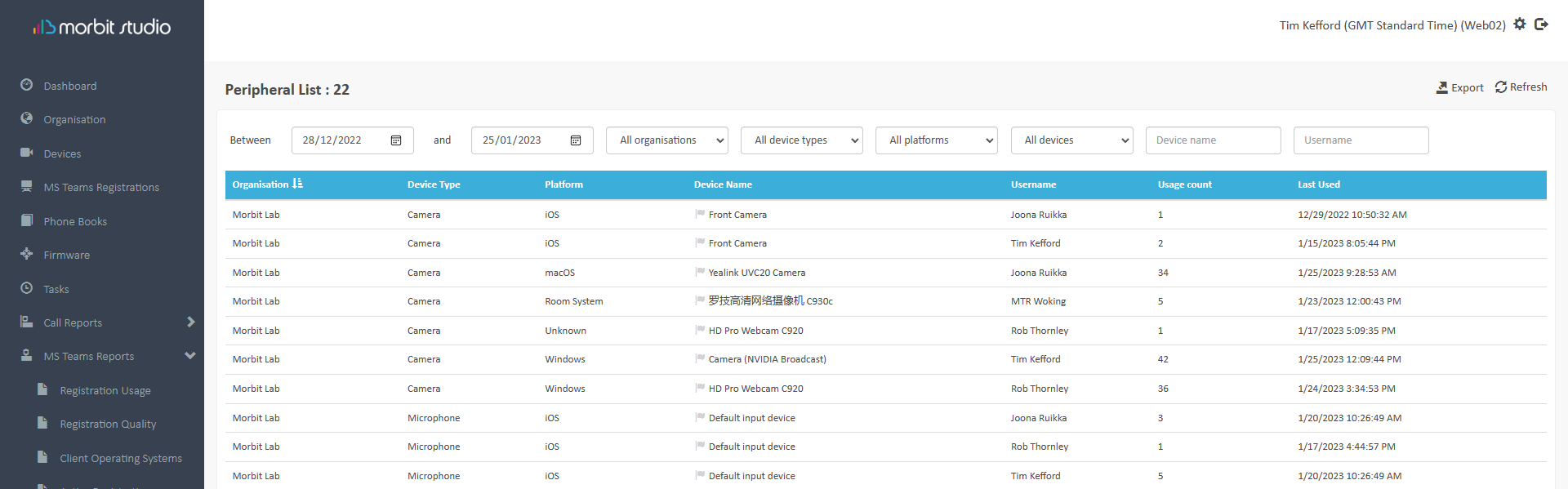
If you want to filter against specific devices, clicking the flag symbol  next to the item in the Device Name column will allow you to monitor specific devices being used. These can then be filtered into a single view using the All Devices drop-down list and selecting Flagged Only. To unselect a device, simply click the highlighted flag
  to remove the selection.
This data can be exported via the Export button.
Peripheral Overview
The Peripherals Overview is a simple way to review the total peripherals in use, by summarising them into device counts across Cameras, Microphones and Speakers. This data can be exported via the Export button.
Client Operating Systems
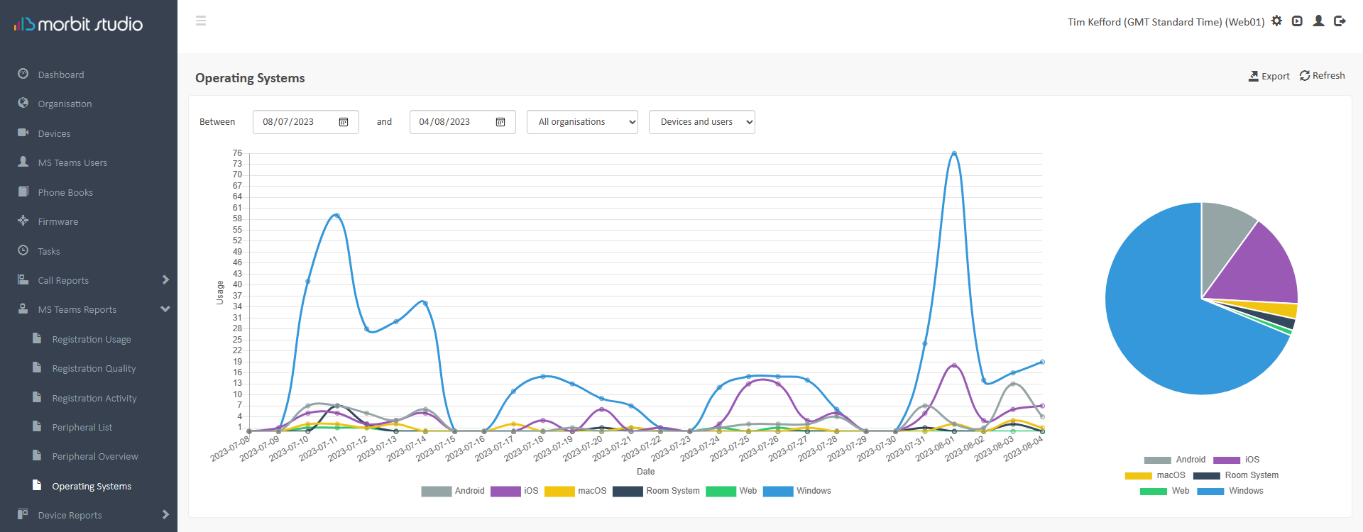
Understanding the usage patterns of the different ways to communicate using the MS Teams software client provides useful business information. The Client Operating Systems reports splits out this information to show how the business is working on the MS Teams platform.
The software operating systems for viewing are:
- Windows
- macOS
- iOS (iPhone and iPad)
- IP Phone
- Android (mobile OS, not Teams Room for Android)
- Room System (MTR’s for Windows and Android)
- Surface Hub
- Web
Was this article helpful?
That’s Great!
Thank you for your feedback
Sorry! We couldn't be helpful
Thank you for your feedback
Feedback sent
We appreciate your effort and will try to fix the article