At Morbit we take our responsibilities for how we handle your data very seriously. When demoing our solution, you need to make sure that you only show information you want people to see – typically your own data.
’Demo Mode’ allows you to easily switch On and Off the visibility of the Organisation data you have across your entire platform.
Setting up Demo Mode
The follow examples are taken from our Lab environment and test data to help walk you through the settings.
Account Permissions
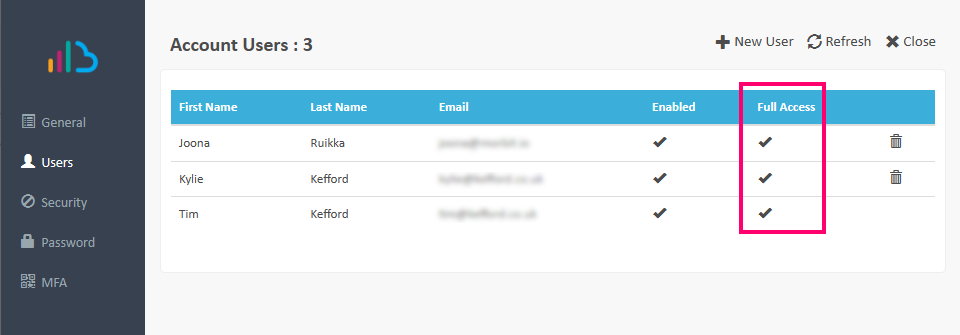
To be able to use Demo Mode, you need to have ‘Full Access’ rights to your company settings. To check this, go into your account settings and in the Users menu check for the ‘Full Access’ tick against your account:
Assigning the Company for Demo Mode
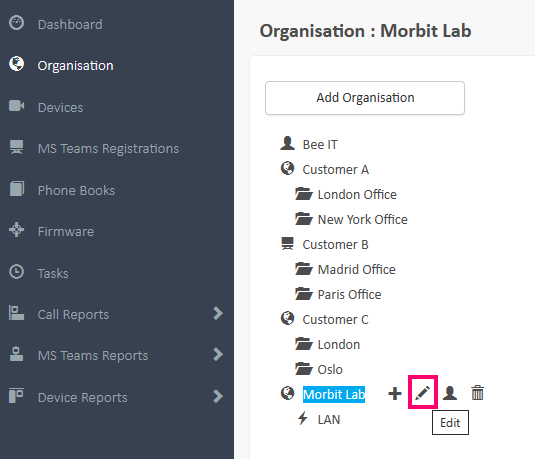
Go to the Organisation menu and next to the company you want to only show in demos, select the  icon to edit the settings:
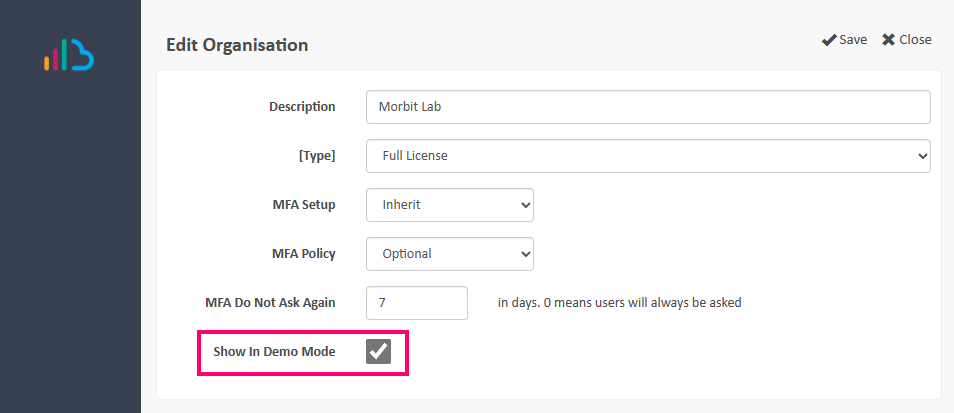
Select the Show in Demo Mode tick box and click Save:
You can repeat the same Company selection for more applicable companies should you want to show them in Demo Mode too.
Turning On and Off Demo Mode
To turn on and off the Demo Mode feature, simply click the  button at the top right of the screen and confirm the requirement when prompted. The button will go green to signify it’s turned on
  .
.
Click the button again to turn Demo Mode off.
When in Demo Mode, all screens will show data and reports for the Company setup you’ve chosen.
Was this article helpful?
That’s Great!
Thank you for your feedback
Sorry! We couldn't be helpful
Thank you for your feedback
Feedback sent
We appreciate your effort and will try to fix the article