This guide was written for the APPC-10Sxx display series running Android v13. Instructions may vary.
Prerequisites
- A factory formatted ProDVX display device. If you need to reset a device, do the following:
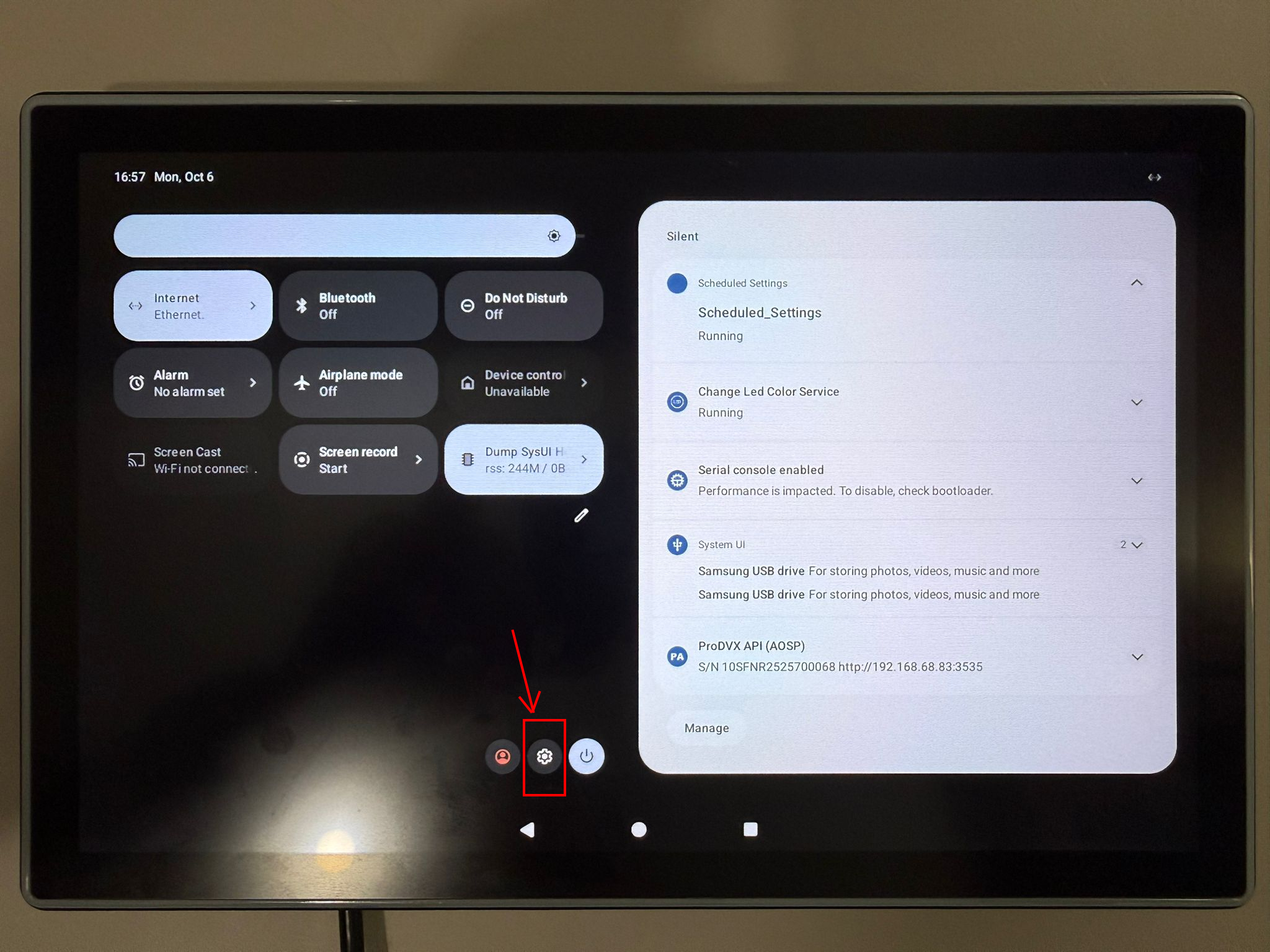
- Swipe down from the top of the screen and load the quick controls page, then select the cog icon to load the settings page.
- In the settings, navigate to and tap the 'System' menu on the left pane.
- In the right pane, select 'Reset options' from the bottom of the options.
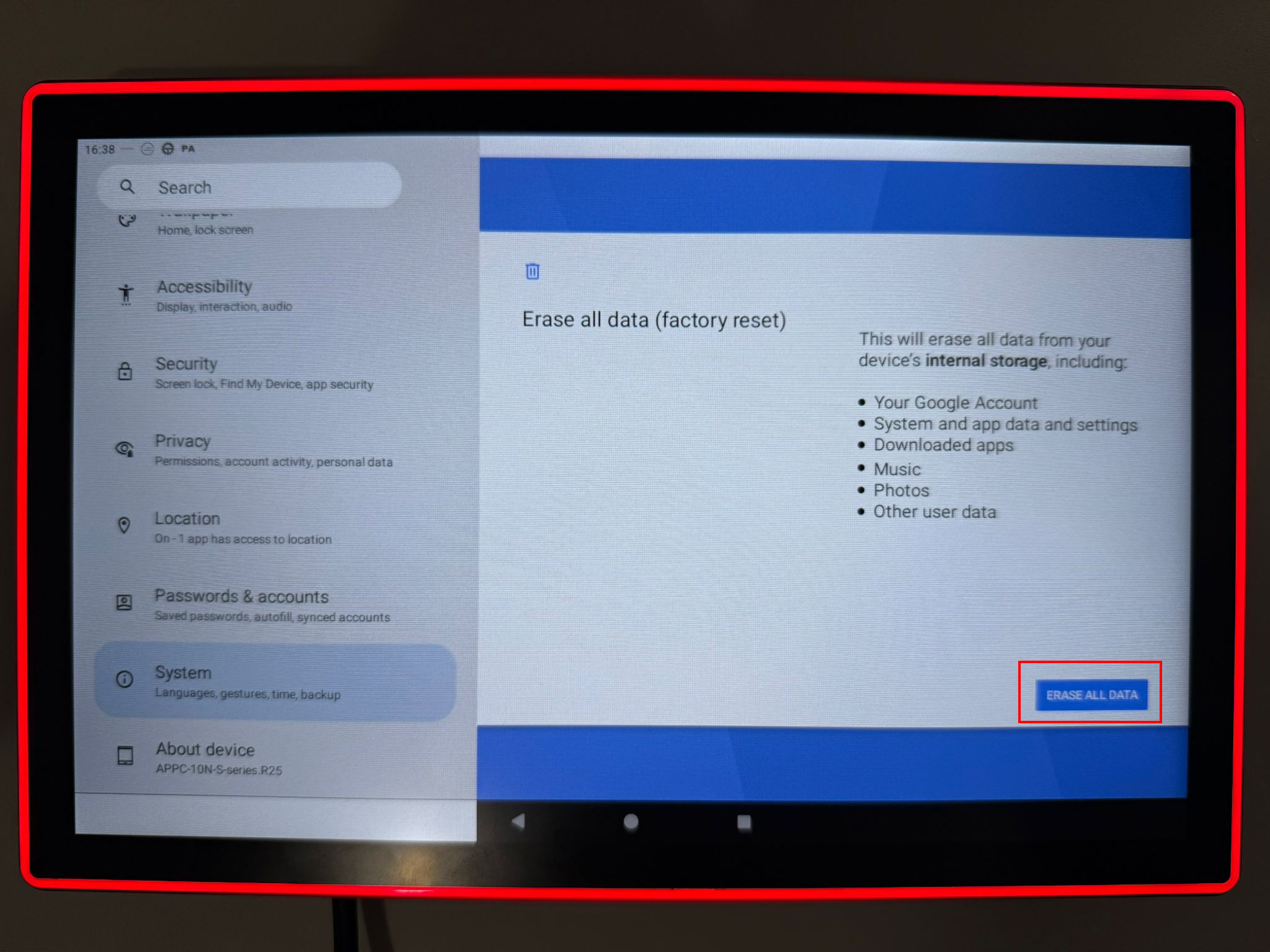
- Select 'Erase all data (factory reset)' and complete the process shown by finally taping the 'Erase All Data' button.
- Swipe down from the top of the screen and load the quick controls page, then select the cog icon to load the settings page.
- A USB-A key file formatted to NFTS.
Setting up for installation
- Download the latest Morbit Door Panel Android app from here: https://morbit-files.s3.eu-west-1.amazonaws.com/app-release.apk
- Transfer the APK file onto a USB key (NTFS formatted)
Completing the ProDVX Setup Wizard
- From the initial installation wizard, click 'Start'.
- On the 'ProMGR' screen, select 'Disable' and then 'Continue'.
- On the 'ProDVX API' screen, select 'Enable' and then 'Continue'.
- On the 'Autostart' screen, select 'Disable' and then 'Continue'.
- On the 'Screen timeout', select 'Never' and then 'Continue'
- Once the 'Success' screen is loaded, click the 'reboot device' button to finish the initial setup.
Installing the Morbit Door Panel application
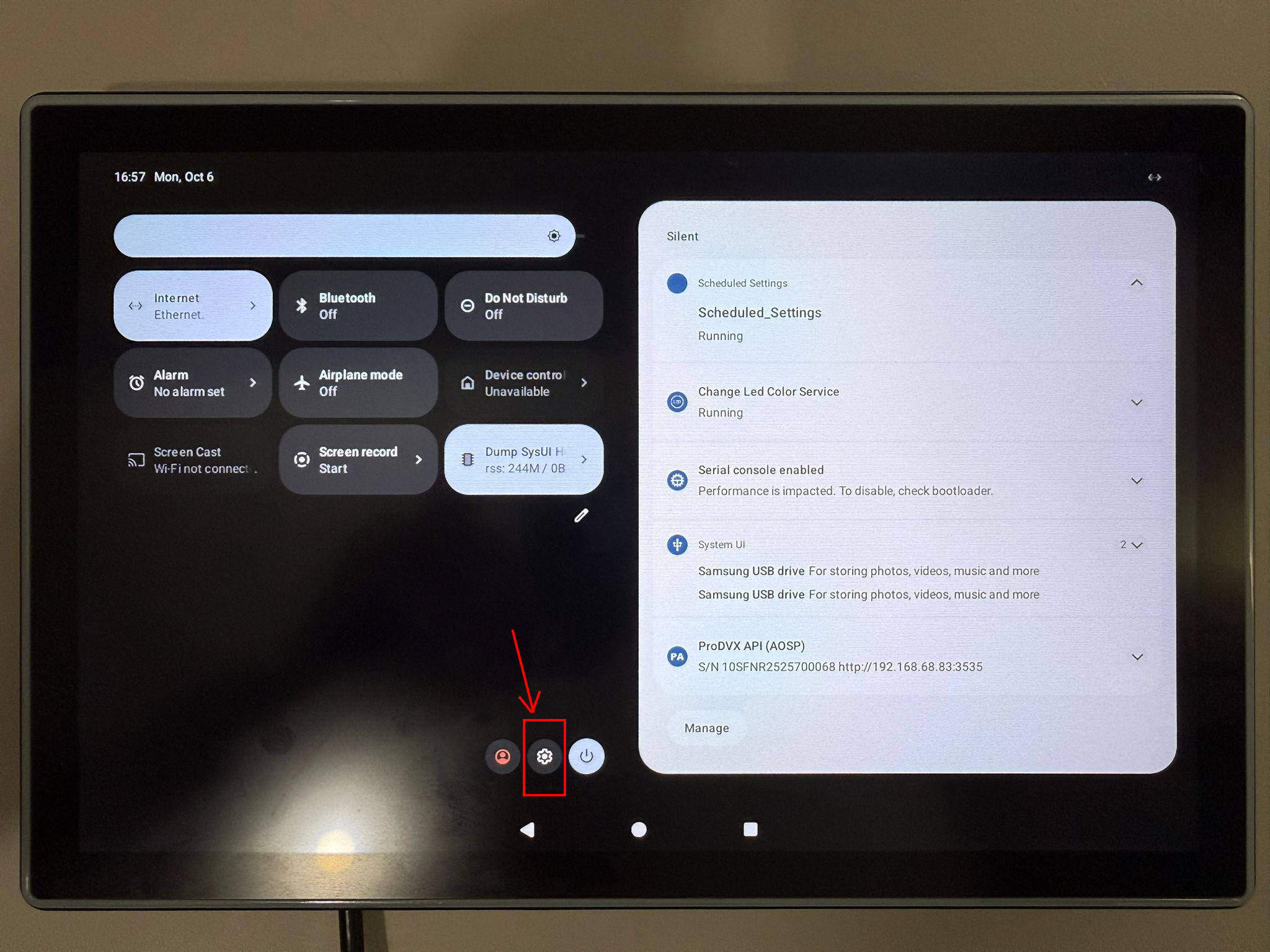
- On the initial load screen, swipe down from the top of the screen to get to the quick controls page. At the bottom of the page is a cog icon, tap it to load up the System Settings page.
- (Optional) From the Settings menu, you can set up the networking options for the device in the 'Network & Internet' menu on the left.
- Place the USB key in the ProDVX device.
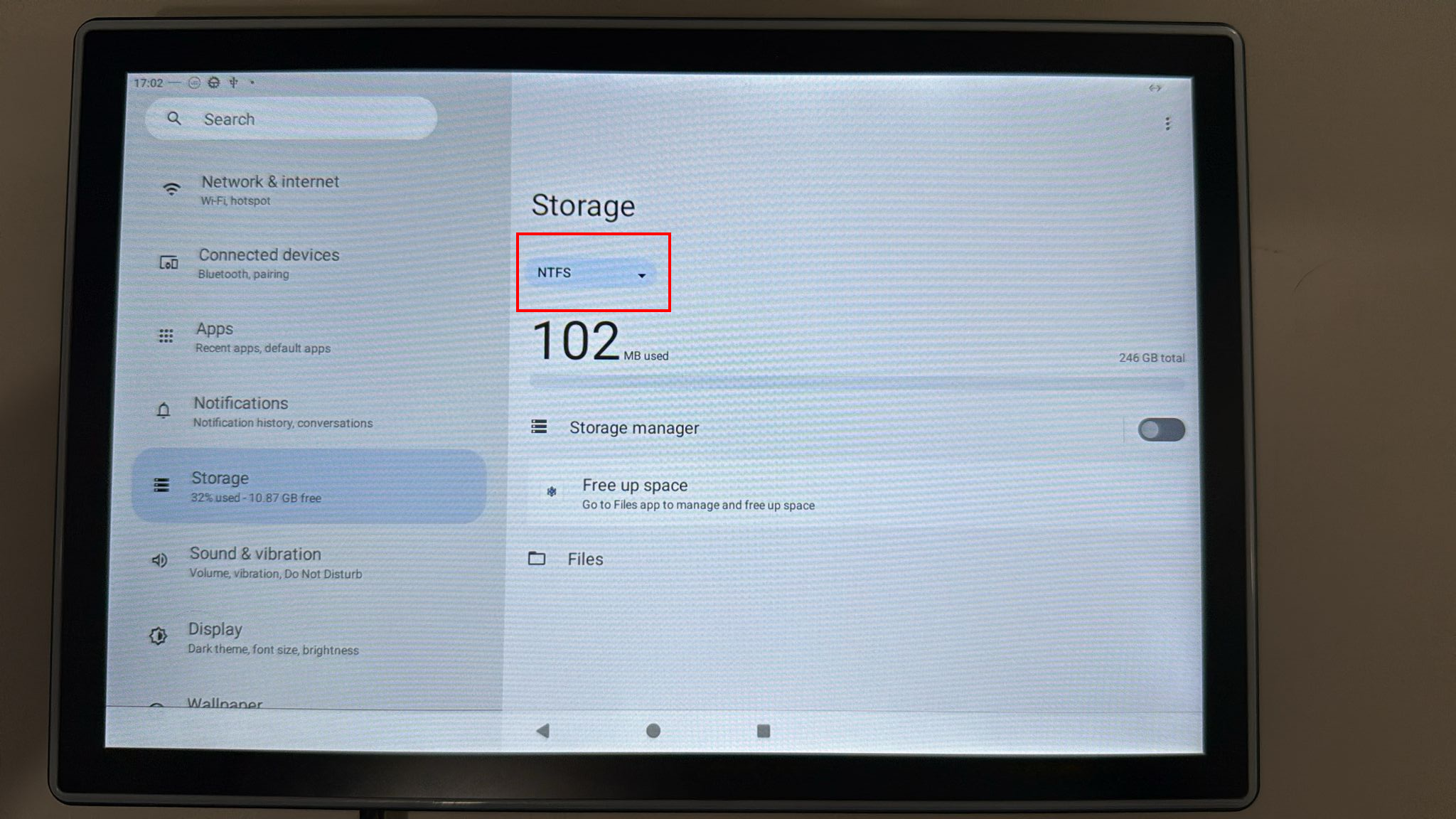
- Navigate to Storage and tap the 'This device' drop-down box and select the USB key.
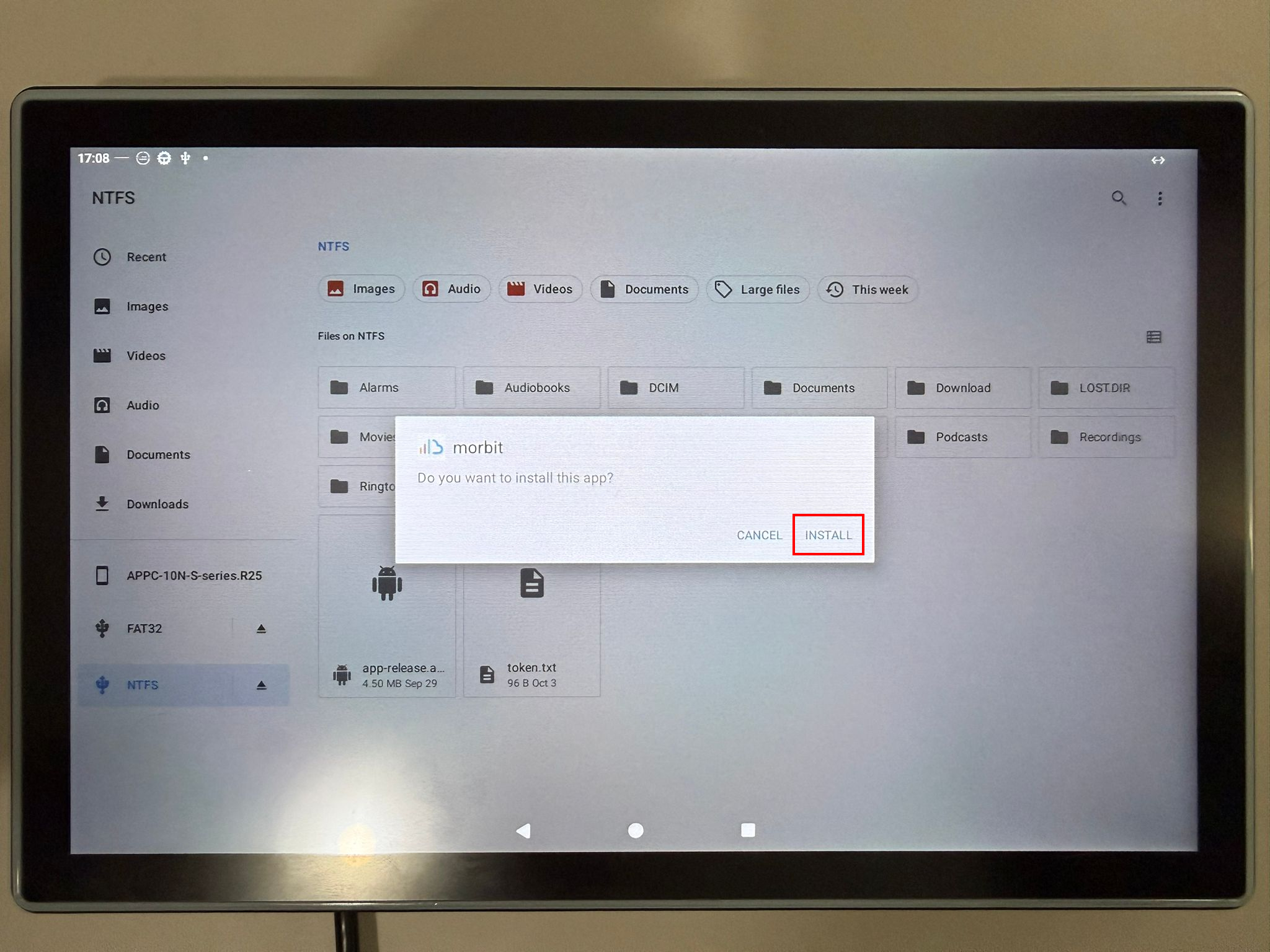
- Tap 'Files', and then tap 'app-release.apk' choose to install it (clicking the 'Continue' button upon the notification message, then 'Install'. Open it when the installation is complete.
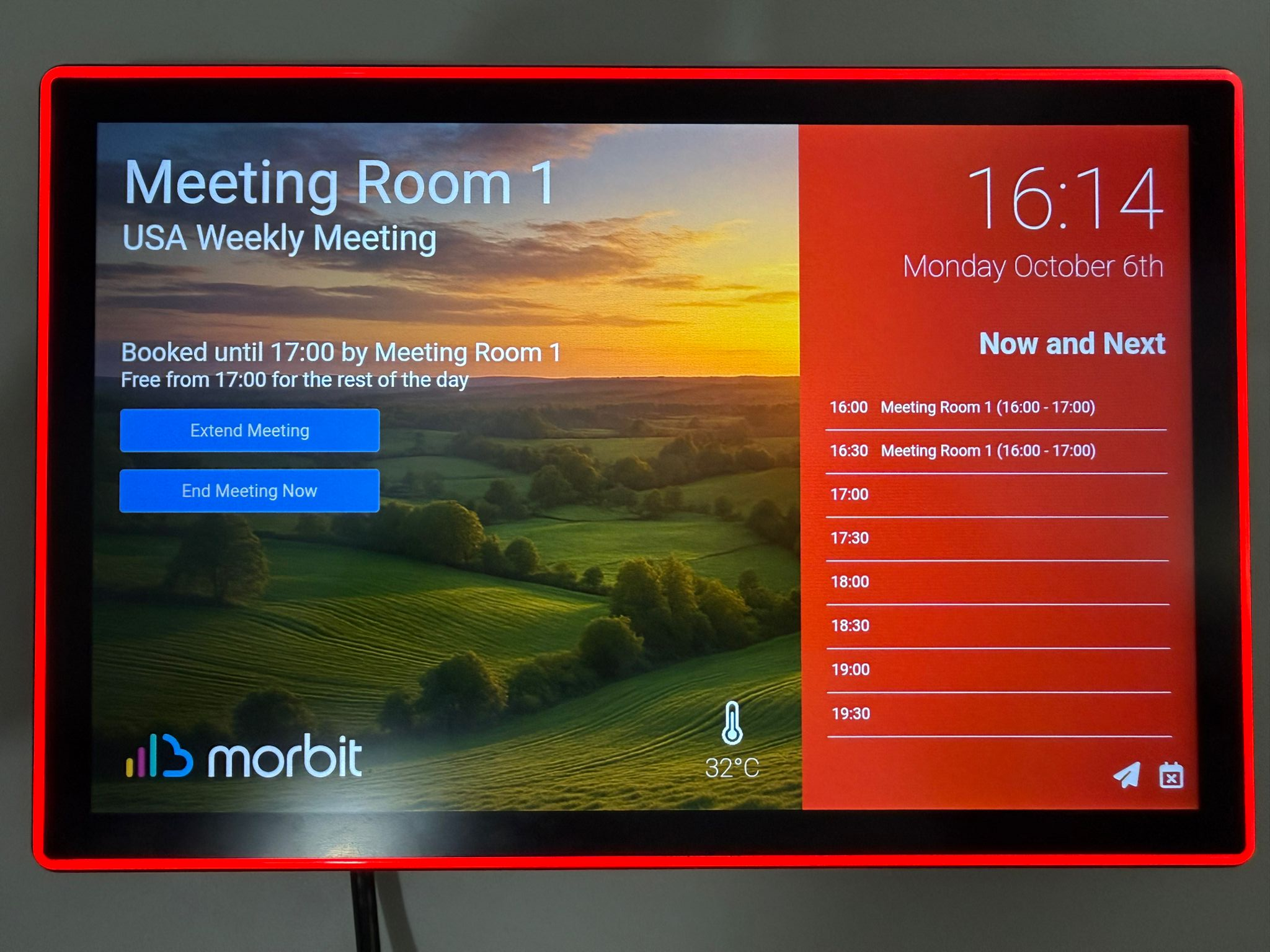
- (Optional) You can now test the LED lights by clicking on the 'TEST LEDS' button.
- In the 'Enter your Door Panel ID' section, add the Door Panel ID you are setting up.
- Tap 'Save Settings' to complete the installation. You may also remove the USB key now too.
Final tasks for completion
These devices need to have a couple of jobs completed once the application is installed, these are:
- How to get back into the Settings screen
- Set the correct time zone.
- Set the Morbit Door Panel application to be the default launched application (in case of power outage or device reboot).
- (Optional) Hide Android swipe up and down menus
- (Optional) Schedule reboots
How to get into the Settings screen
Place 2 fingers onto the screen, and this will initiate a displayed 3 second count down. Keep holding for those 3 seconds, then the Settings screen will appear.
Setting the correct time zone
In the Settings screen, tap the 'System Settings' button. Navigate to and tap the 'System' menu on the left (scroll down to near the bottom). Tap 'Date & Time' on the right pane. From here set your correct time zone.
Set as the default launch application
In the Settings screen, navigate to and tap the 'Apps' menu on the left pane. When the apps are listed, tap on 'morbit'. In the right-side pane, scroll down to 'Home app' and tap it. On the screen that opens, select 'morbit'. It will now load you back into the door panel application. If you want to validate this is set, repeat the previous steps here and you should see 'Home app' has a value now of 'Yes'. You can also reboot the device to validate.
Hide Android up and down swipe menus
In the Settings screen, tap the 'System Settings' button. Navigate to and tap the 'Display' menu on the left. In the right pane, scroll down to the 'Hide status bar' option and Enable it. On the left menu, tab the 'Apps' option, then tap 'morbit'.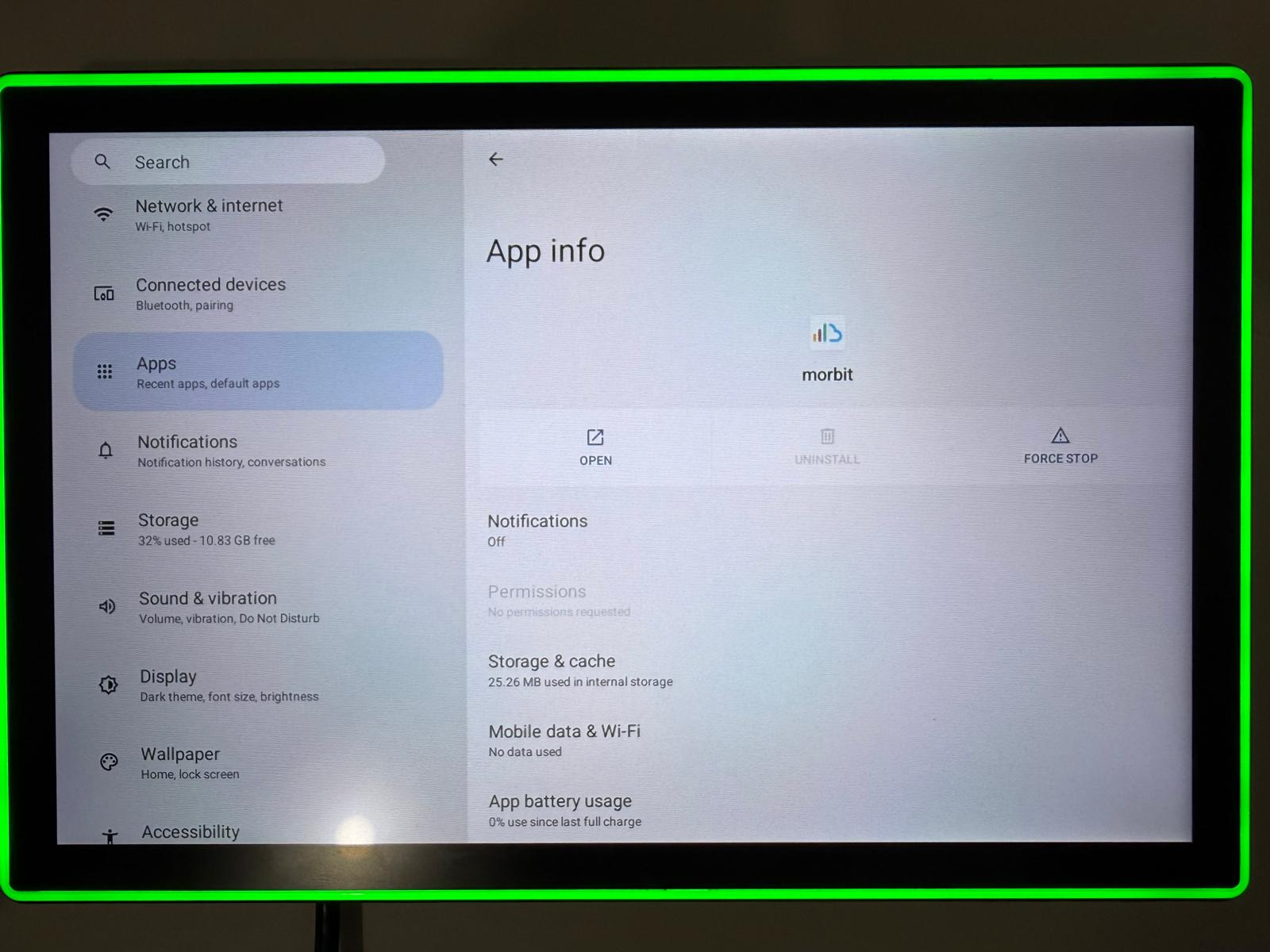
Now click the 'Open' option to reload the application. You will need to use this method going forward since the Status bars will now be hidden.
Schedule reboots
In the Settings screen, tap the 'System Settings' button. Navigate to and tap the 'System' menu on the left. In the right pane, tap 'Digital signage options'. Now tap 'Schedule' section and it will load up a number of options. To set a reboot schedule, tap the row with the reboot option. Set your preferred Time and Repeat options and then tap 'Done'. This should now show as enabled with the right side box ticked. 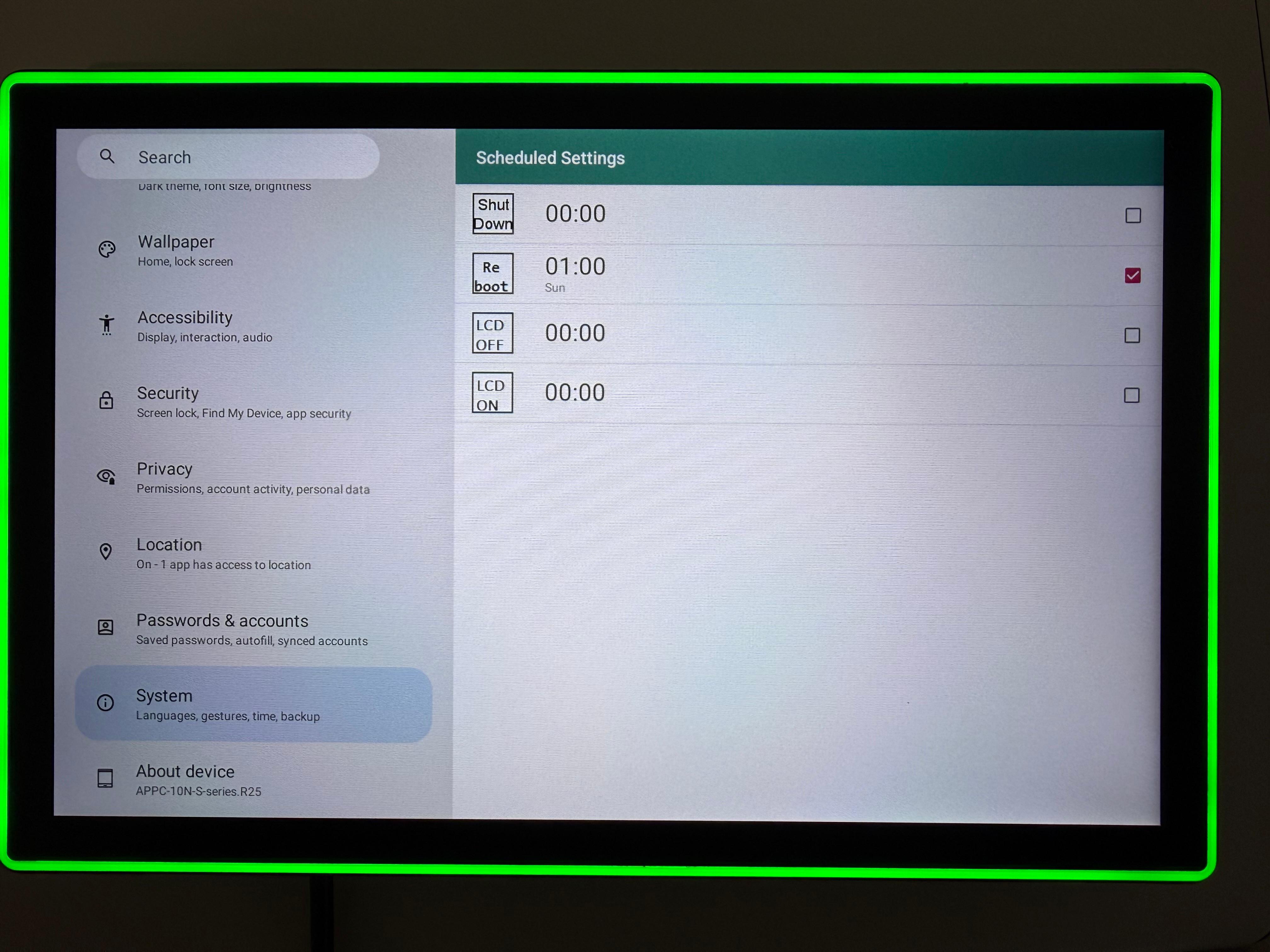
In the example above, a weekly reboot on Sunday at 1am has been set.
Important: Made sure you have completed the 'Set as the default launch application' section, otherwise the Door Panel app won't automatically load.
Was this article helpful?
That’s Great!
Thank you for your feedback
Sorry! We couldn't be helpful
Thank you for your feedback
Feedback sent
We appreciate your effort and will try to fix the article